Google Play Store Setup for Early Payouts


For Early Payouts on Google Play, you need to:
- Invite
payouts@revenuecat.comto your Google Play Console with Admin access - Add
payouts@revenuecat.comin Google Payments Center with read-only access and payment emails - Create a Google Cloud Service Account and download its JSON key
- Copy the financial reports GCS bucket name and upload credentials to RevenueCat
- Change your Play Store payout bank account to the account we provision
1. Google Play Console Access
Invite payouts@revenuecat.com as a user in your Google Play Console with Admin (all permissions) access.
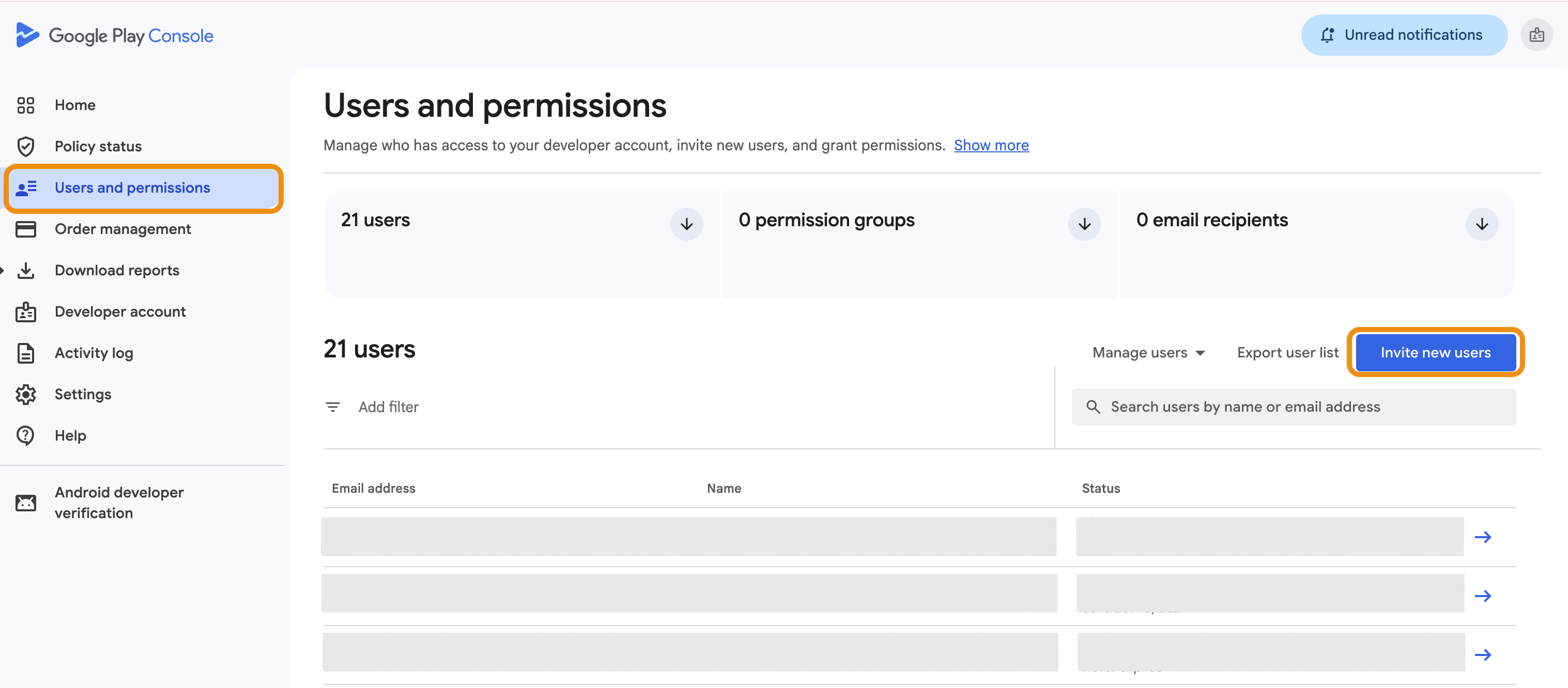
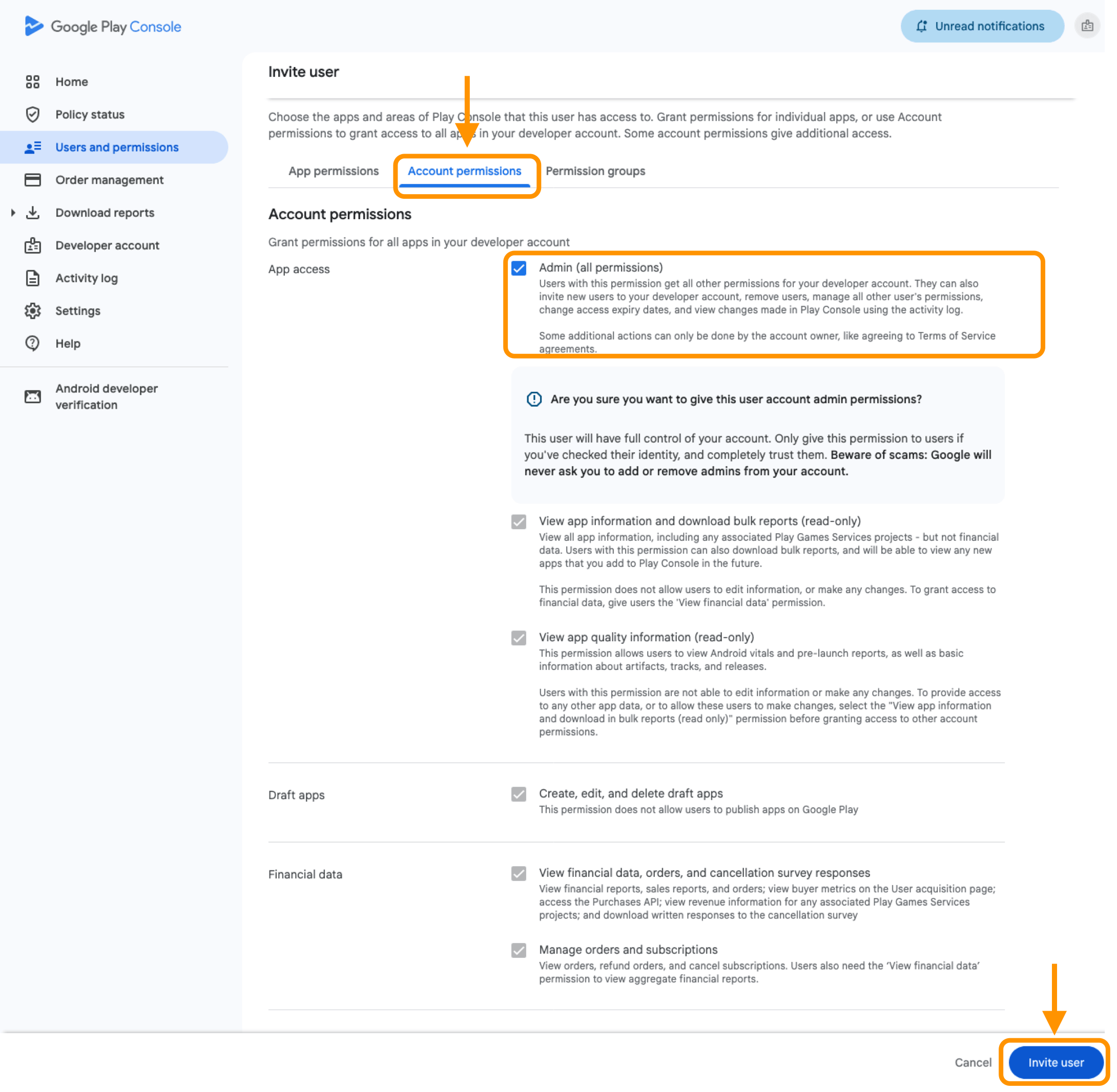
Admin access is required so we can be notified of potential issues with your Google Play account.
- Go to Google Play Console
- Click Users and permissions in the left sidebar
- Click Invite new users
- Enter
payouts@revenuecat.com - Under Account permissions, select Admin (all permissions)
- Click Invite user
2. Google Payments Center Access
Add payouts@revenuecat.com as a payment user in Google Payments Center so RevenueCat can monitor payout-related payment data and notifications.
- Go to Google Payments Center
- Click Settings
- Click Manage payment users
- Add user:
payouts@revenuecat.com - Under Permissions, select Read access
- Under Email preferences, select All payments email
- Click Invite
3. Google Cloud Service Account Key
We need a GCP Service Account JSON key to programmatically access the Google Play Developer API for financial reports.
Create the Service Account
Before proceeding, make sure the Android Developer API is enabled in the GCP project where you'll create the service account. You can enable it in Google Cloud Console under APIs & Services > Library, then search for "Google Play Android Developer API".
- Go to Google Cloud Console
- Select the GCP project where you want to create the service account
- Go to IAM & Admin > Service Accounts
- Click Create Service Account
- Name:
revenuecat-daily-payouts - Description:
Service account for RevenueCat Early Payouts to access financial reports - Click Create and Continue
- Skip the "Grant this service account access to project" step (no GCP roles needed) — click Continue
- Skip the "Grant users access to this service account" step — click Done
Download the JSON Key
- Click on the service account you just created
- Go to the Keys tab
- Click Add Key > Create new key
- Select JSON and click Create
- Save the downloaded JSON file
Grant Play Console Permissions to the Service Account
- Open the downloaded JSON file and copy the
client_emailvalue (it looks likerevenuecat-daily-payouts@your-project.iam.gserviceaccount.com) - Go to Google Play Console > Users and permissions
- Click Invite new users
- Paste the
client_email - Under Account permissions, enable:
- View app information and download bulk reports
- View financial data, orders, and cancellation survey responses
- Click Invite user
After inviting the service account to Google Play Console, it can take up to 36 hours before permissions are propagated. Please wait until then for step number 4.
4. GCS Bucket Name & Upload to RevenueCat
Copy the GCS Bucket Name
Google Play stores financial reports in a Google Cloud Storage bucket. We need the bucket name to download Earnings reports.
- In Google Play Console, click Download reports in the left sidebar
- Go to the Financial tab
- Copy the Cloud Storage URI — it looks like
gs://pubsite_prod_XXXXXXXXXXXX
The service account from step 3 automatically gets read access to this bucket once it has the financial data permission in Play Console.
Upload to RevenueCat
- Go to RevenueCat Dashboard
- Click on Connect to Play Store
- Upload the JSON key file (downloaded in Step 3. Google Cloud Service Account Key)
- Enter the GCS bucket name
- Click on the Connect button
5. Bank Account Change
Play Store payouts go to the bank account configured in your Google Payments profile. In order for your RevenueCat Early Payouts bank account to receive payouts, you need to head over to your Google Payments profile and change your payout bank account to the bank account details we'll provide you through e-mail or dashboard.
- Go to Google Payments Profile
- Click on Subscriptions & Services
- On the Google Play Apps card, click on Manage
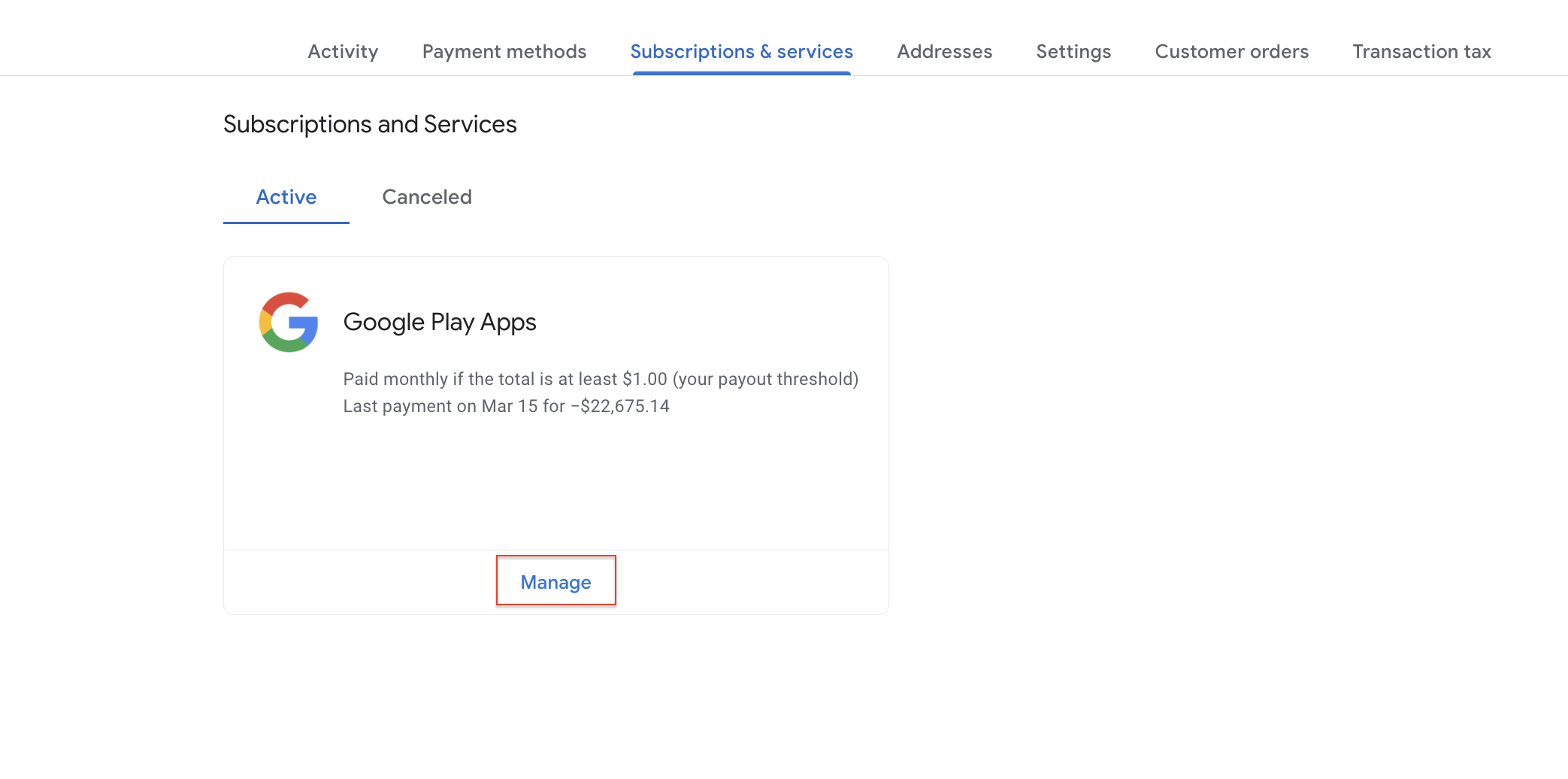
- Click on Manage payment methods
- Click on Add payment method
- Change your payout bank account to the bank account details we'll provide you through e-mail or dashboard.
- Make sure to check "Set as primary payment method"
- Click on Save
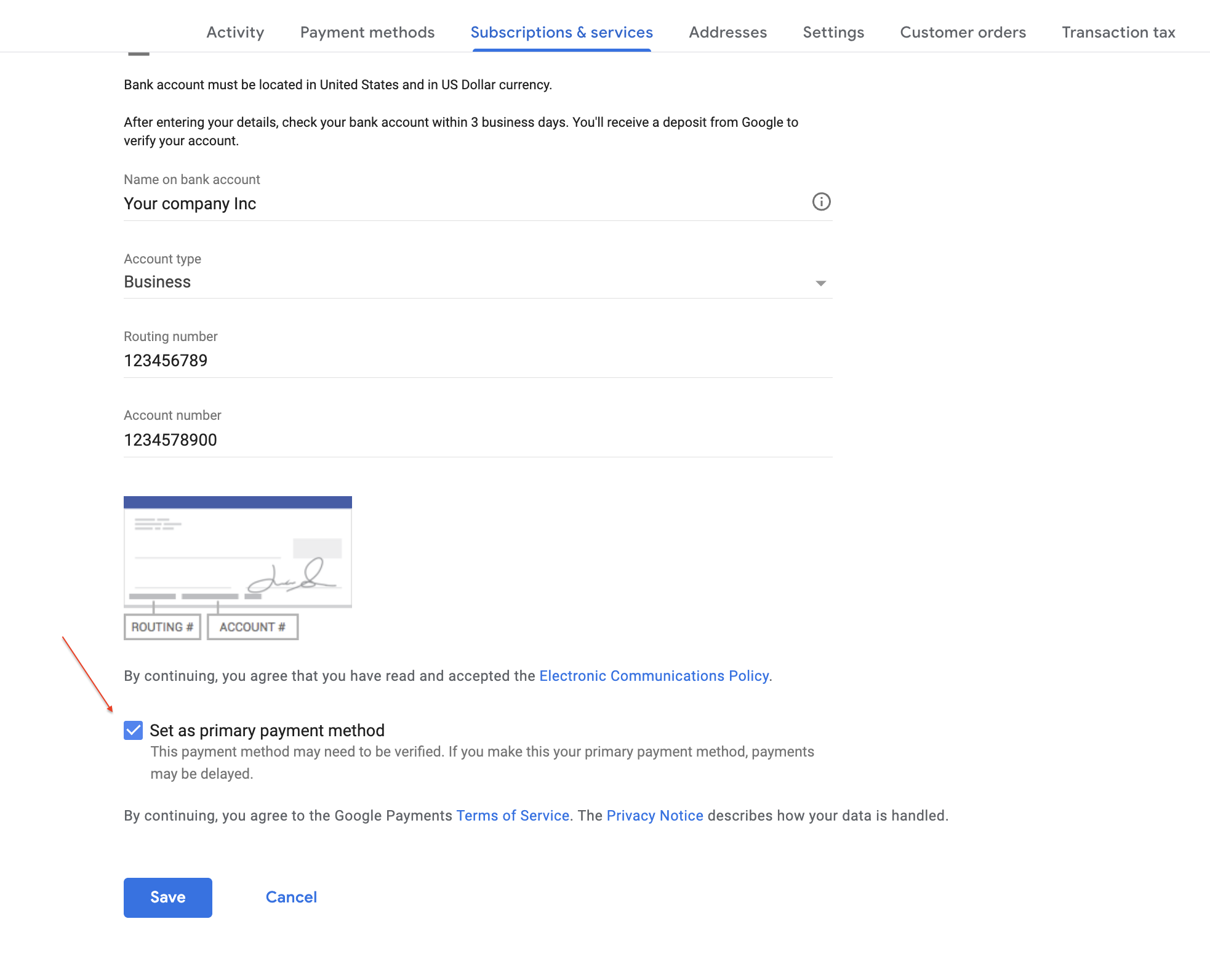
The new payment method will need to be verified. We'll send you an e-mail with the amount of the verification micro-deposit once it arrives.