Airbridge
Integrate Purchases SDK with Airbridge for precise revenue tracking



With our Airbridge integration you can:
- Attribute subscription revenue and lifecycle events to the Airbridge campaigns that drove them.
- Stream trial conversions, renewals, cancellations, and more directly from RevenueCat without relying on an app in the foreground.
- Continue measuring long-tail revenue from each campaign as subscriptions renew over time.
Integration at a glance
| Revenue support | Supports Negative Revenue | Sends Sandbox Events | Includes Customer Attributes | Sends Transfer Events | Optional Event Types |
|---|---|---|---|---|---|
| ✅ | ❌ | ✅ | Standard Reserved Attributes | ❌ | non_subscription_purchase_event expiration_event billing_issue_event product_change_event |
For a cross-provider view of identifiers, revenue support, sandbox behavior, and attribution responsibilities, see the attribution provider comparison.
1. Install the Airbridge SDK
Set up the latest Airbridge SDK in every platform where you collect purchases before enabling the integration. Refer to the Airbridge developer documentation for the most up-to-date installation instructions.
2. Send device data to RevenueCat
Airbridge matches RevenueCat events to campaign cohorts using device and advertising identifiers. No subscriber attributes are strictly required for events to be sent, but collecting the following Customer Attributes is recommended for accurate attribution:
| Key | Description | Required |
|---|---|---|
$airbridgeDeviceId | Airbridge DeviceUUID. The unique Airbridge identifier for the device | ⚠️ (recommended) |
$idfa | iOS advertising identifier UUID | ⚠️ (recommended) |
$gpsAdId | Google advertising identifier | ⚠️ (recommended) |
$idfv | iOS vendor identifier UUID | ⚠️ (recommended) |
$ip | The IP address of the device | ⚠️ (recommended) |
These properties can be set manually, like any other Customer Attributes, or through the helper methods collectDeviceIdentifiers() and setAirbridgeDeviceID().
- Swift
- Kotlin
import AdSupport
import Purchases

// ...
Purchases.configure(withAPIKey: "public_sdk_key")
// ...

// Automatically collect the $idfa, $idfv, and $ip values
Purchases.shared.attribution.collectDeviceIdentifiers()

// Retrieve the DeviceUUID from the Airbridge SDK
let deviceUUID = /* Airbridge SDK DeviceUUID */

// Set the Airbridge Device ID
Purchases.shared.attribution.setAirbridgeDeviceID(deviceUUID)
// ...
Purchases.configure(this, "public_sdk_key")
// ...

// Automatically collect the $gpsAdId and $ip values
Purchases.sharedInstance.collectDeviceIdentifiers()

// Retrieve the DeviceUUID from the Airbridge SDK
val deviceUUID = /* Airbridge SDK DeviceUUID */

// Set the Airbridge Device ID
Purchases.sharedInstance.setAirbridgeDeviceID(deviceUUID)
You should make sure to call collectDeviceIdentifiers() after the Purchases SDK is configured, and before the first purchase occurs. It's safe to call this multiple times, as only the new/updated values will be sent to RevenueCat.
If you are requesting the App Tracking permission through ATT to access the IDFA, you can call .collectDeviceIdentifiers() again if the customer accepts the permission to update the $idfa attribute in RevenueCat.
The AdSupport framework is required to access the IDFA parameter on iOS. Don't forget to import this into your project.

3. Configure Airbridge in the RevenueCat dashboard
After your SDK is ready and device data is flowing, finish the setup in RevenueCat:
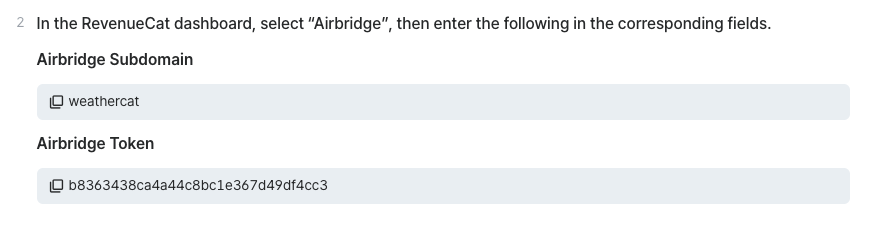
- Navigate to your project settings in the RevenueCat dashboard and choose Airbridge from the Integrations menu.
- Enter your Airbridge Token. This token authenticates requests from RevenueCat to Airbridge.
- Add the Airbridge Subdomain (app name) exactly as it appears in the Airbridge workspace (for example,
testapp). Events will be routed to this app.
RevenueCat automatically maps subscription lifecycle events to the Airbridge event types expected by the integration.
-
Select how RevenueCat should report revenue totals using the Revenue reporting mode menu:
Grossreports transaction amounts before app store commission and taxes.Netreports revenue after estimated store commission and/or taxes.
-
Click Add integration (or Save) to enable the connection.
4. Test the Airbridge integration
Before rolling out the integration, run through an end-to-end test:
- Make a sandbox purchase with a new user after confirming the device identifiers from step 2 are present.
- Visit the Customer View for the tester and confirm the Airbridge attributes are listed.
- Open the test transaction in Customer History and ensure an Airbridge event was delivered successfully. You can also review the Last dispatched events panel in the integration settings for a delivery log.
Once configured, you should begin to see RevenueCat lifecycle events appear in Airbridge aligned with the campaigns that sourced those users.