Troubleshooting Google Play Service Credentials
Diagnose common Google Play service credential validation and configuration issues


If your Google Play service credentials aren't validating, or credential errors are blocking purchases, use this article to check the most common causes and fixes. For the setup steps themselves, see the credentials guide.
Symptoms
- Your credentials still show as invalid
- A validation check keeps failing
- RevenueCat can't find your package name
- An error message appears in the RevenueCat dashboard
- The SDK returns InvalidCredentialsError
Your credentials still show as invalid
Setup spans Google Cloud, Google Play Console, and the RevenueCat dashboard, and it's easy to move too quickly or misconfigure something small. Work through these checks in order:
-
Wait for Google's propagation window. New or changed credentials can take up to 36 hours to become valid. For a workaround that can speed up validation, see the info note under step 3 of the credentials guide.
-
Run through the checklist. Our Google Play checklist breaks the whole configuration into check-off items grouped by console. Going through it confirms you've hit each step.
-
Confirm the correct JSON file was uploaded. Open Credentials Validation Details by selecting the status label under your uploaded JSON file (step 5 of the credentials guide), and compare the Project ID, Private Key ID, and Client Email against the JSON file you meant to upload.
-
Re-upload the credentials. Whenever credentials aren't working properly, re-upload your credentials JSON file. This helps rule out that you or a collaborator uploaded the wrong file.
-
Confirm the service account is enabled. When you create a service account, it's enabled by default. However, Google may automatically disable your service account if it detects that the credentials were leaked, or the account might have been disabled accidentally in the Google Cloud Console. Check that the entry for your RevenueCat service account shows "Enabled" in the service accounts list in Google Cloud Console.
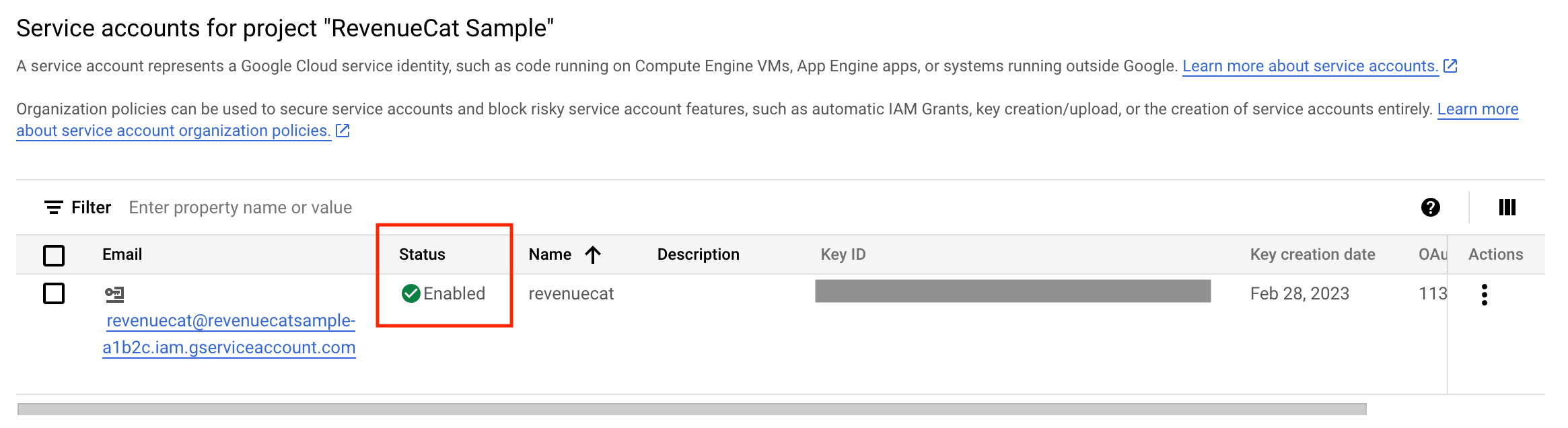
If the account shows as disabled, we don't recommend re-enabling it due to security risks. Instead, generate new credentials by following the credentials guide again.
A validation check keeps failing
Once you've confirmed your credentials are enabled and the correct JSON file has been uploaded into RevenueCat, open Credentials Validation Details (step 5 of the credentials guide) and use the failing check to pinpoint the problem:
| Validation check: | Why it's not passing: | What to do: |
|---|---|---|
| Can validate Google Play subscription purchases | RevenueCat couldn't get a response from Google's subscriptions endpoint. | Ensure that you have granted the following permissions: Once this is done, try to make a test purchase using a Sandbox user to check that the connection to the subscriptions API is working. Also make sure you've uploaded your signed APK or Android App Bundle and completed the steps to approve the release. |
| Can read the Google Play in-app product catalog | RevenueCat couldn't get a response from Google's inappproducts endpoint. | Ensure that you have granted the following permission:
|
| Can read the Google Play subscription catalog and base plans | RevenueCat couldn't get a response from Google's monetization endpoint. | Ensure that you have granted the following permission:
|
After making changes to your Google credentials, it can take up to 36 hours for the changes to propagate through Google's servers. For a workaround that can speed up validation, see the info note under step 3 of the credentials guide.
RevenueCat can't find your package name
When you add your Android app to RevenueCat, Google must be able to return your app's details for the package name you enter. If your app is new in Google Play Console, that lookup can fail even though the package name is correct: the Google Play Developer API doesn't return details for a package until its first build has been uploaded through Google Play Console.
If RevenueCat can't find your package name, go back to Google Play Console, upload a build (step 4 of the credentials guide), and finish preparing the store listing, then try again. This comes up most often when you're adding an Android build to an existing iOS app and haven't finished the Play Console setup yet.
An error message appears in the RevenueCat dashboard
These are the most common dashboard errors when setting up service credentials or developer notifications, and what to do about each.
| Error message: | What to do: |
|---|---|
| 'Your Google Service Account credentials do not have permissions to access the needed Google resources. Refer to this guide for more information.' | Confirm that the roles granted to your service account in Google Cloud match: Pub/Sub Editor (or Admin) and Monitoring Viewer. If you change them, re-generate your JSON key and add it to RevenueCat again. |
| 'The provided Google Service Account credentials JSON is invalid.' | Re-generate the JSON key from Google Cloud and try uploading it to RevenueCat again. If you get the same error, try re-creating your service account. |
| 'Google Play service account credentials must be set up before using this feature.' | This one is most likely to crop up if you try an action that communicates with Google, such as importing products for Android, before setting up service credentials. |
| 'Account permissions are invalid for this request.' | Not all RevenueCat collaborators have the same permissions. To make changes to an app's configuration (such as creating service credentials), a user must be listed as an 'Admin'. |
| 'Google Cloud Pub/Sub API must first be enabled. Enable it by visiting your Google Cloud Platform console' | Enable access to the Pub/Sub API on the Google Cloud Console for the same project that you used to set up your service credentials. |
| 'Your Google service account credentials do not have permissions to access the Google Cloud Pub/Sub API. Refer to this guide for more information.' | This points to either the Pub/Sub API access not being enabled, or the Pub/Sub role that has been added to the service account is not the admin role. Double check that your service account has the correct roles, and if changing them, re-generate the JSON key and re-add it to RevenueCat. |
The SDK returns InvalidCredentialsError
The SDK raises InvalidCredentialsError with the underlying message 'Invalid Play Store credentials.' Unfortunately, this one is a little vague. Run through the credentials guide again, ensuring that all steps have been followed. If you've already waited for over 36 hours and continue to get this error, try starting over from the beginning.
Related articles
- Google Play Service Credentials — the setup guide this article troubleshoots
- Google Play checklist — every configuration step as check-off items
- Google Real-Time Developer Notifications — server notification setup and its own troubleshooting
- Contact RevenueCat Support — for account-level help