Creating Funnels



Use the Funnel Editor to design multi-step web experiences with customizable screens, branching logic, and seamless checkout integration.
To take real payments, funnels need a payment provider (RevenueCat Billing, Stripe Billing, or Paddle). Complete the payment configuration before you share a funnel with customers. To build and test a funnel before you set up a payment provider, use your Test Store as the checkout step's web config.
Creating a new funnel
To create a new funnel, navigate to your project's Web section in the RevenueCat Dashboard and click Create web funnel. You'll have two options:
- From scratch: Start with a blank funnel and build it step by step
- Using template: Choose from pre-built funnel templates as a starting point
Using templates
Templates provide pre-configured funnel structures that you can customize. When you select Using template, you'll see a gallery of available templates. Each template includes:
- Pre-configured steps with sample content
- Example flow logic and connections
- Suggested component layouts
Selecting a template creates a new funnel as a copy of that template, named Copy of [template name]. You can customize any aspect of a template after selecting it — templates are just starting points to help you get up and running quickly.
Understanding the Funnel Editor
The Funnel Editor has two main modes:
Interaction mode
Interaction mode is where you design the flow of your funnel. In this mode, you can:
- See all steps in your funnel as visual nodes
- Connect steps together to define the user journey
- Add new steps (screens or checkout)
- Configure which step is the initial entry point
- Set up branching logic based on user actions
Design mode
Design mode is where you customize the content and appearance of individual screens. When you select a screen step and enter Design mode, you'll see the familiar Paywall Editor interface where you can:
- Add and arrange components (text, images, buttons, etc.)
- Configure component properties and styling
- Set up localizations
- Preview how the screen looks on different devices
Adding steps to your funnel
Steps are the building blocks of your funnel. There are four types of steps:
Screen steps
Screen steps are customizable pages built using RevenueCat's Paywall UI builder. To add a screen:
- Click Add page in the left sidebar
- Choose one of the following options:
- Blank page: Start with an empty screen
- From template: Use a paywall template as the starting point
- From your paywalls: Copy an existing paywall from your project
- From your funnels: Copy a screen from another funnel
Once added, you can click on the screen node in Interaction mode and switch to Design mode to customize its content.
For web funnels, you can add the Express checkout paywall component on a screen step to show Apple Pay and Google Pay (and related wallet UI) before visitors reach checkout. See Express checkout in the Paywalls components guide for behavior, layout options, and requirements.
Authentication steps
Authentication steps let you require visitors to sign in before continuing in the funnel — for example, before checkout or before accessing certain content. You can authenticate with OpenID Connect (OIDC), Firebase Authentication, or with your own external authentication URL.
To add an authentication step:
- Click Add page in the left sidebar
- Select Authentication
Click the authentication step in the editor to open its settings in the right panel. If the step isn't configured yet, choose Add authentication method or Choose authentication method, depending on whether your project already has methods available.
Authentication methods belong to the project, not to one funnel. For the fields each provider needs, see Authentication methods.
Using OpenID Connect
OpenID Connect connects your funnel to an identity provider (IdP) you configure as an authentication method. When a visitor reaches the step, the funnel redirects them to the interactive login for that method, then returns them to the funnel after they sign in. You don't need to implement a custom callback with app_user_id yourself.
To configure OpenID Connect:
- In the authentication step settings, open the method picker (or create a method from the empty state)
- Select OpenID Connect, or choose an existing OpenID Connect method
- If creating a new method, complete the OpenID Connect setup for your identity provider
After you select a method, the settings panel shows a read-only Redirect URI for your identity provider. Register this URI with your IdP so authentication can complete and return the visitor to the funnel.
Using Firebase Authentication
Firebase Authentication signs visitors in without leaving the funnel — there's no redirect to an external page or identity provider. It supports two sign-in modes: Google sign-in and Email/password.
To configure Firebase Authentication:
- In the authentication step settings, open the method picker (or create a method from the empty state)
- Select Firebase, or choose an existing Firebase method
- If creating a new method, enter your Firebase project's Project ID, API key, and Auth domain (from your Firebase project settings)
- Choose the sign-in mode for this step: Google sign-in or Email/password
Google sign-in
With Google sign-in, visitors authenticate through a Google popup window. There's no interactive redirect URI to register — the popup handles sign-in entirely client-side, and RevenueCat exchanges the resulting Firebase ID token to identify the visitor.
Email/password
With Email/password mode, the authentication step gets its own designable credentials screen, similar to a screen step. Switch to Design mode on the step to customize it. The screen includes:
- Text Input components for the visitor's email and password (both required for publishing)
- A Continue button that submits the credentials and signs the visitor in or creates their account
- A sign-in / sign-up cross-link so visitors can switch between creating a new account and signing in to an existing one
Passwords are never saved as a customer attribute or otherwise persisted — unlike other input components, the password field's value is excluded from the visitor's saved responses.
By default, visitors aren't sent a verification email after creating an account. Enable Send verification email in the step settings if you want new sign-ups to receive one; delivery is best-effort and won't block the visitor from continuing.
Connect a success trigger from the Continue button (or from the step itself) to the step that should follow a successful sign-in or sign-up — this destination is required for publishing.
Using external authentication
External authentication redirects visitors to a login page you host, then brings them back to the funnel after they sign in.
- In the authentication step settings, choose External authentication (or select it from the method picker)
- Enter your External authentication URL (for example,
https://auth.example.com/login)
If your external authentication URL includes query parameters (for example, https://auth.example.com/login?tracking_id=123), they are preserved when RevenueCat appends its own parameters. Use this to pass tracking information or other data to your authentication system. The redirect_uri, state, and app_user_id parameters are reserved: RevenueCat sets them and overwrites any identically named parameters in your URL.
When a visitor reaches this authentication step, RevenueCat redirects them to your external authentication URL with the following query parameters:
redirect_uri: The callback URL where you must redirect visitors after authenticationstate: A token used to tie the session together (you must return this unchanged)app_user_id: The visitor's current App User ID. This is an anonymous ID (prefixed with$RCAnonymousID:) when the visitor hasn't signed in yet, or an actual App User ID when they have. Use it to link the funnel session to the account the visitor signs in with.
Example redirect URL your authentication page will receive:
https://auth.example.com/login?redirect_uri=https%3A%2F%2Fsignup.cat%2Ffunnel%2Fcallback&state=eyJub25jZSI6IjEyMyIsIndvcmtmbG93X2xpbmtfaWQiOi4uLn0=&app_user_id=%24RCAnonymousID%3A8f9e0a1b2c3d4e5f8f9e0a1b2c3d4e5f
Redirecting back to the funnel
After a visitor successfully authenticates, your authentication system must redirect back to the redirect_uri with two required query parameters:
state: The exact same state value you received (required)app_user_id: The authenticated visitor's App User ID from your system (required). This doesn't need to match theapp_user_idyou received: RevenueCat aliases the visitor's anonymous ID to the ID you return.
Example callback URL you should redirect to:
https://signup.cat/funnel/callback?state=eyJub25jZSI6IjEyMyIsIndvcmtmbG93X2xpbmtfaWQiOi4uLn0=&app_user_id=user_12345
Include the state parameter exactly as you received it. Don't modify this value, or RevenueCat validation will fail.
The redirect_uri parameter always points to /funnel/callback on the appropriate domain (https://signup.cat/funnel/callback by default, or your custom domain if configured). For security, allowlist these callback URLs in your authentication system. You can use the redirect_uri parameter dynamically in your redirect, or hard-code the callback URL if you know your domain configuration.
Custom parameters
Your authentication server may pass any custom URL parameter to the funnel through the callback endpoint. Use these parameters to set up branching logic in your funnel.
Example of a callback URL with custom parameters:
https://signup.cat/funnel/callback?state=eyJub25jZSI6IjEyMyIsIndvcmtmbG93X2xpbmtfaWQiOi4uLn0=&app_user_id=user_12345&user_has_active_plan=true
Auto-advance for authenticated visitors
If a visitor who is already authenticated reaches an authentication step, they automatically advance to the next step without being redirected. This prevents unnecessary re-authentication when visitors navigate back through your funnel.
Publishing checks
Before you can publish, authentication steps must be fully configured. Common issues include:
- OpenID Connect: No authentication method selected, the selected method was deleted, or the authentication URL is invalid or out of date (for example, after changing the funnel's web config)
- Firebase Authentication: The authentication method couldn't be verified (retry publishing once it's reachable again); for Email/password mode, missing email or password inputs on the credentials screen, or no destination configured for a successful sign-in
- External authentication: Missing external authentication URL, or a URL that doesn't use HTTPS
If publish asks you to select a web config for OpenID Connect, make sure the funnel has a web config available — selected on the funnel or as the project default — then try again. Fix other issues from the authentication step settings panel, then publish again.
Deleting authentication methods
You can't delete an authentication method that is used by one or more published funnels. The dashboard lists the funnels that block deletion and links to each funnel editor. Update or remove the authentication step in those funnels (and republish as needed) before deleting the method.
Branch nodes
Branch nodes are dedicated routing steps that evaluate conditions and direct users to different steps based on rules you define. Use a branch node when you need to split your funnel flow based on user data, UTM parameters, survey answers, or any other conditions — without tying that logic to a specific screen or button.
To add a branch node:
- Click Add page in the left sidebar
- Select Branch
Configuring routing rules
After adding a branch node, click on it to open the Branch settings panel. Click Edit to open the rule editor.
Branch nodes can be setup to always navigate to a given step, or navigate to different steps depending on conditional rules you configure. Each conditional rule consists of:
- A condition: based on user inputs, UTM parameters, URL parameters, or other context available in your funnel
- A destination: the step to navigate to when the condition is met
You can add as many rules as needed. Rules are evaluated top to bottom, so order matters.
Experiment steps
Experiment steps let you A/B test different paths through your funnel. When a visitor reaches an experiment step, they are randomly assigned to one of the configured variants, and each variant routes them to a different downstream step.
To add an experiment step:
- Click Add page in the left sidebar
- Select Experiment
The experiment step is created with a default A/B split. Connect each variant's output to the step where that branch should begin. You can configure up to 4 variants.
When you publish a funnel containing an experiment step, the experiment starts running automatically. For full details on configuring experiments, viewing results, and rolling out a winner, see Experimenting with funnels.
Checkout steps
Checkout steps handle the payment flow. To add a checkout:
- Click Add page in the left sidebar
- Select Checkout
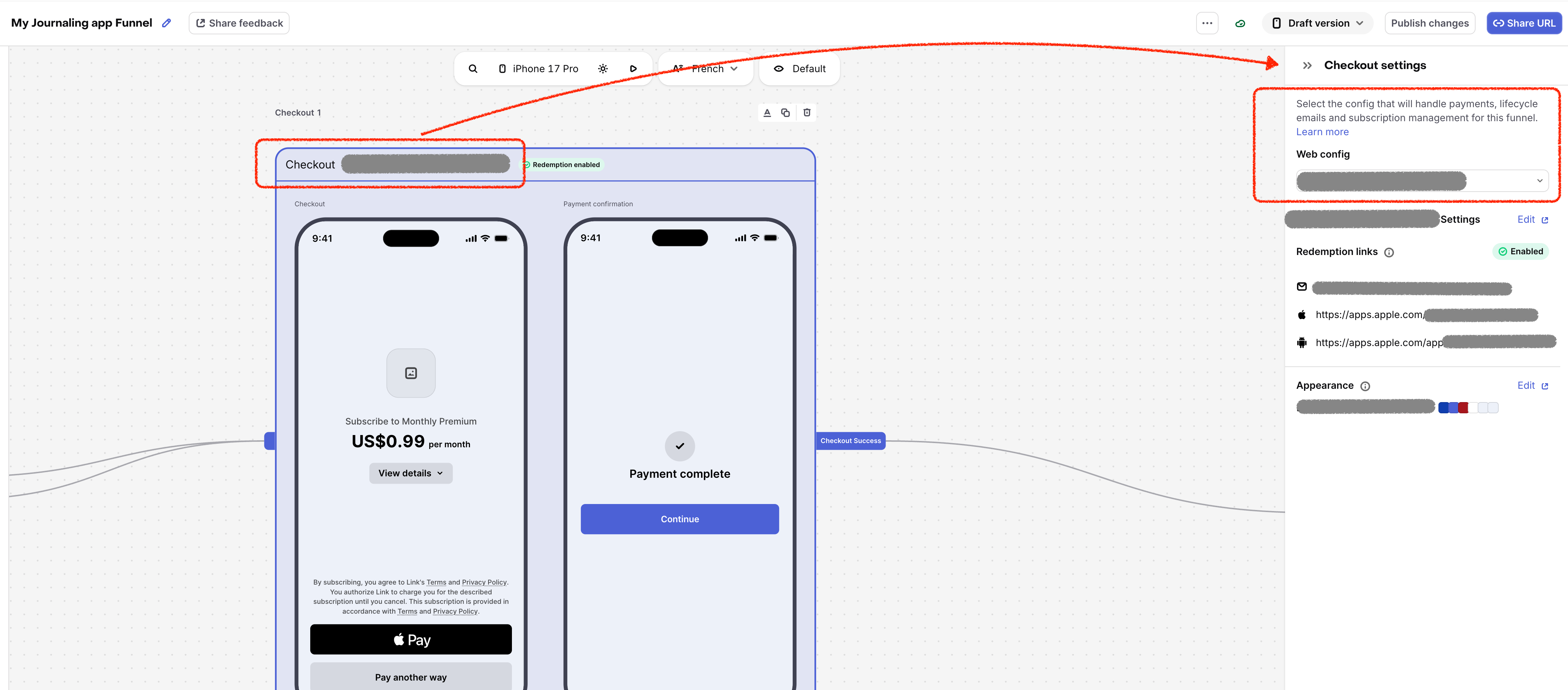
Checkout steps use the web config selected in the step's settings (RevenueCat Billing, Stripe Billing, Paddle, or Test Store) and display the matching payment interface. A Test Store checkout shows the Test Store purchase modal, which simulates a successful or failed purchase without charging anyone.
Configuring step settings
Each step in a funnel has its own settings. Select a step in the editor and its settings panel opens on the right-hand side. The settings shown depend on the step type:
- Checkout step: the Checkout settings panel shows the Web config. Select the RevenueCat Billing, Stripe Billing, or Paddle config that processes payments for this funnel, or select your Test Store to simulate purchases while you build and test. With Test Store selected, the panel shows a sandbox-only notice in place of the Redemption Links settings.
- Paywall step (a screen step that contains a Package component): in Design mode, with the top-level Paywall layer selected, the Paywall properties panel shows the Offering. Select the Offering whose Packages the screen sells. The checkout step connected to this screen sells that Offering.
- Authentication, branch, and experiment steps: see their sections above.
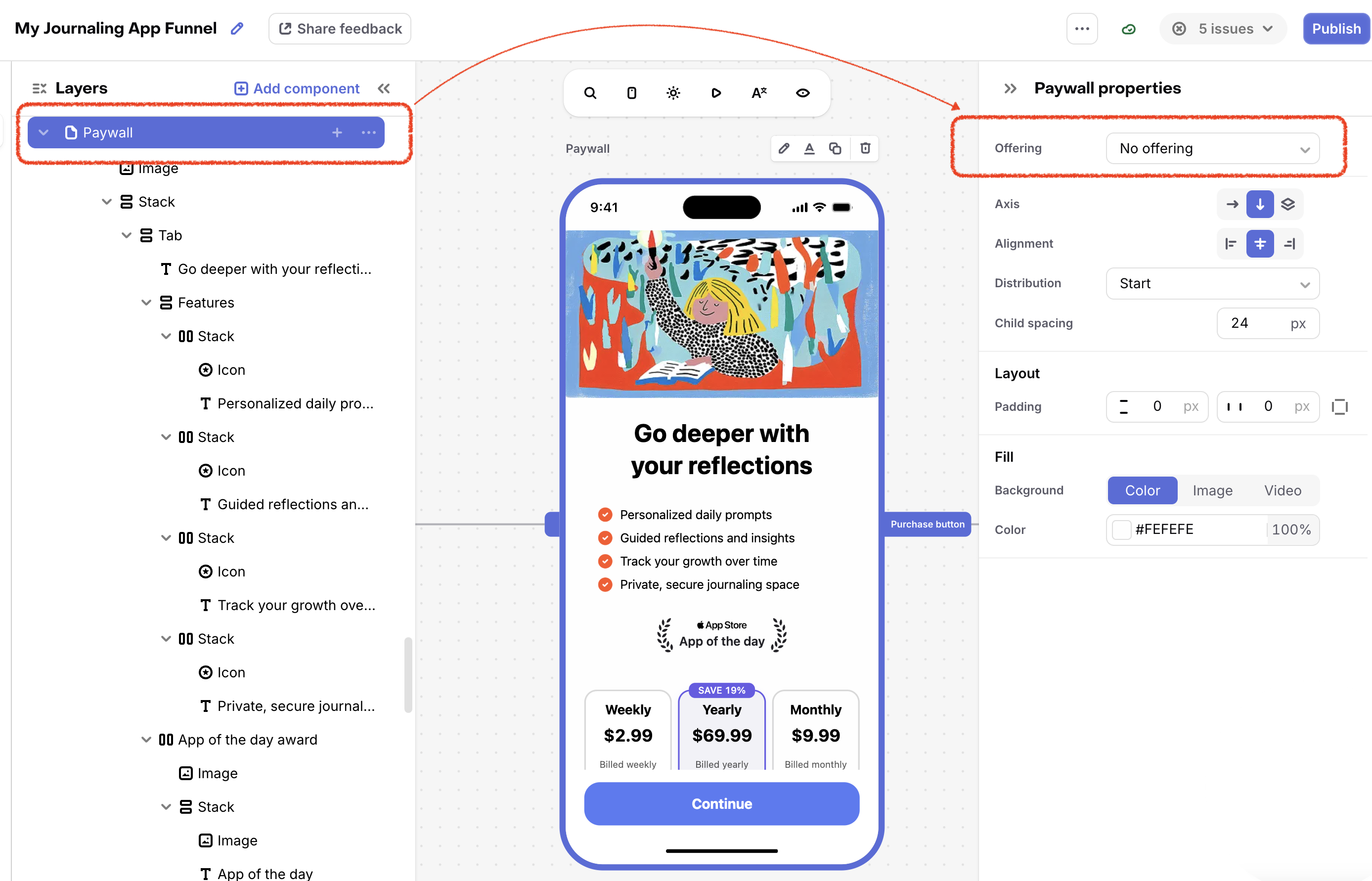
The Offering setting appears only on screens that contain at least one Package component. Screens without one are content screens and have no Offering.
The Offering list shows Offerings that contain web products purchasable with the selected web config. If an Offering is missing, check that it includes at least one product from that web config, or change the web config on the checkout step. Changing the web config clears the Offering on any paywall step whose Offering has no products from the new config, so re-select the Offering on those steps.
To change a step's settings later, select the step again, update it, and publish the funnel.
Pre-filling the checkout email
If an email URL parameter is present when a visitor reaches checkout, RevenueCat pre-fills (and locks) the checkout's email field with that value, reducing friction for visitors who've already provided an email earlier in the funnel. An OpenID Connect authentication step sets this automatically from the visitor's verified email after sign-in, with no extra configuration needed. A Text Input with Identifier type set to Email does the same as soon as the visitor submits a valid address — the value carries forward as the email parameter on every step after it, even if checkout isn't the very next step. For external authentication, pass email as one of your custom parameters on the callback redirect to get the same effect.
Ending a funnel without checkout
Funnels can also be ended without a checkout step if your intention is to have the user checkout elsewhere.
This may be useful in cases like:
- An anonymous marketing funnel that ends with a button to download your app.
- A funnel that hands off to your existing checkout system, passing the App User ID so you can associate the funnel session with the resulting purchase.
- Replacing RevenueCat's Redemption Link button with a custom deep link (for example, a deferred deep link from an attribution provider), with the App User ID appended.
Configuring a button to complete the funnel
Configure a Button component on a screen step to redirect the visitor when clicked:
- In Design mode, select the Button on a screen step. The Button properties panel opens on the right.
- Set Action to Complete Funnel.
- In the URL field, enter the destination the visitor should be redirected to.
- Choose an Open method to open the destination in the same window or a new window.
- (Optional) Enable Include App User ID in URL to append the visitor's App User ID as an
app_user_idquery parameter. Use this to tie the funnel session to a downstream purchase or session.
Use {{...}} tokens in the URL to forward attribution data or other context from the funnel session to the destination, often under different parameter names. For example, an AppsFlyer OneLink URL expects attribution params renamed with an af_ prefix:
https://app.onelink.me/your-template?c={{params.campaign_name}}&af_c_id={{params.campaign_id}}
When a visitor reaches the end of the funnel, RevenueCat substitutes each token before redirecting.
Available tokens
| Token | Resolves to |
|---|---|
{{params.<name>}} | A query-string parameter from the initial funnel URL. This includes standard UTM parameters, any custom parameters configured in your funnel settings, and any other query-string values passed in the funnel URL. |
{{app_user_id}} | The visitor's App User ID. |
Connecting steps
Steps are connected via triggers and actions. A trigger is an event that occurs on a step (like a button press), and an action defines what happens next (like navigating to another step).
Connecting steps visually
In Interaction mode, you can connect steps by:
- Hovering over a step node to see available trigger handles
- Dragging from a trigger handle to another step's target handle
- The connection will be created automatically
Supported triggers
Different components on your screens can trigger navigation:
| Trigger | Description | Can connect to |
|---|---|---|
| Button press | When a user clicks a button component | Any screen or checkout step |
| Purchase button press | When a user clicks a purchase button | Checkout steps only |
| Option selection | When a user selects an option in an input component that's setup to immediately advance them | Any screen with an option component |
| Timer complete | When a Loader component's configured duration elapses | Any screen or checkout step |
Configuring trigger actions
When you connect a trigger to a step, you can configure the action:
- Click on the connection (edge) between two steps
- In the settings panel, you can configure:
- Target step: Which step to navigate to
- Conditional logic: Determine which step to navigate to based on conditions like UTM parameters, visitor demographics, other URL parameters, or visitor inputs
Customizing screen content
When you select a screen step and enter Design mode, you'll use the same powerful editor that powers RevenueCat Paywalls. This means you have access to all the same components:
Available components
| Component | Description | Use case |
|---|---|---|
| Text | Customizable text strings | Headlines, descriptions, instructions |
| Image | Uploaded images | Branding, illustrations, screenshots |
| Video | Uploaded videos | Product demos, testimonials |
| Icon | Pre-built icons | Visual indicators, feature highlights |
| Stack | Container for other components | Layout organization |
| Header | Container fixed to the top of the screen | Branding that stays visible while scrolling |
| Footer | Container fixed to the bottom of the screen | Keep a purchase or continue button in view |
| Custom | Your own HTML, CSS, and JavaScript | Lottie or Rive animations, animated backgrounds |
| Button | Interactive buttons | Navigation, actions, links |
| Continue button | Pre-styled button that moves the visitor to the step its trigger connects to | Primary "Continue" call-to-action on a screen |
| Bottom sheet | Opens a sheet of extra content | Plan details, FAQs, or extra packages |
| Purchase Button | Purchase call-to-action | Direct users to checkout |
| Express checkout | Apple Pay and Google Pay buttons, with a fallback | Faster checkout on mobile web |
| Redemption button | Opens the visitor's Redemption Link; a QR code on desktop | Let anonymous purchasers redeem in your app |
| Input: Single Choice | Select a single option from a list | Survey questions, preference selection |
| Input: Multiple Choice | Select a configurable number of options from a list | Multi-select questions |
| Input: Text | Free-form text field | Email capture, name collection, open-ended survey answers |
| Package | Product/package display | Show available products |
| Carousel | Swipeable content pages | Feature showcases |
| Timeline | Sequential item display | Process steps, milestones |
| Tabs | Tabbed content sections | Organize multiple packages into groups |
| Switch | Toggle between two sets of content | Packages with and without a free trial |
| Countdown | Live countdown timer | Urgency, deadlines |
| Loader | Timed animation; see Loader components | "Calculating your results…" screens that auto-advance |
Input components
Input components let you collect data from visitors as they move through your funnel. Three types are available:
- Single Choice — visitor picks one option from a list
- Multiple Choice — visitor picks multiple options from a list
- Text Input — visitor enters free-form text (e.g. an email address, a name, or an open-ended survey answer)
Single Choice and Multiple Choice structure
Choice components have a hierarchical structure:
-
Single Choice or Multiple Choice component: The container component that all child components are nested within
- Identifier: A unique identifier for the field (required for publishing). This ID is used to reference the field's value in conditional logic.
- Required: Whether the user must make a selection on this input before being allowed to proceed
- Selection Range (Multiple Choice only): Constrains how many options can be selected:
- Unlimited: Users can select any number of options
- Exact: Users must select exactly a specified number (e.g., exactly 2)
- Range: Users must select between a minimum and maximum number (e.g., 1-3 options)
-
Options: Individual selectable options nested inside the input component
- Option ID: A unique identifier for the option (required for publishing)
- Option Value: The value that will be stored when this option is selected (required for publishing)
- Stack: Contains other components (like text or images) that define how the option appears visually
Text Input structure
A Text Input component has a single field that visitors type into. Configurable properties include:
- Identifier type:
Customuses the Identifier you set for the field.Email,Phone, orNameinstead binds the field to the visitor's reserved$email,$phoneNumber, or$displayNamecustomer attribute. Each reserved attribute can only be bound to one Text Input per funnel. - Identifier: A unique identifier for the field (required for publishing when Identifier type is
Custom). Used to reference the field's value in conditional logic and when retrieving the response. - Required: Whether the visitor must enter a value before being allowed to proceed.
- Keyboard type: Hint for the on-screen keyboard and browser validation. Supported values:
text,email,tel,numeric,decimal, andurl. - Text capitalization: Controls automatic capitalization on supported devices. Options:
none,sentences,words,characters. - Placeholder: Localized placeholder text shown inside the empty field, with its own font and color settings.
Using input responses in funnels
Input components are particularly powerful because:
-
Trigger navigation: When a visitor selects an option in a Single Choice or Multiple Choice, it can immediately trigger navigation to another step. Configure this by connecting the option's trigger handle to a target step in Interaction mode.
-
Conditional logic: Input values can be referenced in conditional expressions to determine which step a visitor navigates to next. Reference the field's value using the field identifier you configured.
-
Content on later steps: Input values can be referenced as variables in text on any downstream step — see Referencing inputs on later steps below.
Every value a visitor enters into an input component is saved to their RevenueCat profile as a customer attribute and is visible in the Responses tab on the funnel's details page. This applies to Single Choice selections, Multiple Choice selections, and Text Input values. See Analyzing Funnels for details.
Analytics breakdown by response values is coming soon.
For detailed information about each component and its properties, see the Paywalls Components documentation.
Referencing inputs on later steps
Any value a visitor provides on an earlier step — a Single Choice selection, a Multiple Choice selection, or a Text Input value — can be referenced in text on any downstream step of the same funnel using the {{ input.<field_id> }} variable, where <field_id> is the Identifier you configured on the input component.
For example, if an earlier Text Input step uses the identifier first_name, you can personalize a later screen with:
Welcome, {{ input.first_name }}!
To insert an input variable:
- In Design mode, select a Text component and open the variable picker
- Look for the Funnel inputs category, which lists every input field configured on upstream steps (steps that lead into the current one)
- Select the field you want to reference
The value shown to the visitor depends on the input type:
- Text Input displays the exact text the visitor entered.
- Single Choice displays the selected option's Option ID — not its visible label.
- Multiple Choice displays the selected options' Option IDs, separated by commas.
Because choice inputs render the Option ID, set your Option IDs to reader-friendly values (for example, Weight loss rather than opt_1) if you plan to display a choice answer to visitors.
Only inputs from steps that lead into the current step (directly or indirectly) appear in the Funnel inputs list. If you rename or remove a field identifier that's still referenced elsewhere, publishing will flag the stale reference so you can fix or remove it.
Loader components
Loader components let you show a timed loading or "processing" animation on a screen — for example, a "Calculating your results…" screen after a quiz — before automatically moving the visitor on to another step. In Design mode, add one from the Loader components category of the component panel, alongside the standard components above.
- Loader: The container component. Set a duration (in milliseconds); by default it holds a circular loader with the percentage centered on top. A Loader can't contain another Loader — use a Multi-step loader for multiple stages instead.
- Circular loader and Linear loader: A ring or horizontal bar that fills up over the Loader's duration, with separate Default and Loading styles.
- Loading percentage: Displays the Loader's live progress as text (for example,
42%). - Progress indicators: An ordered set of stages, each with an appears at percentage, for swapping content — like status messages — as progress advances.
- Multi-step loader: Runs its own starts at / ends at window of the parent Loader's duration. Nest a Progress indicators block inside a group to give that stage its own local 0–100% cycle (for example, ending on a checkmark) independent of the Loader's overall progress.
These pieces compose freely: stack multiple Multi-step loaders to simulate several sequential (or overlapping) processing stages from one timer, and add a Progress indicator alongside the groups — not nested in one — with appears at 100 to reveal something (like a Purchase button) only once the whole Loader finishes.
To advance visitors automatically once the timer completes, connect the Loader's Timer complete trigger to the next step (see Connecting steps). Leaving it unconnected keeps the visitor on the finished screen instead, so they can tap a revealed button to continue — don't do both, since a connected trigger navigates away almost immediately once the timer ends, before a revealed button can be clicked.
Configuring funnel settings
The Settings panel allows you to configure funnel-wide options:
Initial step
The initial step is the first page users see when they access your funnel. To set the initial step:
- Open the Settings panel from the left sidebar
- Under Initial step, select the step you want to use as the entry point
You can change the initial step at any time, and the change will be saved as part of your draft.
Parameters
Funnels support custom parameters that can be passed via URL and used throughout your funnel. Parameters are useful for:
- Including custom tracking data
- Personalizing the experience based on the source
To add a parameter:
- Open the Settings panel
- Under Parameters, click Add parameter
- Configure:
- Name: The parameter name (e.g.,
utm_source) - Type: The data type (
string,string[],number, orboolean)
- Name: The parameter name (e.g.,
Parameters can be referenced in your funnel's components using variables, similar to how paywall variables work.
Standard UTM parameters are automatically captured and made available to your funnel, you do not need to manually add them as URL parameters.You can use them in your funnel's components to personalize the experience based on the source of the visitor.
Saving and publishing
Funnels have two states:
| State | Description |
|---|---|
| Draft | Your work-in-progress funnel. Changes are automatically saved as you work. Draft funnels are not accessible via public URLs. |
| Published | Your live funnel that's accessible via shareable URLs. Published funnels can be viewed by users. |
Auto-save
The Funnel Editor automatically saves your changes as you work. You'll see an indicator showing when your last changes were saved.
Publishing
To make your funnel live:
- Ensure your funnel has at least one step
- Click Publish in the top-right corner
- Confirm the publish action
Once published, your funnel will be available via shareable URLs. Stripe Billing and RevenueCat Billing funnels have separate production and sandbox URLs, while Paddle funnels have a single URL for the connected app's environment. See Deploying Funnels for details.
When you publish a funnel, the current draft becomes the live version. Users accessing your funnel URL will see the published version. You can continue editing after publishing—changes will be saved as drafts until you publish again.
Next steps
- Learn how to deploy and share your funnel
- Understand analytics and performance metrics
- Explore Paywalls components for more design options