Experimenting with Funnels



Funnel experiments let you A/B test different paths through your web funnel to find the flow that converts best. Instead of swapping offerings like a price experiment, a funnel experiment splits visitors across branches of your funnel graph, where each branch can have entirely different screens, messaging, or step ordering.
Experiments is available to Pro & Enterprise customers. Learn more about pricing here.
How funnel experiments work
A funnel experiment uses an experiment step in your funnel's flow graph. When a visitor reaches the experiment step, they are randomly assigned to one of the configured variants (branches). Each variant routes the visitor to a different downstream step, allowing you to test entirely different paths through the funnel.
Key characteristics:
- Branch-based: Variants are different paths through the funnel, not different offerings
- Automatic start: The experiment starts running as soon as the funnel is published (there is no draft or manual start step)
- All visitors enrolled: Both new and returning visitors are enrolled when they reach the experiment step
- Up to 4 variants: You can test a control plus up to 3 treatment variants
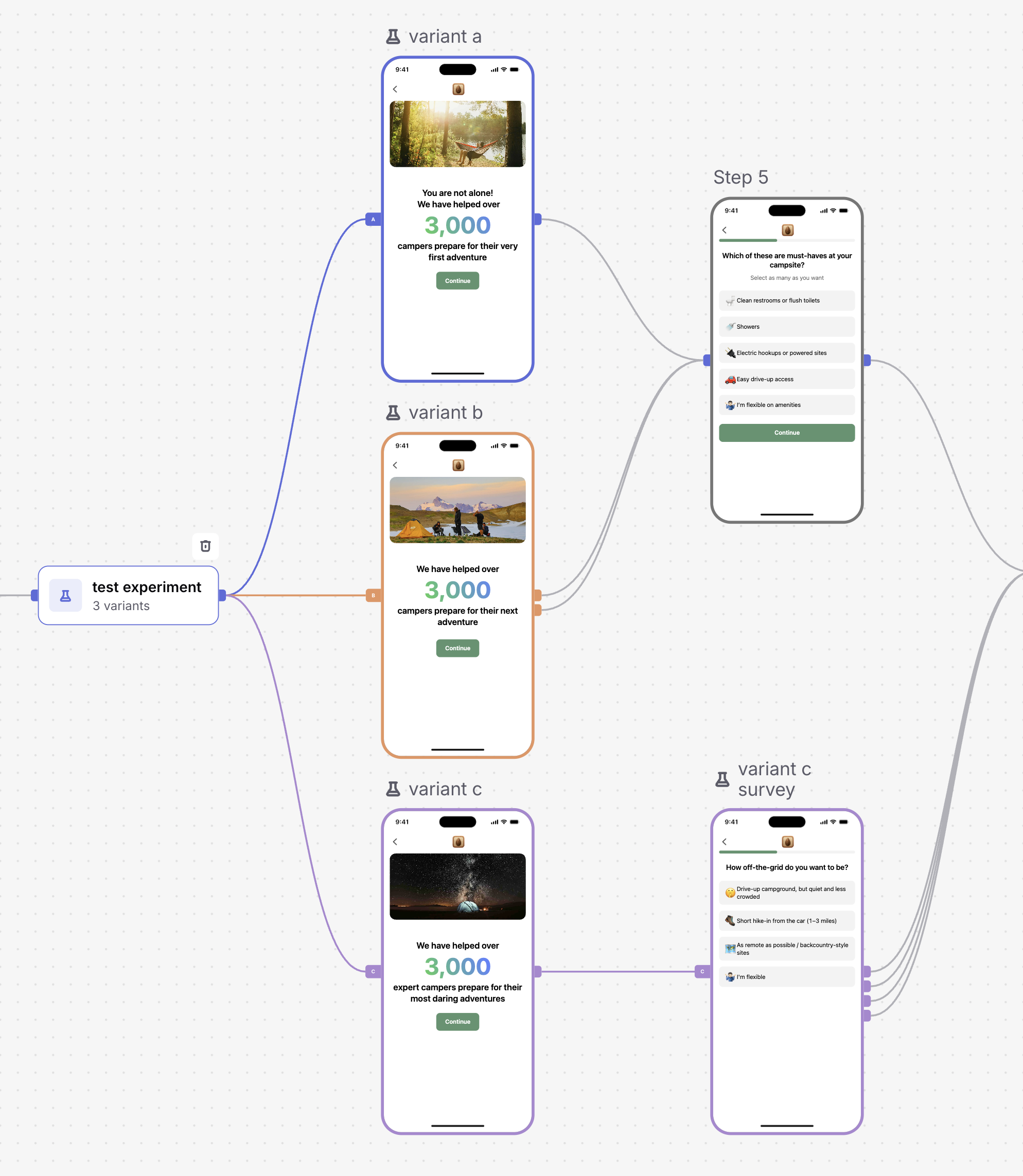
Adding an experiment step
To add an experiment to your funnel:
- Open your funnel in the Funnel Editor in Interaction mode
- Click Add page in the left sidebar
- Select Experiment
- The experiment node will appear on the canvas with a default A/B split (control and treatment)
Once added, connect each variant's output to the downstream step that represents that branch's path. For example, variant A might lead to a short onboarding screen while variant B skips directly to checkout.
Configuring variants
You can configure variants by connecting the experiment to an existing screen, duplicating a screen, or creating a new screen. Experiments must have at least two variants and a maximum of four total variants. Each variant needs a downstream step, which is the first step in that variant's branch of the funnel.
Configuring experiment settings
Click on the experiment step to open the Experiment settings panel on the right side of the editor.
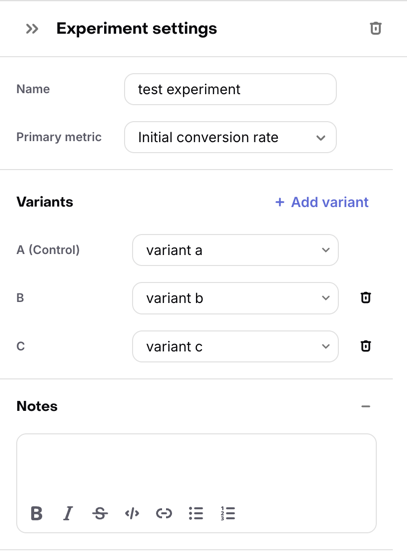
Name
Give your experiment a descriptive name that identifies what you are testing (e.g., "Short vs long onboarding", "Direct-to-checkout vs paywall-first").
Primary metric
Select the primary metric you want to use to evaluate the experiment. This is the metric that will be highlighted in your results summary. Available metrics:
| Group | Metric | Description |
|---|---|---|
| Conversion | Initial conversions | Number of sessions that completed a purchase or started a trial |
| Conversion | Initial conversion rate | Percentage of sessions that completed a purchase or started a trial |
| Paywall | Paywall views | Number of sessions that reached the paywall step |
| Paywall | Paywall view rate | Percentage of sessions that reached the paywall step |
| Paywall | Paywall conversion rate | Percentage of paywall views that completed a purchase or started a trial |
| Paywall | Paywall drop-offs | Number of paywall views that ended without completing the paywall step |
| Paywall | Paywall drop-off rate | Percentage of paywall views that ended without completing the paywall step |
| Checkout | Checkout views | Number of sessions that reached the checkout step |
| Checkout | Checkout drop-offs | Number of checkout views that ended without completing a purchase |
| Checkout | Checkout drop-off rate | Percentage of checkout views that ended without completing a purchase |
| Revenue | Revenue | Revenue generated from conversions |
Publishing and starting the experiment
Unlike price experiments, funnel experiments do not have a separate "start" step. The experiment starts running automatically when you publish the funnel containing the experiment step.
When you click Publish:
- The experiment is created in
runningstate - All visitors (new and returning) who reach the experiment step will be enrolled
- Results will begin appearing immediately
Make sure your experiment is fully configured before publishing. You cannot change variant assignments (which downstream step each variant points to) after the experiment has started without republishing the funnel.
Viewing results
You can access experiment results in two ways:
From the funnel editor
- Open your funnel in the editor
- Click on the experiment step
- In the settings panel, click See results to navigate to the experiment results page
From the Experiments page
- Navigate to Experiments in the project sidebar
- Find the Funnel experiments section
- Click on the experiment to view its results
Understanding your results
Funnel experiment results use the same results interface as price experiments, including:
- Results summary with your primary metric charted over time
- Chart and table views for comparing variant performance
- Date range and filters for narrowing your analysis
For a detailed guide on interpreting experiment results, see Experiments Results.
Rolling out a winner
Once you have enough data to determine a winner, you can roll out the winning variant so all visitors follow that path.
- Open the experiment step in the funnel editor
- Click Roll out in the settings panel
- In the rollout modal, choose your action:
- Mark winner and rollout: Select the winning variant. All future visitors will be directed to the winner's branch path. The experiment step is automatically removed from the funnel.
- Resolve manually: Stop the experiment without applying any variant as the default. The experiment step is removed, but you will need to reconnect the path manually.
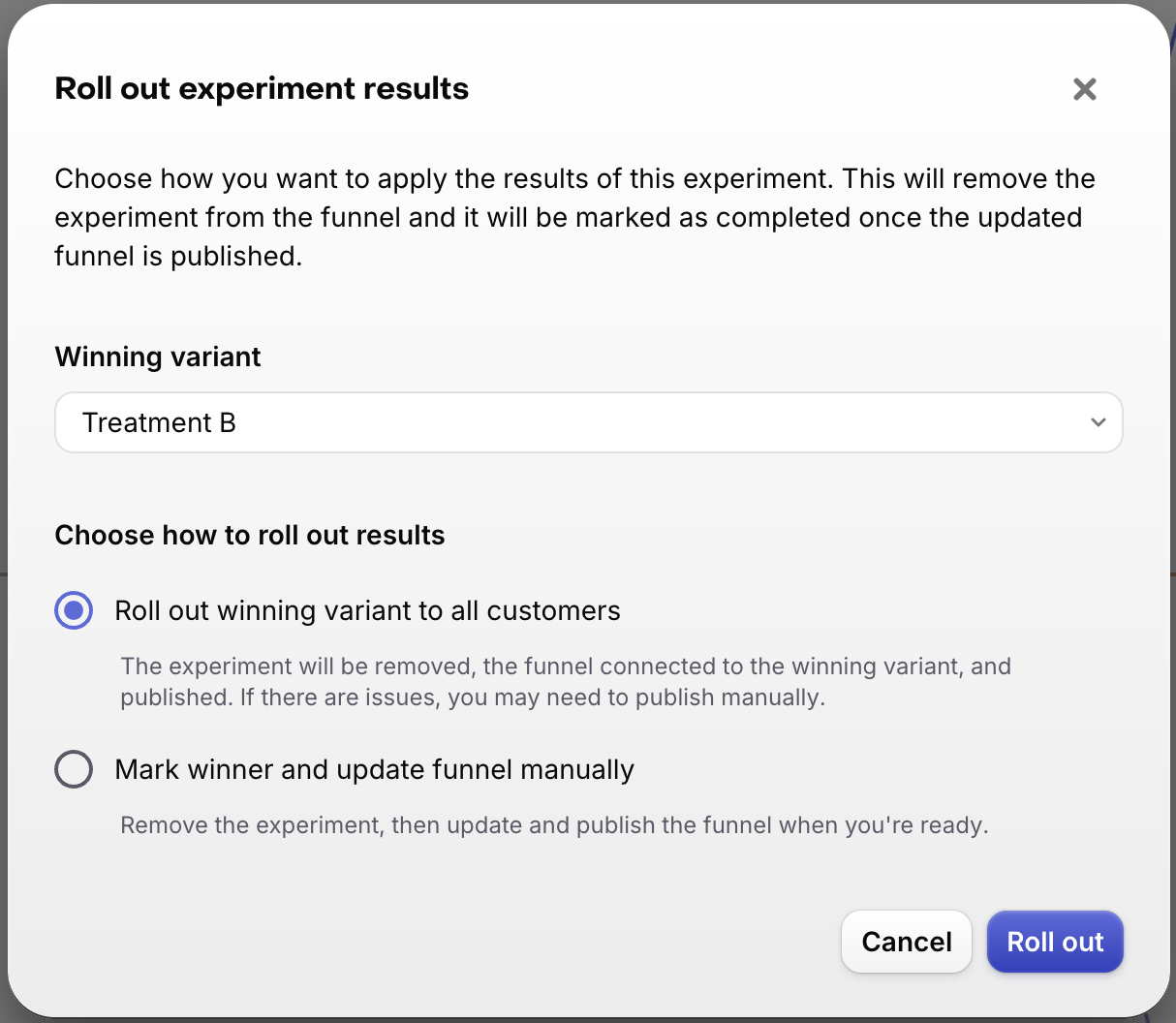
After rolling out a winner, the experiment transitions to a stopped state. Results will continue to be updated to capture additional subscription events.
Updating a running experiment
If you need to update your funnel while an experiment is running:
- Editing branch content: You can modify the screens and steps within each variant's branch and republish. The experiment will continue running with the updated content.
Editing branch content while an experiment is running is not recommended, as it may affect your experiment results. Changes to screens or steps could skew comparisons between variants if visitors in different variants see different content at different times.
- Variant assignments update: When you republish, the experiment's variant step pointers and snapshots are updated to reflect the current funnel state.
- Variant keys are fixed: You cannot add, remove, or rename variants on an already-running experiment. If you need a different set of variants, stop the current experiment and create a new one.
Differences from price experiments
Funnel experiments share the same results infrastructure as price experiments, but differ in several ways:
| Aspect | Price experiments | Funnel experiments |
|---|---|---|
| What's tested | Different offerings/products | Different funnel paths |
| Where created | Experiments section in dashboard | Funnel editor (experiment step) |
| Lifecycle | Draft → Running → Paused → Stopped | Running → Stopped (no draft or pause) |
| Start mechanism | Manual start from dashboard | Automatic on funnel publish |
| Enrollment | Configurable (new only or new + existing) | Always new and existing visitors |
| API management | Full CRUD via Experiments API | Must be managed through the funnel editor |
| Winner rollout | Available | Available |
Next steps
- Learn how to create and customize funnels
- Understand funnel analytics for overall funnel performance
- Read the Experiments Results guide for interpreting experiment data