Migrate the iOS SDK from CocoaPods to Swift Package Manager
Move the RevenueCat iOS SDK from CocoaPods to Swift Package Manager



Move the RevenueCat iOS SDK from CocoaPods to Swift Package Manager (SPM), keeping your current SDK version during the migration.
CocoaPods trunk becomes read-only on December 2, 2026. Existing versions remain available; migrate to Swift Package Manager to keep receiving RevenueCat's native SDK updates.
This guide is for native Apple-platform apps. For Flutter, React Native, or another cross-platform SDK, use its migration guide.
1. Note your current SDK version
Find RevenueCat in Podfile.lock, for example RevenueCat (5.98.0). Use that exact version in step 3 to keep the dependency-manager migration separate from an SDK upgrade.
2. Remove the RevenueCat pods
Commit your project first, so you can review or undo the changes. Run pod commands from the directory containing your Podfile. If you use Bundler, use bundle exec pod deintegrate or bundle exec pod install for the commands below.
If RevenueCat is your only CocoaPods dependency
- Run
pod deintegrate. - Delete
Podfile,Podfile.lock, andPods/. - Delete the app-level
.xcworkspaceonly if CocoaPods was its sole purpose. Keep custom workspaces. - Open the
.xcodeproj, or your custom workspace. Update any build scripts that reference the deleted workspace, and remove their pod-install step.
If your app still needs other pods
- Remove the
pod 'RevenueCat'andpod 'RevenueCatUI'declarations from every target in your Podfile. - Run
pod install. - Keep opening the
.xcworkspace. Check that the remaining pods don't pull in another copy of RevenueCat.
3. Add the RevenueCat Swift package
- In Xcode, select File > Add Package Dependencies and enter:
https://github.com/RevenueCat/purchases-ios-spm.git
-
Select Exact Version and enter the version from step 1.
-
Click Add Package. Add RevenueCat to your app target, and RevenueCatUI if you used its pod. Leave the other products set to None. Don't link RevenueCat_CustomEntitlementComputation alongside RevenueCat.
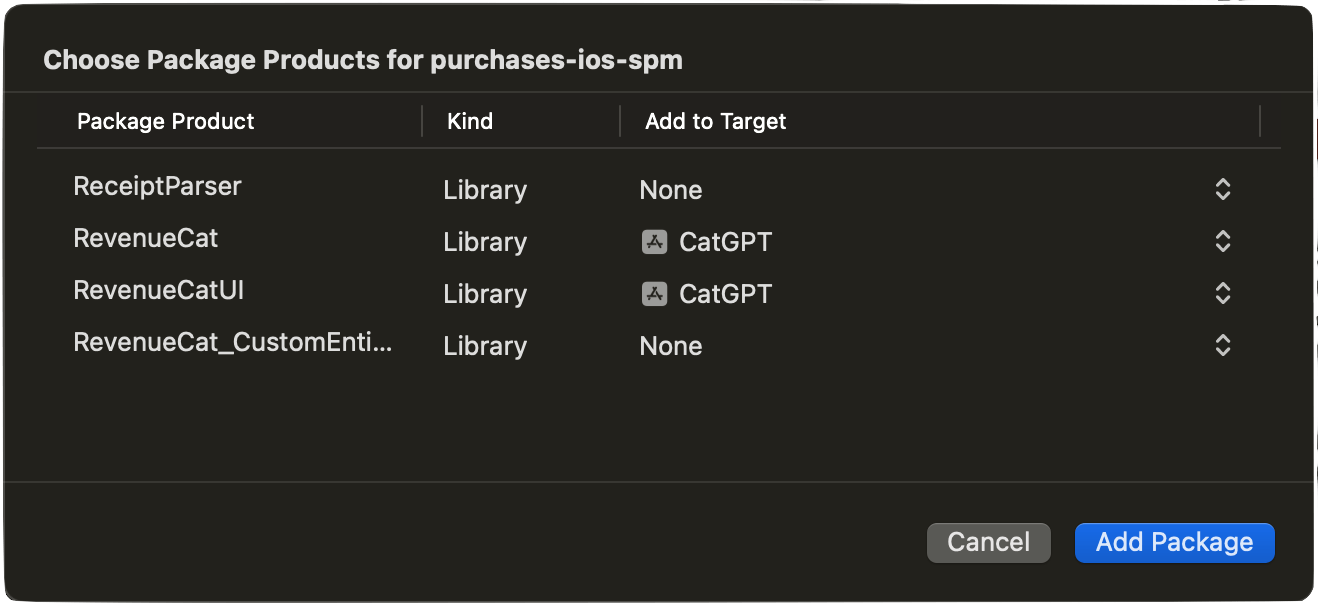
-
Click Add Package again.
For each additional target that used RevenueCat, such as an extension, open General > Frameworks, Libraries, and Embedded Content, click +, and add the same package product.
Use purchases-ios-spm.git consistently. If another dependency already uses purchases-ios.git, align its package URL first: referencing both repositories causes duplicate-target errors. The RevenueCat AdMob adapter uses purchases-ios-spm.git.
4. Check imports
Swift imports remain import RevenueCat and import RevenueCatUI.
For Objective-C files importing RevenueCat headers, use the module import:
@import RevenueCat;
5. Build and verify
- Select Product > Clean Build Folder, then build Debug and your release archive.
- Run your existing purchase flow in your test environment. Open any paywall or Customer Center your app uses.
- Commit the project changes and Xcode's
Package.resolved.
To upgrade the SDK later, change its version requirement under Package Dependencies, then resolve packages again.
Troubleshooting
Package resolution reports a conflicting target name
An error saying that multiple packages declare targets with a conflicting name means your project references both purchases-ios.git and purchases-ios-spm.git. Switch every reference to purchases-ios-spm.git.
Package resolution fails or doesn't finish
Select File > Packages > Reset Package Caches, then build again. If the error persists, quit and reopen Xcode.
Next steps
See the iOS install guide for your new setup, or the iOS migration guides before upgrading to another major SDK version.