Migrate the iOS SDK from Carthage to Swift Package Manager
Move the RevenueCat iOS SDK from Carthage to Swift Package Manager



Move the RevenueCat iOS SDK from Carthage to Swift Package Manager (SPM), keeping your current SDK version during the migration.
1. Note your current SDK version
Find the purchases-ios version in Cartfile.resolved, for example 5.98.0. Use that exact version in step 4 so the migration doesn't also upgrade the SDK.
2. Unlink the Carthage frameworks
Commit your project first, so you can review or undo the changes. Then, for every target that uses RevenueCat, including extensions:
- Open General > Frameworks, Libraries, and Embedded Content in Xcode.
- Remove the entries pointing to
RevenueCat.xcframework,RevenueCatUI.xcframework, andReceiptParser.xcframeworkunderCarthage/Build, where present. Older integrations may use.frameworkinstead. - Note which products each target used; you'll add them back through SPM.
If you have a carthage copy-frameworks build phase, remove those frameworks from its input/output lists or .xcfilelist files. Delete the phase only if no other frameworks need it.
3. Remove RevenueCat from Carthage
If RevenueCat is your only Carthage dependency
- Delete
Cartfile,Cartfile.resolved, andCarthage/. - Remove
Carthage/Buildentries from each target's Framework Search Paths. - Remove Carthage steps from your build scripts.
If your app still needs other Carthage dependencies
- Remove
purchases-iosfromCartfileandCartfile.resolved. Editing the lockfile directly preserves your other resolved versions. - Delete
Carthage/Checkouts/purchases-ios. - Delete RevenueCat's build products from
Carthage/Build:RevenueCat.xcframework,RevenueCatUI.xcframework,ReceiptParser.xcframework, and.purchases-ios.version, where present. Regular frameworks live in platform subdirectories such asCarthage/Build/iOS.
Keep the Carthage search paths and build steps for your other dependencies. Remove the old RevenueCat build products so those paths can't resolve a stale copy.
4. Add the RevenueCat Swift package
- In Xcode, select File > Add Package Dependencies and enter:
https://github.com/RevenueCat/purchases-ios-spm.git
-
Select Exact Version and enter the version from step 1.
-
Click Add Package. Add RevenueCat to your app target, plus RevenueCatUI or ReceiptParser if the target used them. Leave the other products set to None. Don't link RevenueCat_CustomEntitlementComputation alongside RevenueCat.
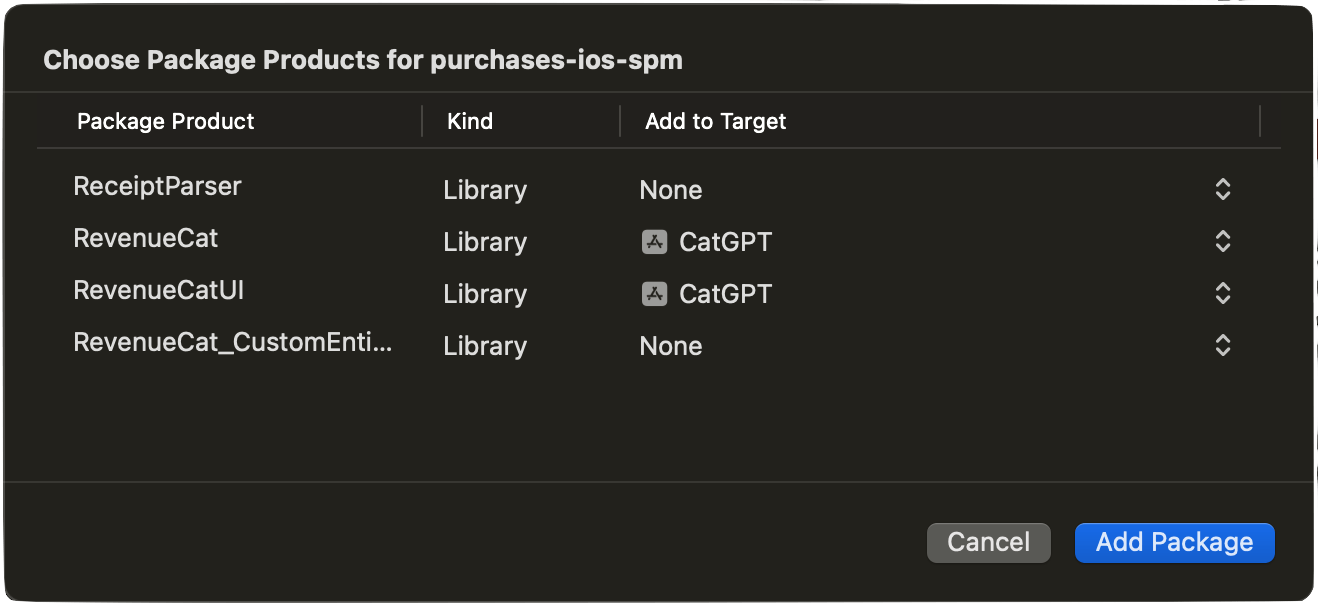
-
Click Add Package again.
-
For each additional target, open General > Frameworks, Libraries, and Embedded Content, click +, and add the package products you noted in step 2.
Use purchases-ios-spm.git consistently. If another dependency already uses purchases-ios.git, align its package URL first: referencing both repositories causes duplicate-target errors. The RevenueCat AdMob adapter uses purchases-ios-spm.git.
5. Check imports
Swift imports remain import RevenueCat and import RevenueCatUI.
For Objective-C files importing RevenueCat headers, use:
@import RevenueCat;
6. Build and verify
- Select Product > Clean Build Folder, then build Debug and your release archive.
- Confirm that targets link RevenueCat's Swift package products, with no references to its old files under
Carthage/Build. Keep the new package products linked. - Run your existing purchase flow in your test environment. If you use RevenueCatUI, also open any paywall or Customer Center your app uses.
- Commit the project changes and Xcode's
Package.resolved.
To upgrade the SDK later, change its version requirement under Package Dependencies, then resolve packages again.
Troubleshooting
The build fails with duplicate RevenueCat modules or symbols
A Carthage copy of the SDK is still in your project. Check that no target links a RevenueCat framework, that no carthage copy-frameworks phase lists one, and that Carthage/Build no longer contains them.
Package resolution reports a conflicting target name
An error saying that multiple packages declare targets with a conflicting name means your project references both purchases-ios.git and purchases-ios-spm.git. Switch every reference to purchases-ios-spm.git.
Package resolution fails or doesn't finish
Select File > Packages > Reset Package Caches, then build again. If the error persists, quit and reopen Xcode.
Next steps
See the iOS install guide for your new setup, or the iOS migration guides before upgrading to another major SDK version.