

iPhone Duo arrives today with plenty of debate around its price, proportions, and how useful that outer display really is. Early reviews praise the expansive inner display while raising questions about the compromises of using it as an everyday phone. For app developers, launch day brings a practical question: how does your app look when customers open it on either display? Your paywall is a good place to start.
iPhone Duo gives your paywall two very different spaces to work with. Closed, vertical space is tight. Open, a layout designed for a narrow phone can leave text and purchase buttons stretching across a wide display.
With RevenueCat, you can improve both experiences by controlling component widths, keeping fixed footers compact, and spreading longer benefit lists across multiple screens. Start with your existing paywall and work through these adjustments.
Give your content a maximum width
A full-width purchase button can look right on a narrow screen and oversized on an open Duo. The same goes for a stack of headlines, benefits, and subscription options.
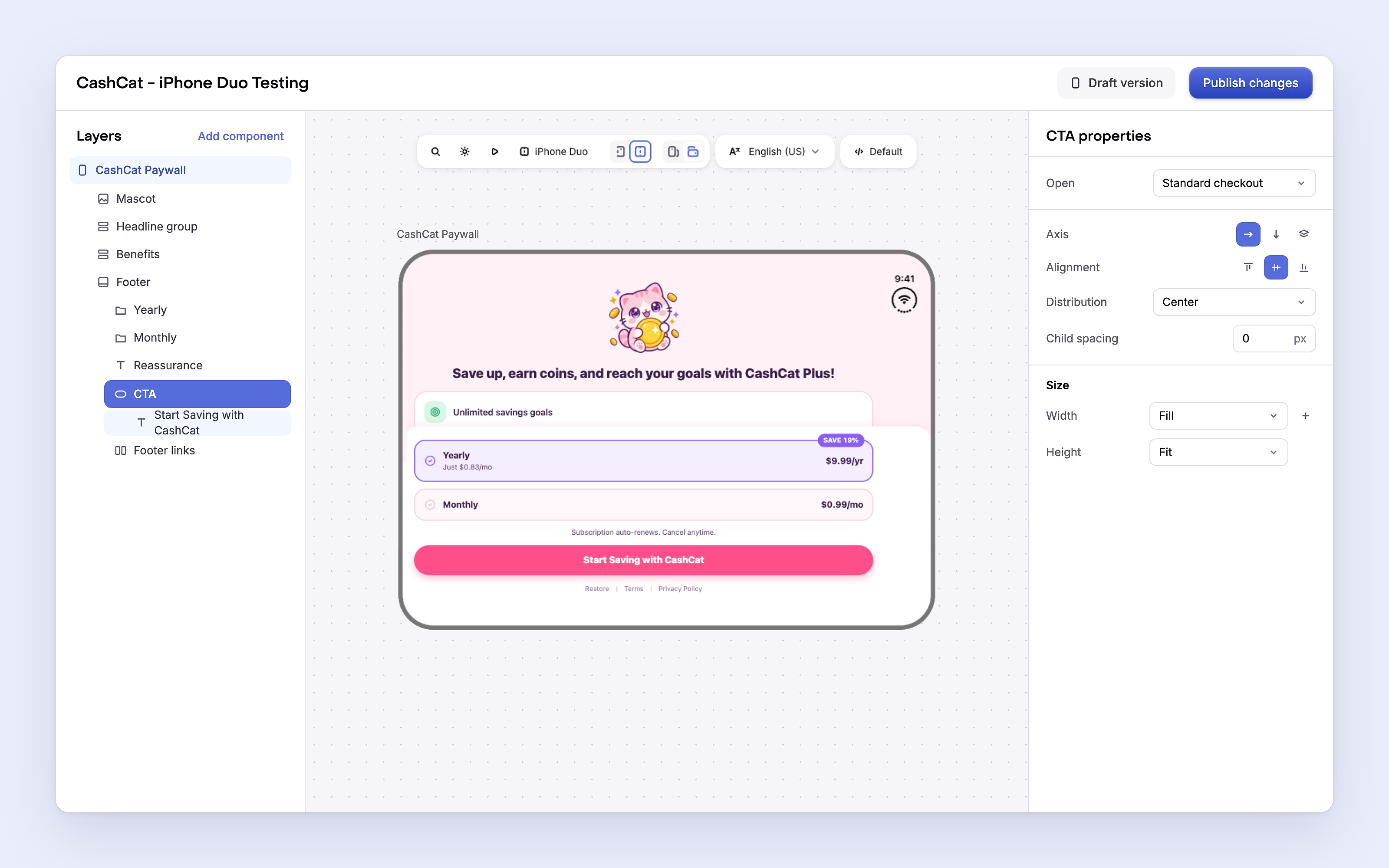
RevenueCat’s new min/max sizing controls let you put limits on components whose width or height is set to Fill. They use the available space until they reach the limit you’ve set.
BEFORE:
AFTER:

For a starting point:
These are starting values to adjust for your design. A short headline, a detailed benefit list, and an image-heavy paywall may need different widths.
The limits apply wherever the paywall appears. You don’t need to target the Duo specifically: content can fill a narrower space and stop growing in a wider one.
Min/max sizing works with Fill, rather than Fit or Fixed. On iOS, it requires RevenueCat SDK 5.93.0 or later. Older SDKs ignore the limits.
Make room on the closed screen
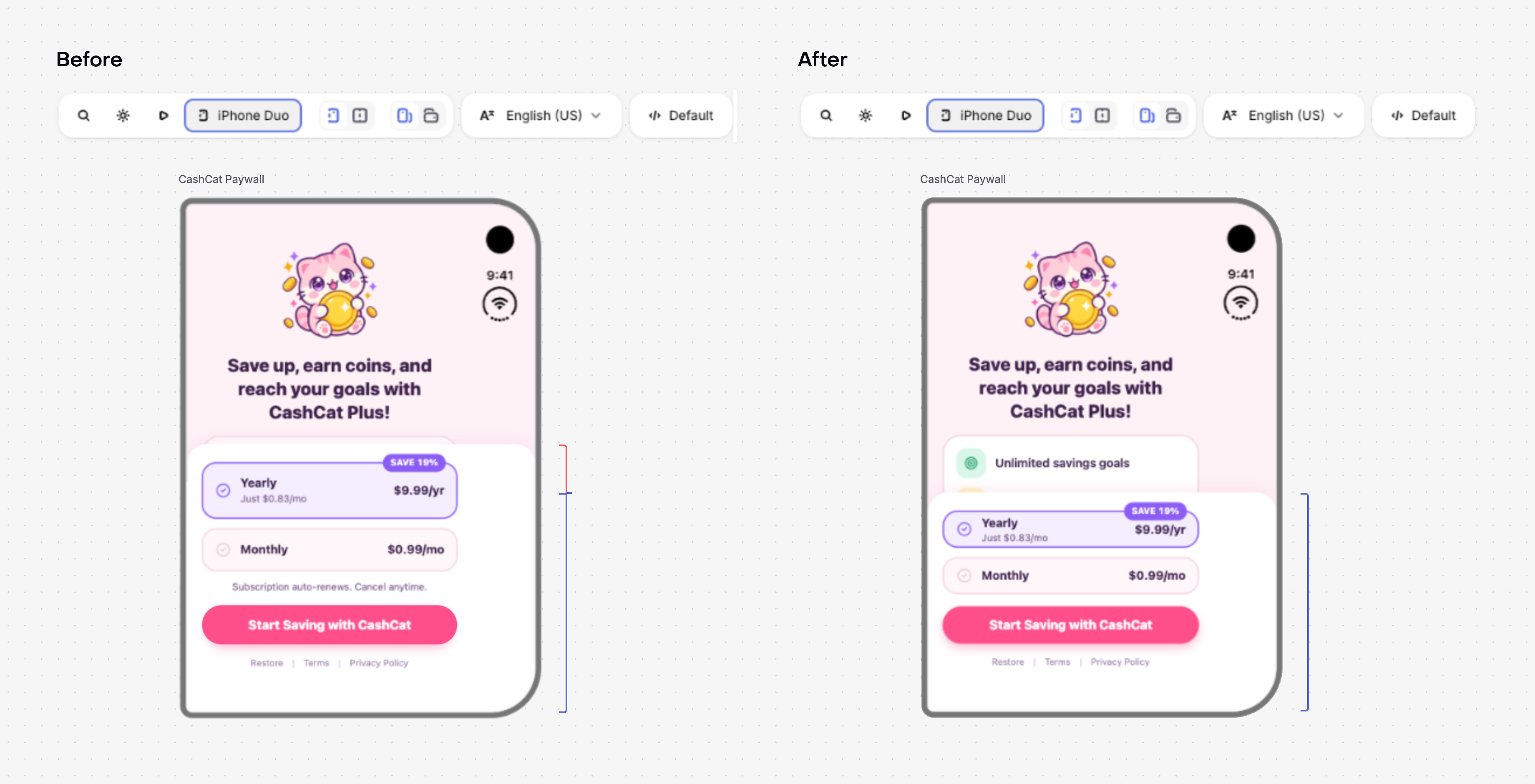
On the closed Duo, pay attention to how much space your fixed footer occupies.
A footer containing plan choices, a purchase button, supporting copy, and generous spacing can leave little room for the content above it. Review the whole screen together: can someone understand the offer, read the price, and reach the controls comfortably?
Start by tightening unnecessary spacing and shortening repetitive copy. Keep pricing, subscription details, and purchase controls clear.
If the screen still feels crowded, consider changing how much you ask it to communicate at once.
Give your benefits their own screen
A multi-step paywall is worth trying when your current design packs several benefits into one screen.
You might introduce your benefits on one screen, and then present the subscription offer on the next screen. RevenueCat lets you build a multi-step paywall, design each screen separately, and add buttons in the editor to move between screens. Customers choose a subscription plan and purchase on the final screen.
The Paywall AI Editor makes it even easier to turn a single-screen paywall into a multi-step flow. Add a blank screen before your existing paywall, then ask the AI Editor to move your benefits onto it. It will match your paywall’s branding, generate a relevant headline, and move the benefit copy to the new screen, leaving more room for the offer on the final screen.
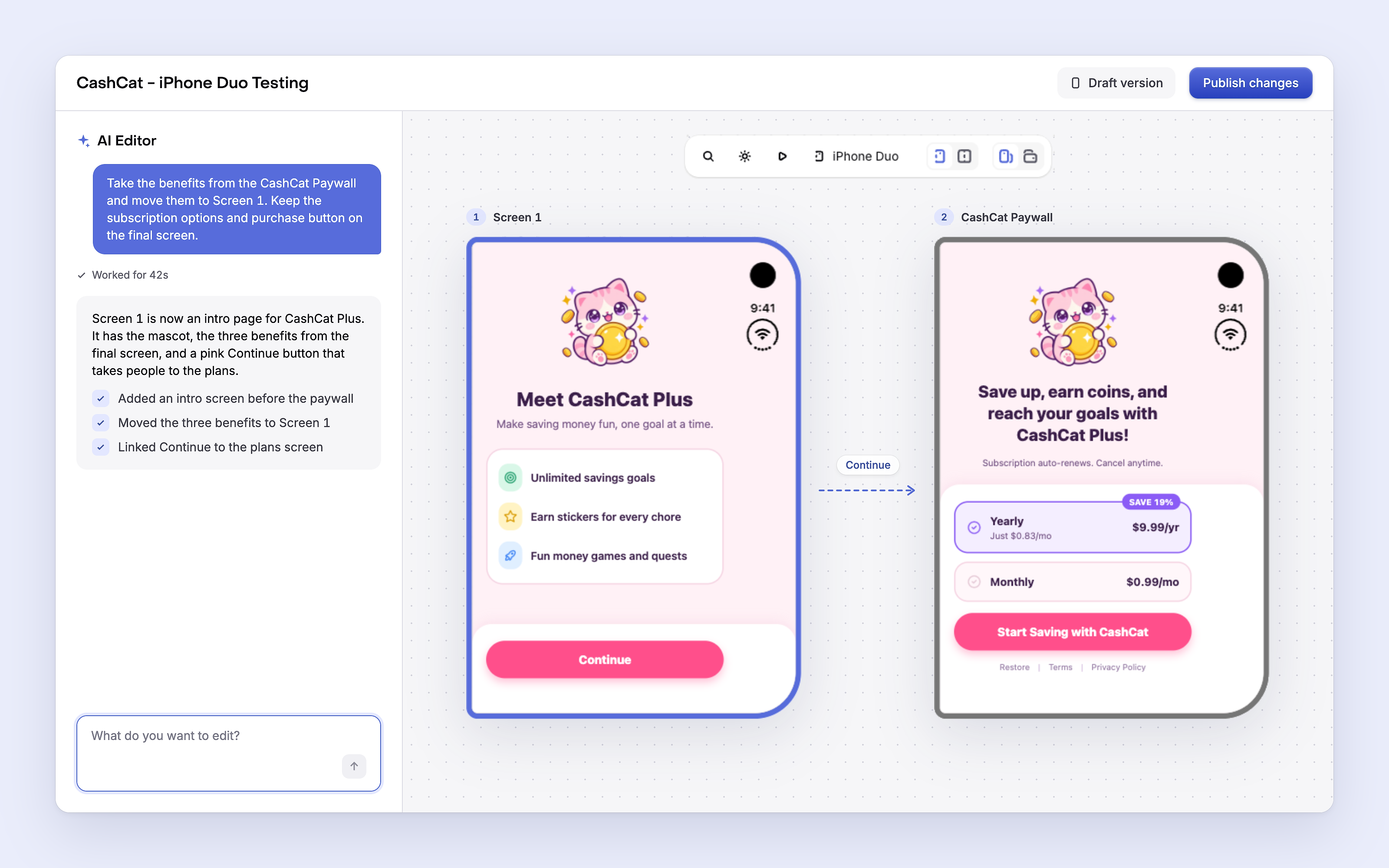
Review the generated copy, navigation, and final purchase screen before publishing. Adding steps changes the experience, so treat it as a design to test with your audience.
Let the Paywall AI Editor handle the adjustments
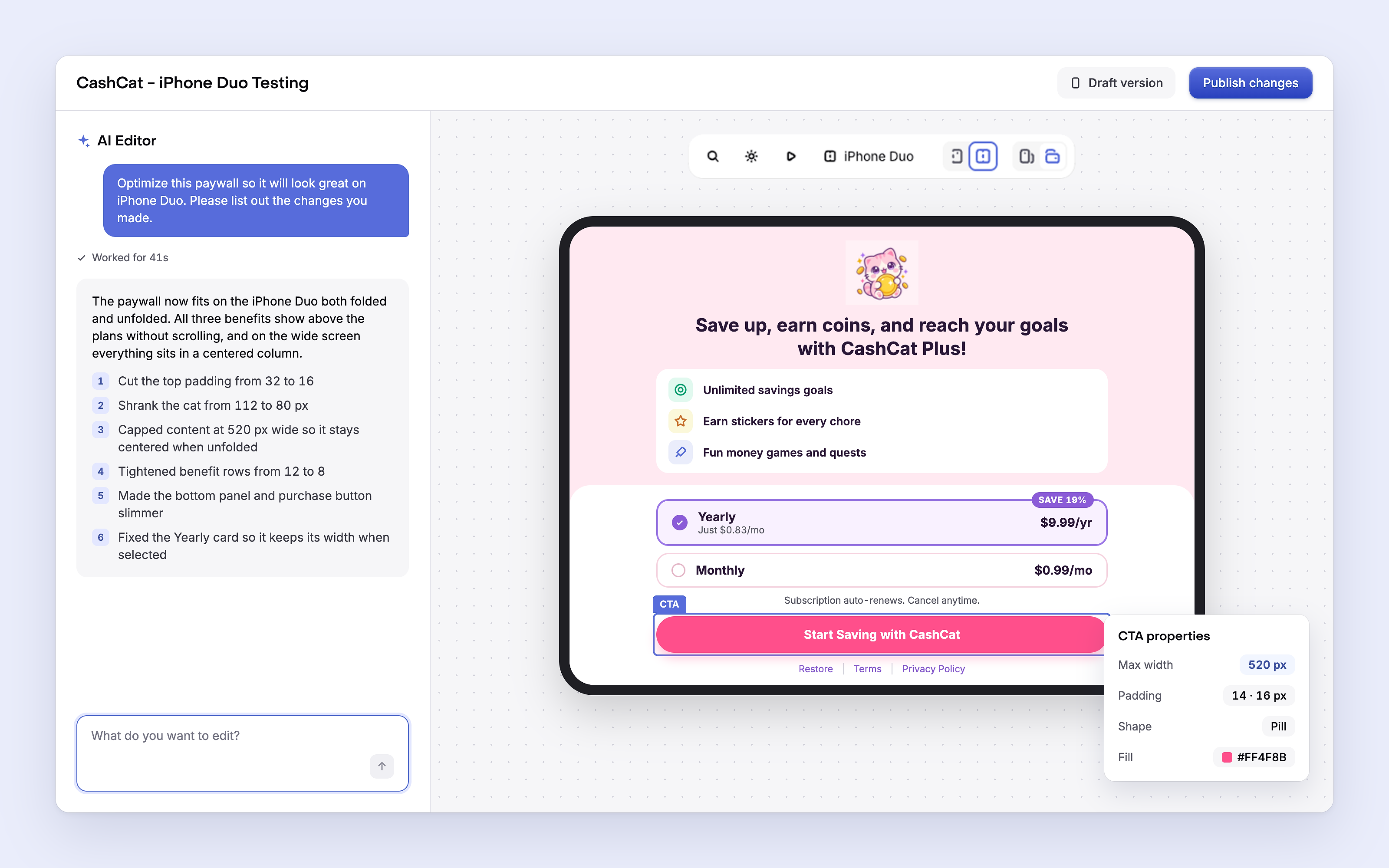
You can also ask the Paywall AI Editor to optimize your existing paywall for iPhone Duo. It can make the layout edits for you, helping your content fit comfortably on the outer display and use the extra room on the inner display.
Start with a simple request:
Optimize this paywall for iPhone Duo so it looks good on both the open and closed displays.
Review the changes, then preview your paywall in both configurations. You can keep refining it through follow-up prompts, whether you want a more compact footer, narrower content, or more room for your benefits.
Keep your close button in the right place
If your paywall includes a close button so customers can dismiss it without subscribing, check its placement on iPhone Duo. Depending on the display, orientation, and how your app presents the paywall, iOS can move navigation controls to the side. A close button inside your paywall won’t automatically move with them.
To let iOS handle its placement, select the button in the RevenueCat Paywall Editor and enable Use system navigation in the button’s properties. This replaces the close button with a native iOS close control.
If you have a multi-step paywall, review the close and back buttons on each screen and enable the setting where appropriate. Then preview and test the flow on both displays.

Check the whole experience
Once you’ve made the adjustments, test your paywall closed, open, and rotated, using the same presentation your app uses.
Look for:
- Readable content: Headlines and benefit copy wrap cleanly, with no clipping.
- Balanced widths: Buttons and text remain comfortable to read on the open display.
- Usable footers: Fixed content leaves enough room for the rest of the paywall.
- Accessible controls: Close, back, continue, and purchase controls remain visible and usable.
- Complete navigation: Every step works, and customers can reach the final offer.
Check the SDK version shipped in your app, too. Multi-step paywalls require iOS SDK 5.83.0 or later; older versions display only the final screen. Using min/max sizing alongside them requires 5.93.0 or later.
See the SDK requirements for other frameworks.
Start with the paywall you already have
With iPhone Duo arriving today, it’s a good time to give your paywalls another look. Keep content at a comfortable width, make room above your footer, and consider multiple screens when your benefits need more space.
You can make these adjustments in RevenueCat today, with the Paywall AI Editor helping you rework the layout. Start with your existing paywall, check it folded and open, and make sure your offer is easy to read and act on in both.
Optimize your RevenueCat Paywalls for iPhone Duo
