

Last updated: September 28, 2026. This is a living guide — we'll keep updating it as Apple shares more and we ship new RevenueCat Paywalls features for foldables. So bookmark this and check back.
iPhone Duo gives your app two very different screens to lay out for, plus everything in between. And your paywall is the one screen where something looking ‘a little off’ costs you real money.
A paywall is already one of the hardest screens to get right on a normal iPhone. Now the same paywall has to work on a 5.4-inch outer screen, a 7.6-inch inner screen, sideways, half-folded on a table, and in Split View next to another app. If you present your PaywallView in a .sheet like most of us do today, it'll show up in every one of those states, so we want to make sure that everything still looks intentional.
This guide covers what iPhone Duo is, and what each posture does to your paywall. Plus, what Apple recommends, and exactly how to set up a RevenueCat paywall so it feels native on Duo starting today.
What is iPhone Duo?

iPhone Duo is Apple's first foldable iPhone. It has a shape like a passport and opens like a book to about the size of an iPad Mini.
Pre-orders open Friday October 16, 2026, and iPhone Duo is available starting Friday October 23, 2026. It will be available with iOS 27.1. You can test it today with the iPhone Duo simulator in the Xcode 27.1 beta (get it at Apple Developer).
The simplest way to think about it: closed, it's an iPhone; open, it's much closer to an iPad. Apple's Human Interface Guidelines (HIG) ask you to design for two sizes: compact width on the outside and regular width on the inside.
Lots of different postures
This is where things start to get really interesting...
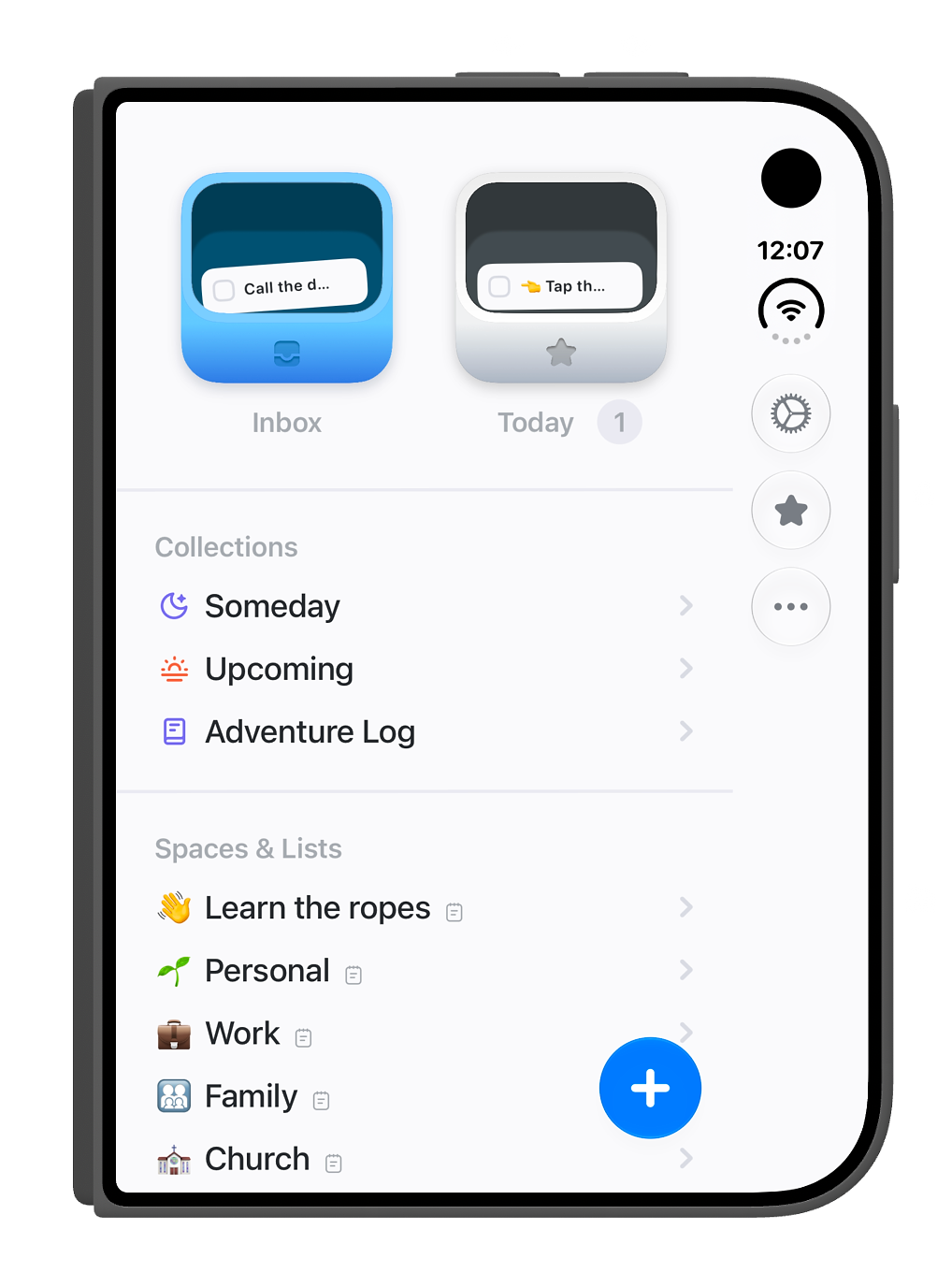
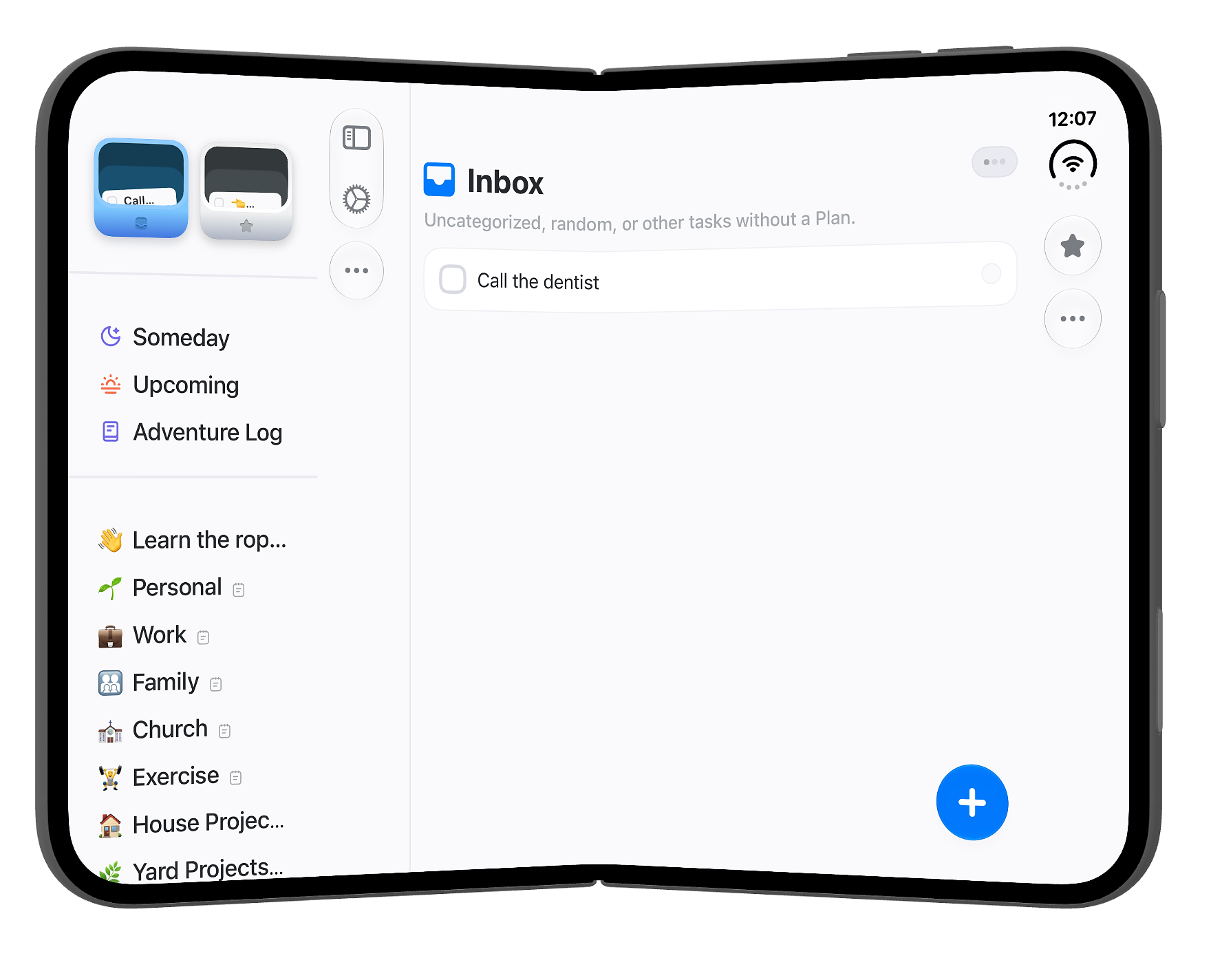
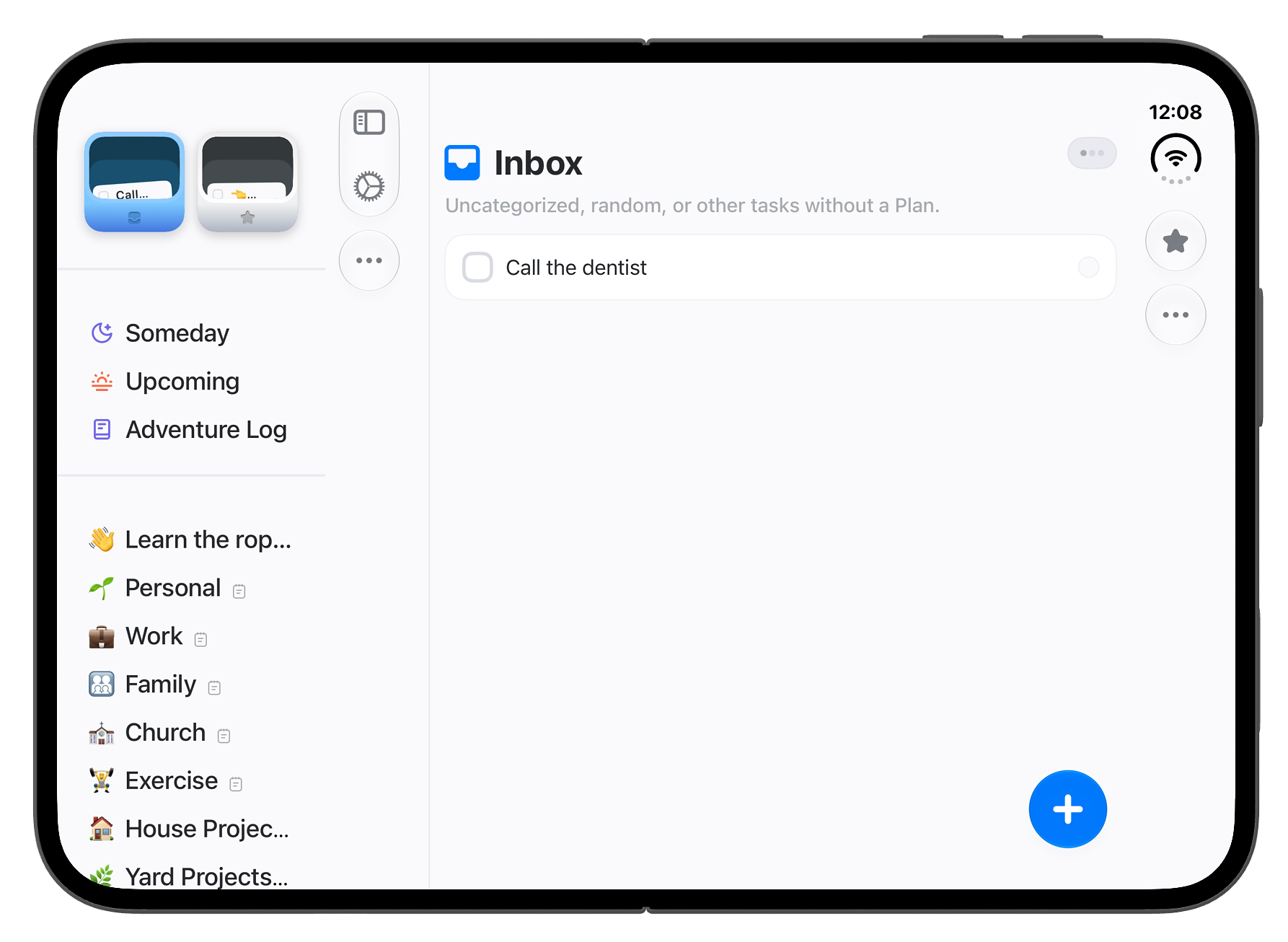
iPhone Duo can be closed, fully open, or angled somewhere in between. Apple's hinge API (onHingeChange in SwiftUI, UIHingeInteraction in UIKit) reports these as .closed, .partiallyOpen, or .fullyOpen. On top of that come portrait, landscape, and a few ways to set the phone down.
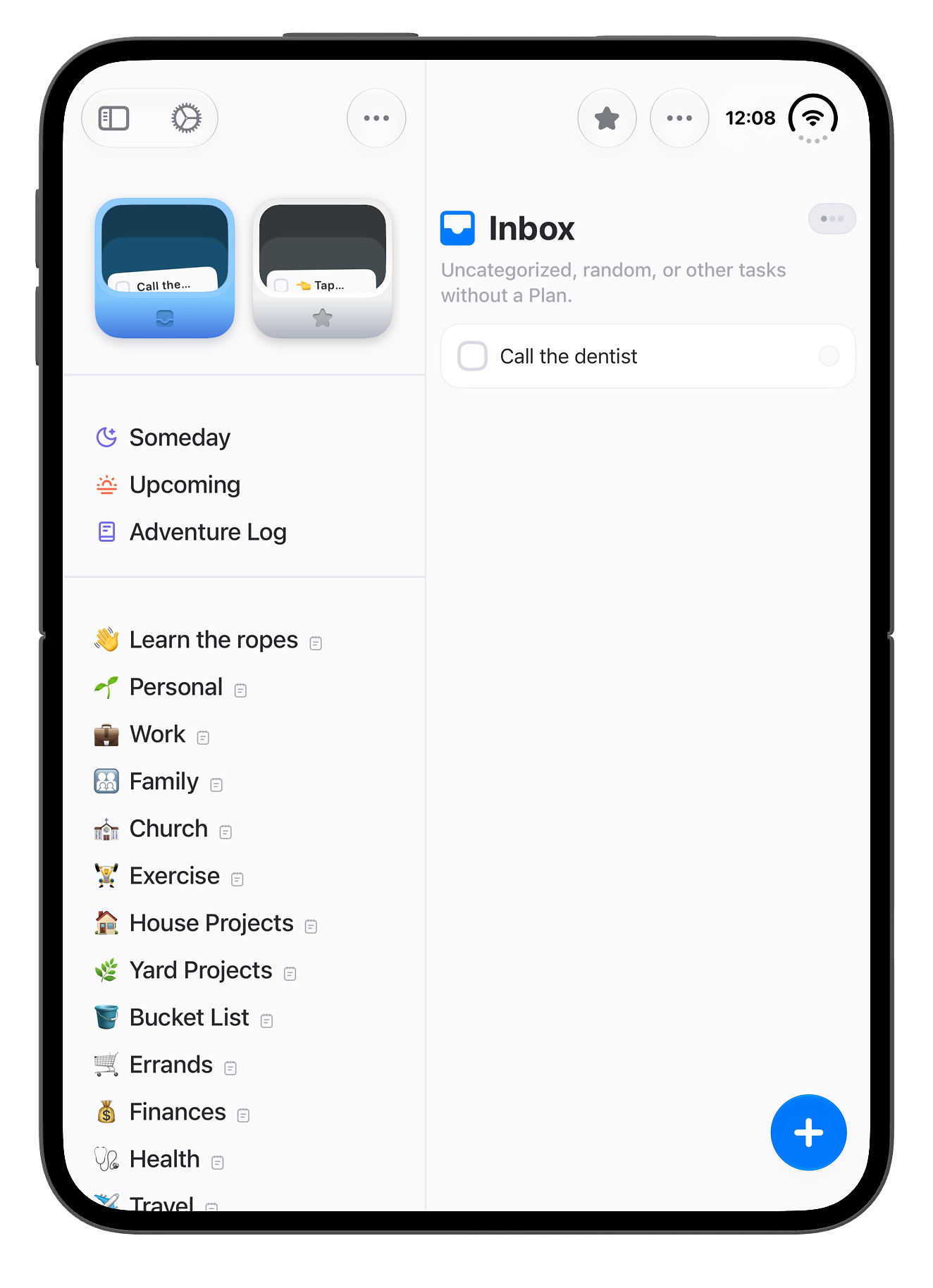
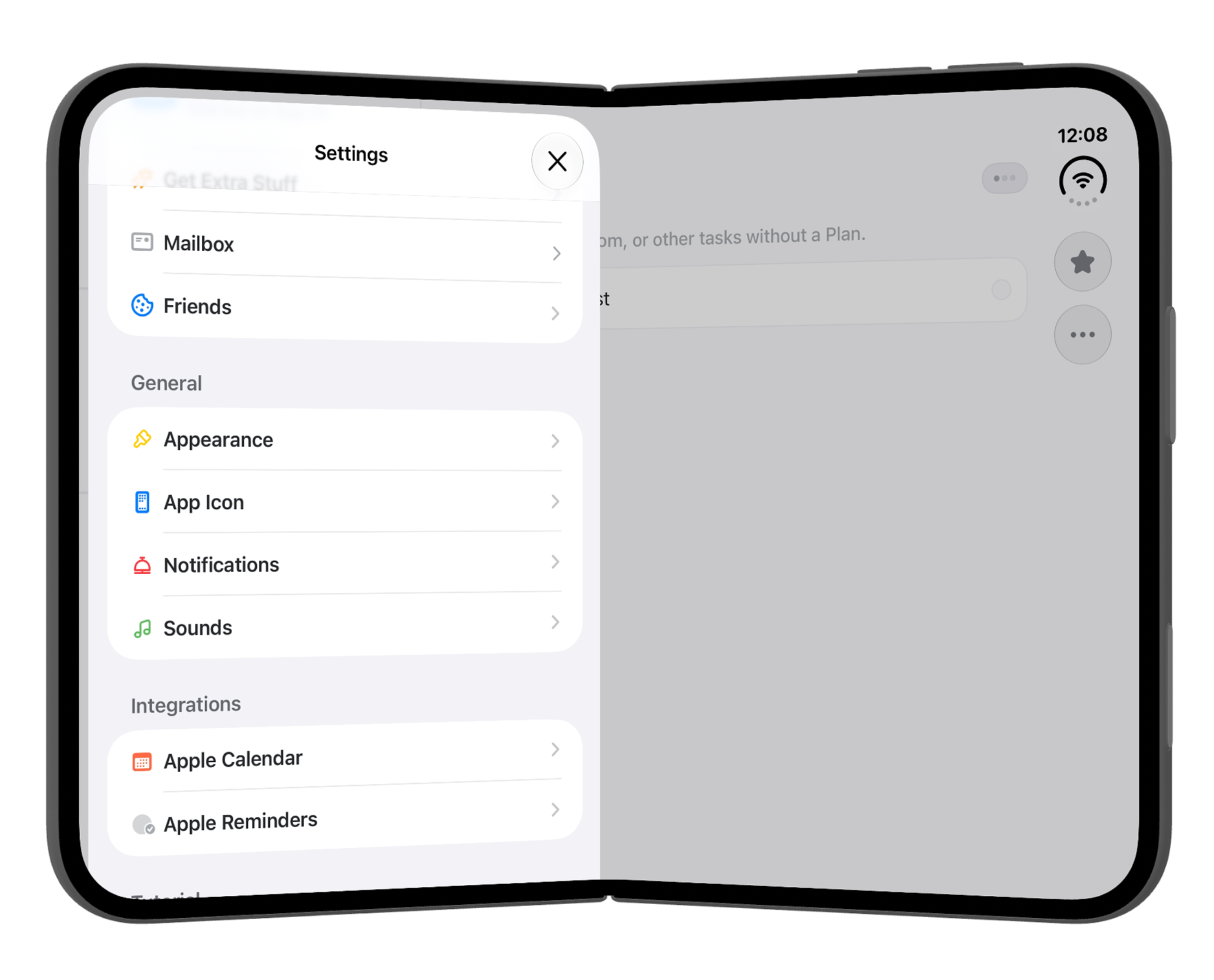
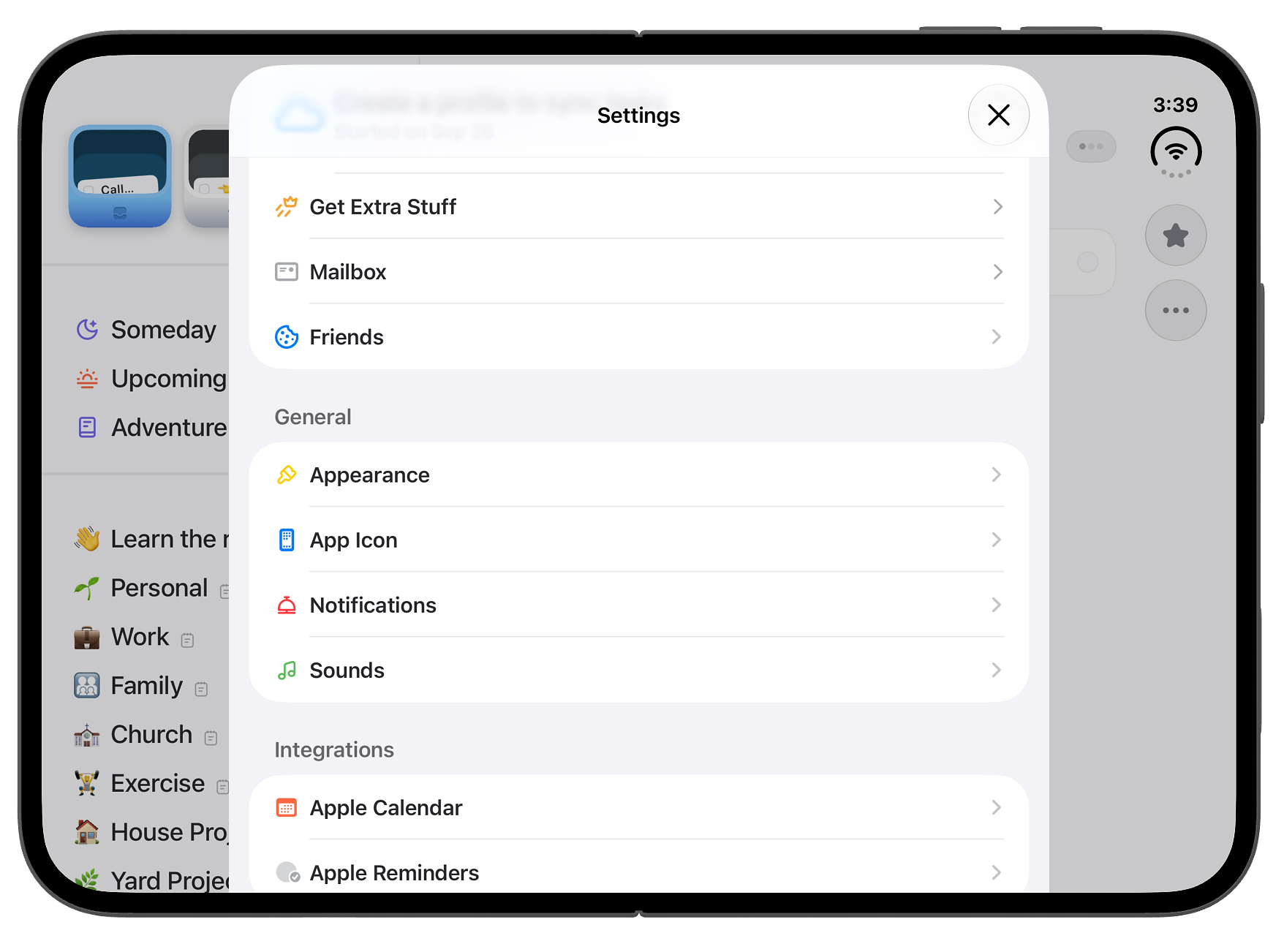
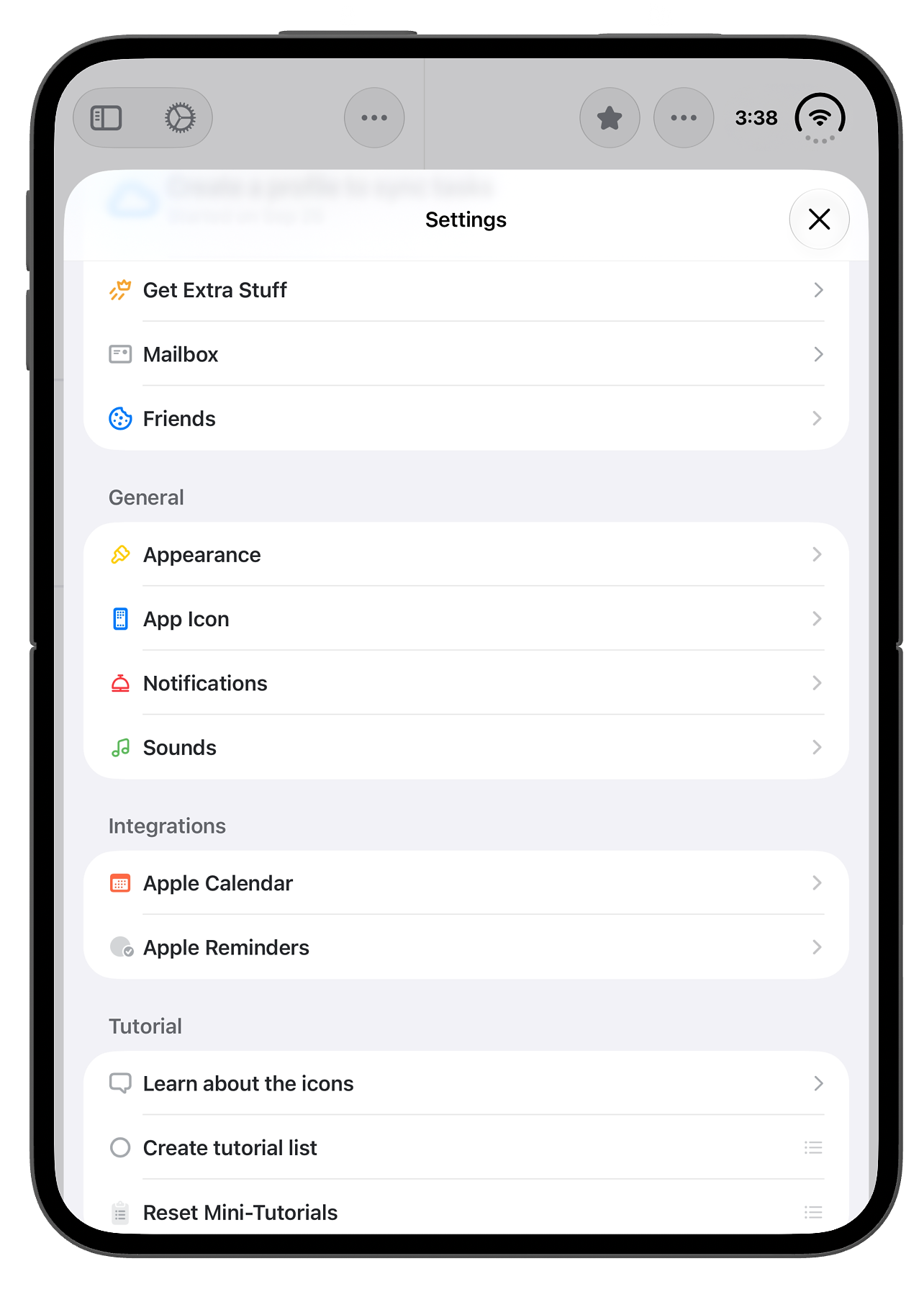
Using the right Xcode Beta
One detail that's easy to miss: how your app behaves on Duo depends on which SDK you build with.
- Built before the iOS 27 SDK: your app stays out of the status bar and camera area when closed, and runs at a familiar phone size when open
- Built with the iOS 27 SDK: your app extends to the left of the status-bar area on the inner display
- Built with the iOS 27.1 SDK: your app goes fully edge to edge, and system bars lay out vertically
If you want your paywall to look native, build with Xcode 27.1 and test in the Duo simulator. Otherwise people who just spent $1,999 on a phone won't see your app use the whole screen.
Official Apple recommendations for paywalls on iPhone Duo
Apple published a new HIG page for iPhone Duo and a set of tech talks alongside it. None of it is written specifically for paywalls or StoreKit, but a handful of the general rules map directly onto how a paywall should behave.
Prioritize small adjustments over big rearrangements
Apple asks you to "avoid extreme layout changes as people fold the device" and to "maintain the same functionality across device poses". For a paywall, that means the same packages, prices, trial terms, and call to action whether the phone is open or closed.
Put Close where people now expect it
On Duo, toolbars move to a vertical strip on the side. Apple says to reserve the top of that vertical axis for navigation controls like Back or Close. A RevenueCat paywall's close button is a component inside the paywall itself, so it doesn't move with the toolbar. Step 4 below covers the fix.
Keep anything tappable off the fold
When the device is partially folded, iOS slides sheets out of the fold for you, so a paywall presented in a sheet is covered. If you present your paywall full screen, the fold runs right through the middle of it. In that case, Apple suggests an even number of columns so nothing straddles the fold — so two package cards side by side work better than three.
Know where your sheet will land
On the inner display, sheets are centered by default. You can move one to the leading or trailing edge with presentationPlacement(_:). On the outer display, a sheet with a single button can opt out of the vertical bar and stop just short of the camera.
Adapting your existing paywall for iPhone Duo
You don't need to wait for anything new to get a good result on Duo. Here's the setup I'd use, built entirely on features that are live in RevenueCat Paywalls right now.
1. Preview your paywall on iPhone Duo in the paywall editor
The RevenueCat paywall editor now includes an iPhone Duo preview. You can switch between open and closed, portrait and landscape. The preview matches the Duo's screen shape, safe areas, and camera, and it shows what the current SDKs render. It's the fastest way to spot problems before you open Xcode.
2. Build with Xcode 27.1 and open the Duo simulator
Install the Xcode 27.1 beta, choose iPhone Duo in Device Hub, and use the controls at the bottom of the simulator to open, close, rotate, and fold it. Walk your paywall through every posture in the table above before you change anything, so you know what you're actually fixing.
Get the versions exactly right
You need the Xcode 27.1 beta specifically, not Xcode 27.2. Your simulator has to run iOS 27.1 too, not iOS 27 or iOS 27.2. I learned this one while setting up my own test project, so double-check both before you start.
3. Present your paywall in a sheet
A sheet does a lot of Duo work for you. On the inner display, the system centers it by default. When the device is partially folded, the sheet slides away from the fold on its own.
The simplest option is RevenueCat's presentPaywallIfNeeded modifier. It checks the entitlement for you, presents the paywall in a sheet, and dismisses it once the entitlement is active. On iPad, it shows the paywall in a modal that's roughly iPhone-sized.
If you want more control, present PaywallView yourself in a .sheet. That's the route to take if you want a native Close button in the toolbar, which is the next step.
4. Move close into the system toolbar
If you present PaywallView yourself, move the X out of the paywall and into the system toolbar. Wrap PaywallView in a NavigationStack and add a close button with the .cancellationAction placement, which is what Apple recommends for custom close buttons. iOS then puts it at the top of the vertical bar on the outer display, and in the usual corner on the inner display.
Then remove the close button from your paywall in the editor, so people don't see two. Close buttons are an optional component in RevenueCat Paywalls, and RevenueCat's docs note that sheets don't require a dedicated close button. If you also show the same paywall somewhere else without a toolbar, remember it won't have a close button there either.
Using presentPaywallIfNeeded instead? The modifier presents its own sheet, so there's no toolbar to add a button to. Your paywall's built-in close button is what people see. On the outer display the camera sits in the top-trailing corner, so check that your X doesn't end up right next to it. The Duo preview in the paywall editor shows exactly where it lands.
5. Run the checklist
Before you ship, walk your paywall through every posture and check:
- Close is reachable and doesn't collide with the camera or the side bar
- The call to action is visible without scrolling on the closed, landscape screen (or you've made peace with the scroll)
- Nothing tappable, and no price or trial term, sits on the fold when partially folded
- The inner display in landscape doesn't look stretched
- Select a package, fold, and unfold — your selection is still there
- It still looks right on a regular iPhone and iPad
Why native paywalls help here
This is the part I'm most excited about: RevenueCat Paywalls render natively on iOS, and PaywallView is a regular SwiftUI view. That's why everything in this guide works with Apple's own tools. You present it in a system sheet, put its close button in the system toolbar, and let iOS move it out of the fold.
Someone who just unfolded a brand-new phone is going to notice a paywall that wasn't built for it. Make sure yours was.
What's next
We're actively working on making RevenueCat Paywalls even better on iPhone Duo and other foldable devices, and this guide will grow as that work ships.
Changelog
- September 24, 2026: First version. Covers postures, Apple's guidance, the Duo preview in the paywall editor, and presenting your paywall with a native Close button.
Thank you
Huge thanks to the Paywalls team for all the work they've been putting into foldables. If you've built a Duo-ready paywall with RevenueCat, I'd love to see it! Send it my way at on X @austnstuff, or to austin.blake@revenuecat.com.