Apple Pay & Google Pay



RevenueCat Billing (formerly Web Billing) currently supports the following payment methods for charging subscription and one-time purchases:
- Credit card: Enabled by default, supports all major card networks, and 3D Secure authentication (via Stripe)
- Apple Pay: A low-friction wallet payment method for customers with stored credit cards on iOS or macOS devices (via Stripe)
- Google Pay: A low-friction wallet payment method with the ability to use stored credit cards from Google Play, YouTube, Chrome and Android (via Stripe).
In general, RevenueCat Billing manages the payment methods that are shown to customers. Other than the additional required configuration below, you do not need to manage or enable payment methods in your Stripe account.
Configuring credit cards
There is nothing you need to do to configure to accept credit card payments, which are enabled by default.
Configuring Apple Pay & Google Pay
How to configure Apple Pay & Google Pay
For RevenueCat-hosted checkout domains, no Stripe configuration is required. RevenueCat automatically registers these domains with your Stripe account:
pay.rev.cat, used by Web Purchase Links.signup.cat, used by RevenueCat-hosted Web Funnels.
For custom Funnel domain, RevenueCat registers the domain in Stripe automatically once you've configured DNS and the domain is verified.
You only need to register a domain manually in Stripe if you're initiating purchases with the Web SDK on your own domain.
How to add payment domains
Follow the steps below when you need to register a domain in Stripe manually.
Payment domains added in Stripe Test mode can be used in Sandbox, using real cards (no charges will be made). You need to add domains in Stripe Live mode to allow production purchases on those domains. If your test environment uses a different subdomain, you'll need to add that (full domain with subdomain) as an additional payment domain in Stripe to be able to test payments.
- Go to the Payment Method Domains page in your Stripe Dashboard.
- Click "Add a new domain", and enter the domain where purchases take place on your website, including the subdomain. Click "Save".
You should see the added domain in the list next to a green "Enabled" tag.
Once enabled, Apple Pay and Google Pay will be displayed next to the credit card payment method in the checkout form, when available to the customer. There are no further steps required to handle payments with these methods.
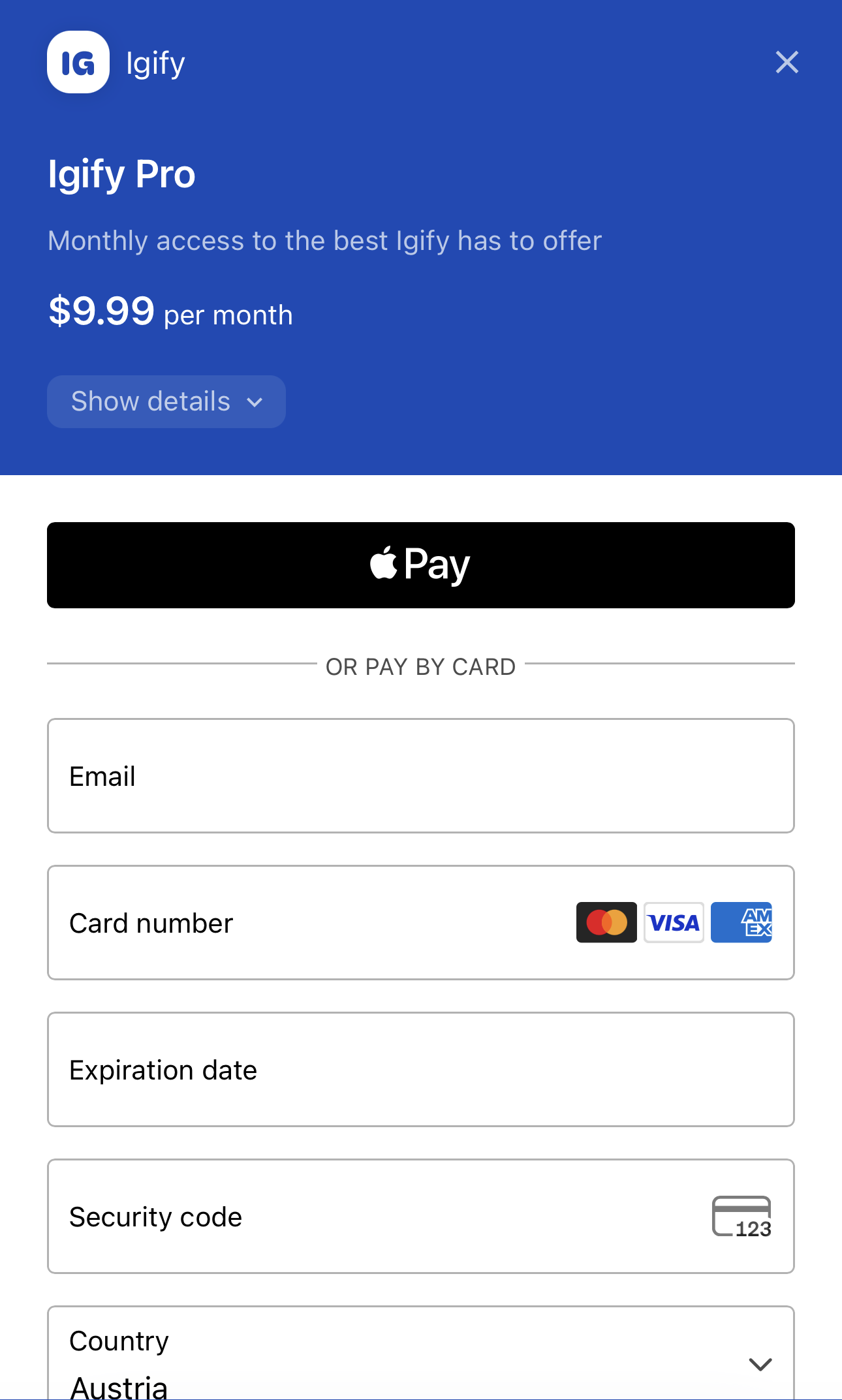
If Apple Pay or Google Pay aren't appearing in your checkout:
- Confirm you're using a supported browser and following Stripe's testing practices for Apple Pay and Google Pay.
- For RevenueCat-hosted domains, open the RevenueCat app in your Stripe Apps dashboard and approve any pending permission updates — write access to Payment Method Domains is required for RevenueCat to auto-register your domain. If you can't grant the permission, you can register the domain manually instead.