

Android developers spend most of their time in Android Studio, but managing a subscription business has always required a browser. You write code in the IDE, then switch to a tab to check MRR, open another to configure offerings, and switch again to design a paywall. Each switch breaks your flow and fragments your attention. Firebender eliminates this by connecting to RevenueCat’s MCP server directly from the IDE, letting the AI agent create paywalls, manage offerings, packages, and entitlements, and query revenue metrics through conversation.
In this article, you’ll explore how Firebender integrates with RevenueCat’s MCP server, including how OAuth sign-in establishes the connection, how you manage offerings, packages, and entitlements through natural language, how AI paywall generation works end-to-end, and how you can query revenue analytics using the Charts API without leaving Android Studio.
Getting started: OAuth sign-in
Firebender connects to RevenueCat’s MCP server using OAuth 2.0. To get started, open Firebender’s settings inside Android Studio or IntelliJ and add the RevenueCat MCP server. Once added, you’ll see an option to sign in with your RevenueCat account.
Clicking sign in opens your browser for authorization. Firebender handles the token exchange automatically and stores your credentials securely. After authorization, the agent fetches your projects and prompts you to select which one to work with. From that point on, the agent operates within the scope of that project.
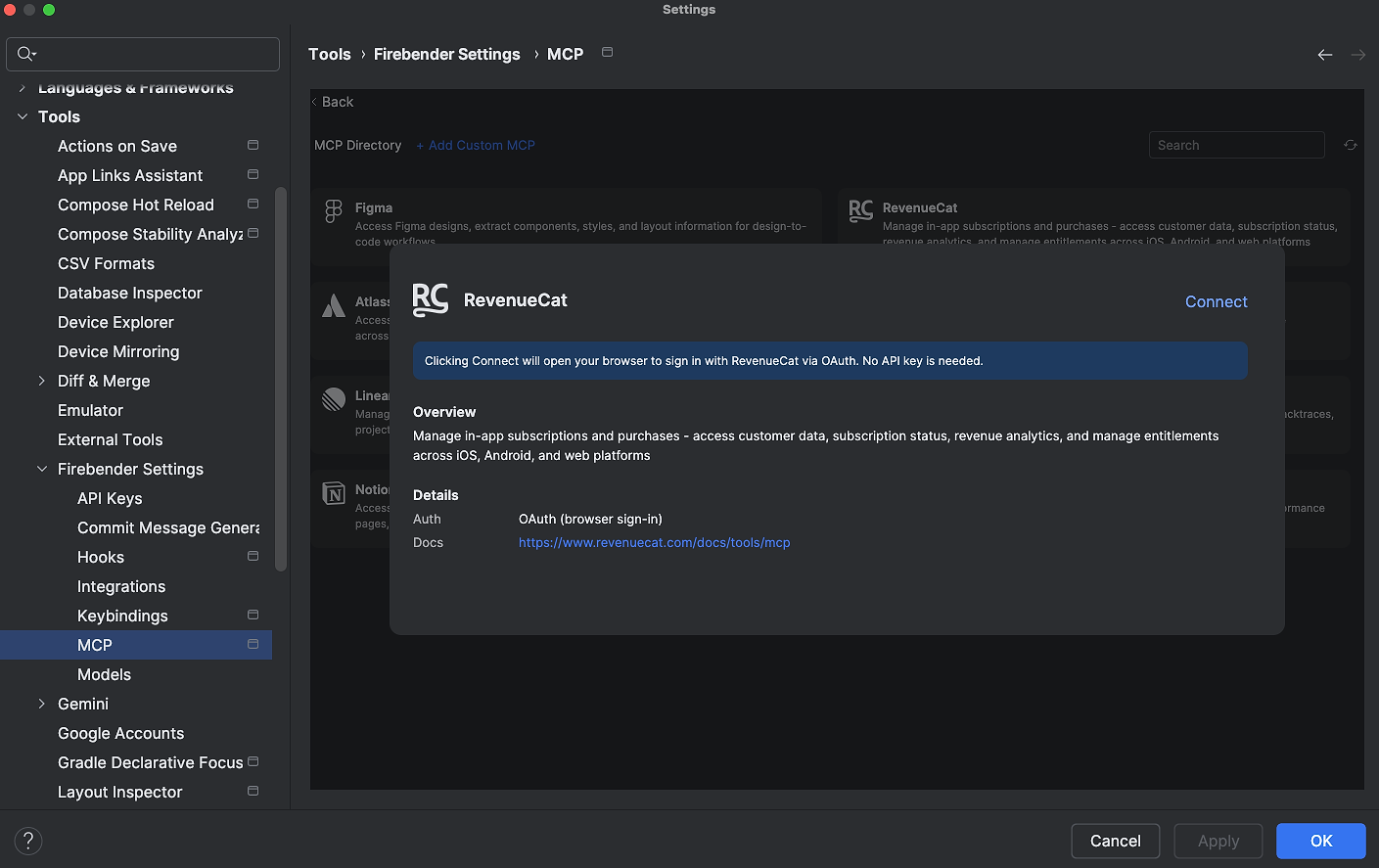
The OAuth flow requests scoped permissions for project configuration, charts and metrics, and customer information. This means the agent can read and modify your offerings, packages, entitlements, and paywall configuration, and query your revenue data, but only within the bounds of the permissions you’ve granted. Tokens refresh automatically when they expire, so you stay connected across sessions without manual intervention.
Once you connect your RevenueCat account to the Firebender, then you’ll see the result below with the available MCP tasks:
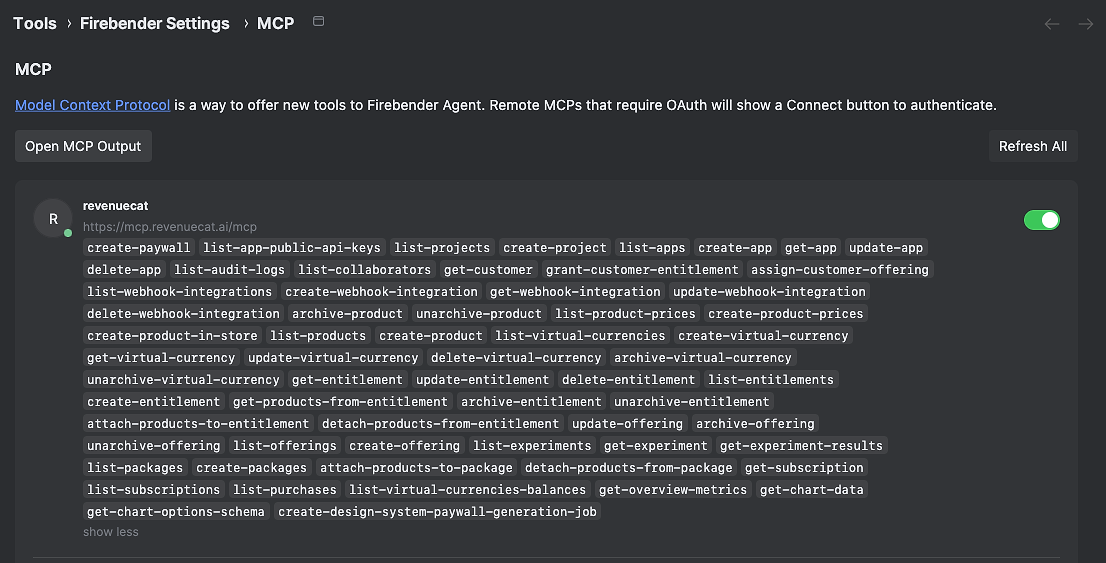
Managing your subscription infrastructure through conversation
Once connected, you can manage your entire RevenueCat project configuration through conversation. The agent supports creating, reading, updating, and deleting offerings, packages, entitlements, and products. You describe what you want, and the agent takes care of the API calls.
Creating offerings and packages
To set up a new offering with packages, you can ask the agent directly:
“Create a new offering called Premium with a monthly package at $9.99 and an annual package at $79.99”
The agent creates the offering, sets up both packages, and attaches the appropriate products. If any of these resources already exist, the agent detects the duplicates and reuses them instead of creating new ones.
You can also add products to existing packages without having to rebuild the entire structure:
“Add a weekly package to my existing Premium offering”
The agent fetches your current offering structure, confirms what’s already configured, and adds the new package without touching anything else.
Configuring entitlements
Entitlements connect your products to feature access in your app. Setting them up manually through the dashboard involves navigating through multiple screens and attaching each product one by one. Through conversation, the same setup takes a single prompt:
“Set up an entitlement called pro_access and attach it to all my subscription products”
The agent creates the entitlement, lists your existing products, and attaches each one. If some products are already attached to a different entitlement, the agent reports that back so you can decide how to proceed.
You can also set up entitlements for specific products only:
“Create an entitlement called premium_features and attach it to my annual and monthly products”
The agent handles the lookup, creation, and attachment in sequence without requiring you to provide product identifiers manually.
Querying your project
Beyond creating and modifying resources, you can ask the agent to describe what’s currently configured in your project. This is useful for auditing your setup or understanding what might be missing before submitting a build for review.
“Show me all my offerings and which ones have paywalls”
The agent fetches your offerings and paywall data and presents a summary of what’s configured and what’s missing. Offerings without paywalls are called out explicitly.
“What products do I have configured? Which ones aren’t attached to any package?”
The agent cross references your products, packages, and offerings to surface orphaned resources. Finding these manually through the dashboard is time consuming, especially as your project grows. The agent does it in a single query.
AI Paywall generation
The most direct use of the Firebender and RevenueCat MCP connection is end to end AI paywall generation. You describe what you want, and the agent handles every step: creating the offering, setting up the packages, attaching products, and triggering AI paywall generation with your app context.
A prompt like this is all you need to get started:
“Generate a paywall for my fitness tracker app targeting health conscious users”
The agent creates the supporting offering and package structure if it doesn’t exist, then submits the paywall generation job with context from your prompt. RevenueCat’s AI uses that context to generate copy, imagery, styling, and template selection suited to your app and audience.
The agent monitors the generation job in the background. When the paywall is ready, a notification appears with a direct link to the paywall builder where you can review the design and publish it. You don’t need to poll the dashboard or wait in a tab for the job to finish.
You can run multiple generation requests in sequence. The agent tracks each job independently, so you can ask for a “premium” paywall and a “freemium” paywall back to back, and both are monitored separately without conflict.
If you want to iterate on a paywall for a specific promotion or seasonal campaign, you can generate a new one based on an existing offering:
“Generate an AI paywall for my existing Premium offering. The campaign is a summer fitness challenge with a discount on the annual plan.”
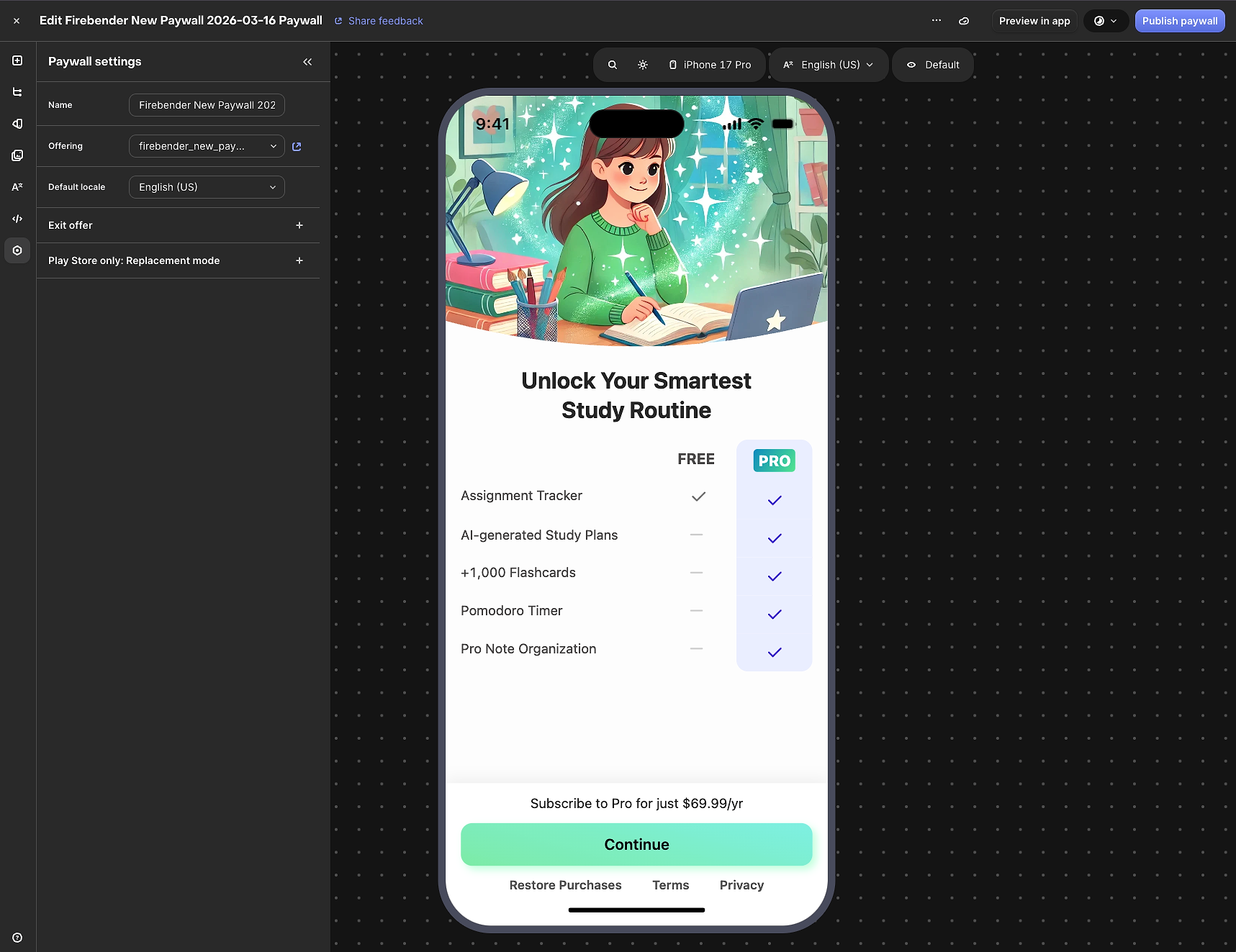
The agent picks up the existing offering and package structure and submits the generation job with the campaign context you’ve described. Once Firebender generates a new paywall, you will see the result in the paywall editor like below:
Analyzing revenue with the Charts API
The agent has access to 21 chart types from RevenueCat’s Charts API, including MRR, ARR, churn rate, trial conversions, active subscriptions, new paid subscriptions, and retention cohorts. You can ask analytical questions in plain English and get data backed answers without opening a browser.
“What’s my MRR trend over the last 6 months?”
The agent queries the MRR chart with the appropriate date range and resolution, then presents the trend in a readable format. If there are notable changes in the data, you can follow up with more specific questions.
“Show me trial to paid conversion rate by week”
The agent queries the trial conversion chart with weekly resolution and returns the breakdown. You can then compare specific weeks or ask for the overall rate across a custom date range.
“Compare revenue this month vs last month”
The agent fetches revenue data for both periods and presents the comparison. This kind of quick check is useful between code reviews, before a release, or when you’re iterating on paywall design and want to see whether recent changes have affected revenue.
“What’s my churn rate for annual subscribers?”
The agent queries the churn chart and applies any available segment filters to narrow the results to annual subscribers. Segmented churn data gives you a clearer picture of how different subscription tiers are performing independently.
Because the agent can combine analytical queries with project configuration, you can move from a data question directly into action:
“My trial conversion rate dropped this week. Show me what paywalls I have live and which one is attached to my default offering.”
The agent pulls the chart data and your current paywall configuration in the same session, giving you both the signal and the context to act on it without switching tools.
Conclusion
In this article, you’ve explored how Firebender connects to RevenueCat’s MCP server through OAuth 2.0 sign-in, how you can manage offerings, packages, and entitlements through natural language conversation, how the agent handles end-to-end AI paywall generation, including job monitoring and notification, and how the Charts API integration lets you query revenue data directly from the IDE.
This changes the shape of the workflow. Checking MRR, creating a new offering for an A/B test, or generating a paywall for a seasonal campaign used to require opening a browser, navigating through the dashboard, and context switching back to the IDE. With the MCP connection in place, all of those operations happen inside Firebender through conversation. The agent carries out the API calls, monitors async jobs, and brings results back to where you’re already working.
Whether you’re launching a new app and setting up your subscription infrastructure for the first time, iterating on a paywall to improve conversion, or tracking churn after a pricing change, Firebender keeps you in your development flow. You spend less time switching tabs and more time building.