

UPDATE: 4/25/19 — We released built-in support for Subscription Offers.
In the beta for iOS 12.2, Apple announced a new feature for subscription developers called “Subscription Offers.” Subscription offers allow developers to apply custom pricing and trials to existing and lapsed subscriptions.
With this guide, I’m going to explain what offers are, explore some potential use cases, and then, as usual, share my signature juicy hot take on the state of iOS in-app subscriptions.
Subscription Offers
There are two parts to a subscription offer:
- A configuration in App Store Connect
- A collection of StoreKit classes for applying the offer
Configuring Offers
In the App Store Connect interface, Offers (called promotional offers in ASC), can be configured as part of the pricing of an in-app purchase product.
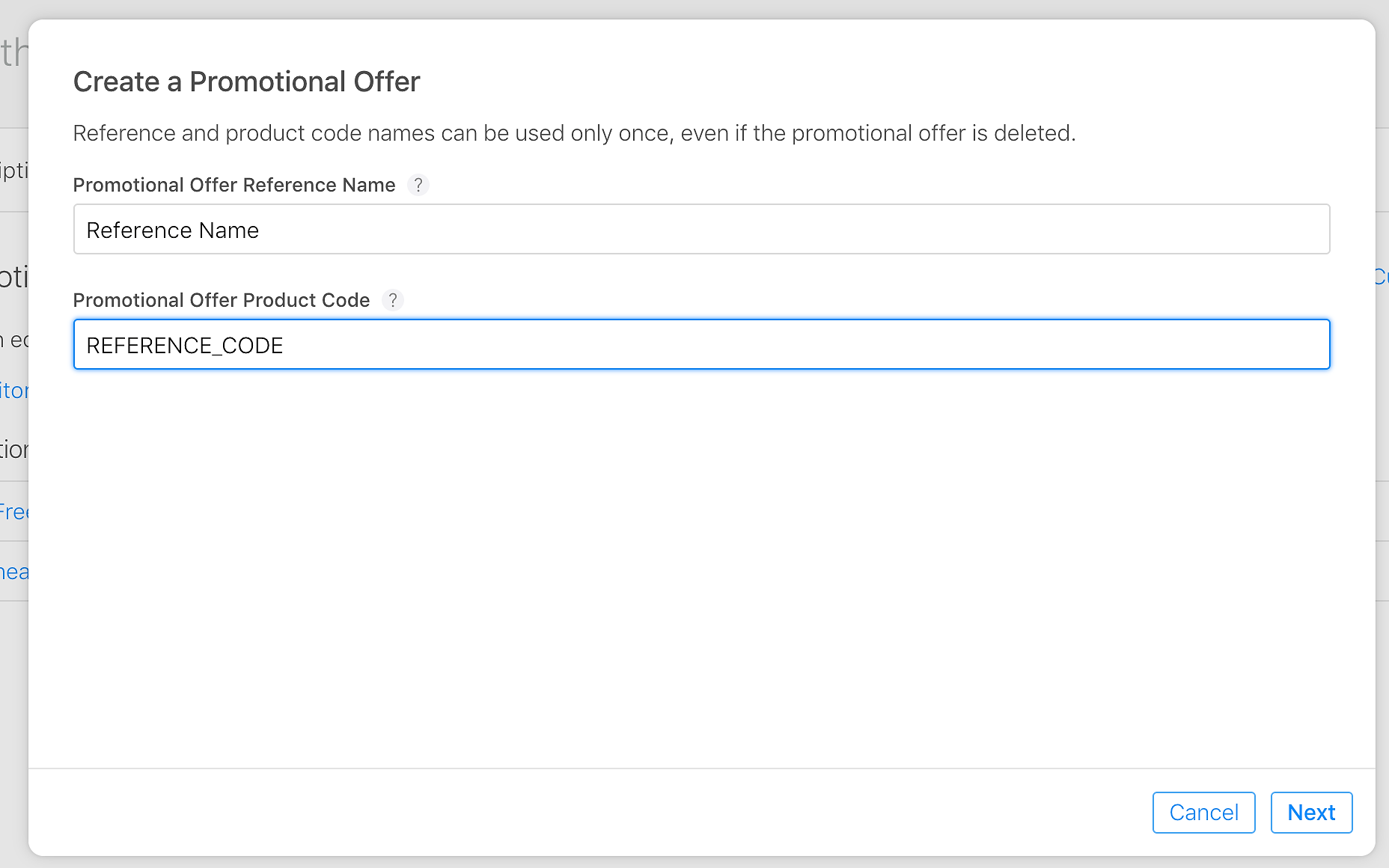
There are two fields that you need to specify: the “Reference Name” which is just used in the ASC UI and the “Promotional Offer Product Code” which is what you will actually use to reference and activate an offer in your app.
Just like introductory offers, there are three types of subscription offers:
- Pay-up-front — The customer pays once for a period of time, e.g. $0.99 for 3 months. Allowed durations are 1, 2, 3, 6 and 12 months.
- Pay-as-you-go — The customer pays a reduced rate, each period, for a number of periods, e.g. $0.99 per month for 3 months. Allowed durations are 1-12 months. Can only be specified in months.
- Free — This is analogous to a free trial, the user receives 1 of a specified period free. Just to keep things interesting the allowed durations are 3 days, 1 week, 2 weeks, 1 month, 2 months, 3 months, 6 months, and 1 year.
Once you’ve added a promotional offer, make sure to hit “save” in the top right corner. Once this is done, you should be able see your offers on any device using 12.2 or later.
Using a Subscription Offer
For how easy it is to configure offers, actually using them is a different story. In order to prevent fraud, Apple has required that an offer first be cryptographically signed with the newly introduced subscription keys before it’s consumed.
I’ll explain step-by-step how to fetch, sign, generate, and apply an offer.
1. SKProductDiscount
Our journey begins with an SKProductDiscount. These will represent an impotent version of the promotional offer you set up in ASC. To access the available offers, you need to check the newly added discounts array on SKProduct . The SKProductDiscount class is the same class used for introductory offers and includes information like the price, the payment mode, number of periods, period duration, and the identifier.
Using the identifier, iterate through the discounts array to find the product discount you want to apply. Then we get it ready for application.
2. Determine Eligibility
In order for an offer to be applied, a user either needs to have an active or lapsed subscription. To determine this you need to verify and check the StoreKit receipt on the device or rely on some other record of the users subscription history.
Once you know a user is eligible you can use the SKProductDiscount to display to the user the appropriate UI, price, etc for giving them the offer.
3. Generate the Signature
This is where it really gets fun. Before we can apply the offer we need to convert our SKProductDiscount into an SKPaymentDiscount. The init method for SKPaymentDiscount provides some clue to what we’ll need to achieve that:
- identifier — The identifier of the subscription offer
- keyIdentifier — The identifier of the subscription key used to sign the offer
- nonce — A throwaway value generated along with the signature
- signature — The signature itself
- timestamp — The timestamp when the signature was generated.
First generate your subscription key, you can do this from the “Users and Access” section of App Store Connect.
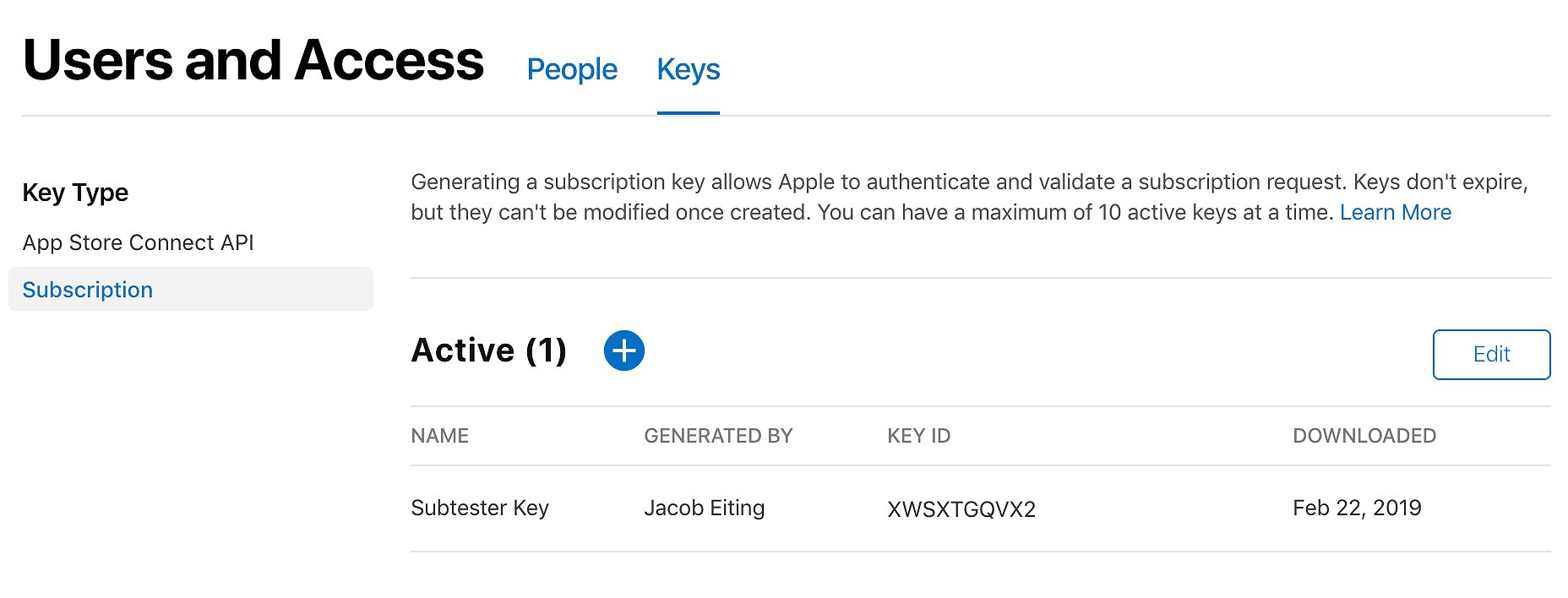
Configuring your key will trigger a one-time download of a p8 file of your private key. Don’t lose it! You will need this key every time you want any user to redeem an offer. Apple provided a signing guide for doing so but it’s light on specifics. But don’t worry! We don’t have to learn the Elliptic Curve Digital Signature Algorithm, we can use Python.
First, install the ecdsa package for Python:
Next we need to convert your p8 key file into a DER file readable by the ecdsa library. Luckily the OpenSSL command line tool can do this.
With the converted key, the following will generate the needed signature:
This is just a proof of concept. You will want this on your server and perhaps have some logic to determine, for a given user, the requested offer is appropriate. This forces the developer to use off device control for granting offers.
Once you’ve generated the signature, nonce and timestamp send these along with the key_id back to your app where we can create an SKPaymentDiscount.
4. SKPaymentDiscount
Using the values generated on our server, we can now initialize an SKPaymentDiscount. This is probably the simplest step, just call the init method with the values generated by your server. Ensure that the values you receive back from the server are cast to the correct Cocoa types before passing on to the init method, otherwise it may fail silently (this cost me a day).
No matter the validity of the signature, the init will produce an SKPaymentDiscount.
5. Applying the Offer
To apply an offer, you need to initiate a purchase with StoreKit just like a normal purchase, but you also apply your offer by using an SKMutablePayment and setting the paymentDiscount property with the SKPaymentDiscount generated from your signature.
If you did everything correctly, you should see an Apple generated pop-up explaining the offer. For instance, here is an offer for 1-month
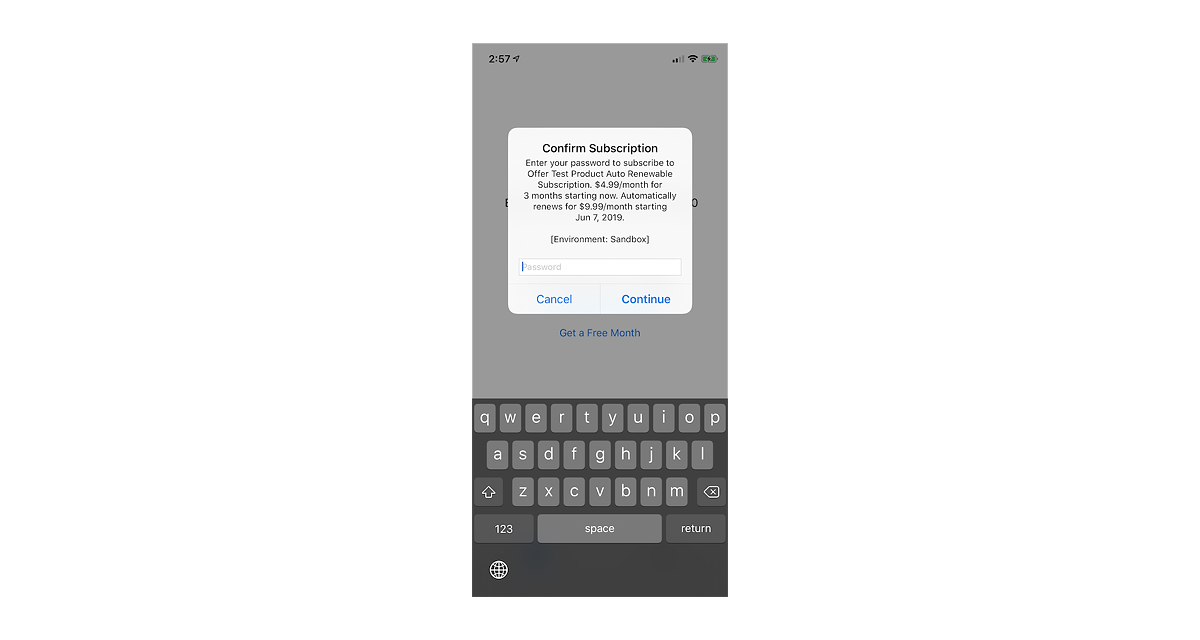
You will see an altered pop-up (on sandbox) that represents your offer.
What can you do with offers?
Unfortunately, not that much. Apple’s official line on what they are to be used for is: “Retaining and winning back subscribers.” This is because they are limited to existing or lapsed subscribers. Placing this restriction severely limits their utility, but here are some simple ideas:
Winning Back Churned Subscribers
This seems like a rich vein that is enabled by offers. Say you have a user who has churned, the next time they open the app, you can generate an offer to reduce their price or give them another free trial. Here’s the rub though, if someone quit paying for your app, it’s probably because they just don’t use your app anymore.
Most iOS app subscriptions are less than ten dollars a month. You’d have to find enough subscribers for which the decision to stay subscribed is down to say, a five dollar difference in price. In my experience, a churned user is churned for lack of usage, not price sensitivity.
The other big reason why this isn’t that exciting is that you can do this already by setting up discounted products and subscription groups. If your app controls which products are shown to a user, it’s not really possible to exploit without jailbreaking.
Retaining Existing Users and Incentives
Since offers can be applied to existing subscriptions, you can temporarily discount a users subscription. This doesn’t seem that interesting as a blanket offer, but it gets really interesting if you think about offers an an incentive.
One growth tactic I often hear developers wanting to employ is giving paying users a free month as an incentive for taking some action, usually referring a friend. In the past, this was never possible because it wasn’t possible to programmatically alter a user’s subscription without having them cancel it. With offers, that would be possible.
The Problems
Offers are cool. It’s neat to have some ability to modify an existing subscription. But, it’s added even more complexity to an already complex system for marginal benefit.
Doesn’t Help Price Testing
One of the most common cases for changing the price of a product is the ability to convert new users. Price optimization has always been a great way to maximize your LTV at the top of the funnel. Building a business on mobile subscriptions means high churn, typically north of 20% monthly. At those churn rates, you really have to rely on filling the top of funnel and maximizing LTV through pricing. It’s doubtful that offers will reduce churn enough to make much of a difference.
The Added Crypto is Overkill
Paying customers aren’t going to hack you.
All of this overhead in requiring an offer to be signed is quite silly. Ostensibly, it is there to prevent a bad actor from hacking your app, adding a paymentDiscount to a product they’ve already purchased.
There are way easier ways to steal content from mobile apps.
Subscription Offers: We’ll take it … I guess.
I hesitate to be too critical because I think that Apple investing in the subscription system is great. They have such market dominance they could just as easily ignore the feature and still muddle along. So, I’m grateful for progress. Truly.
But, it feels to me though that this feature was built without talking to those out there actually making a living with in-app subscriptions. In all my discussions with app developers, I never heard a yearning for a system like offers. And, I’m guessing, just like intro pricing, we won’t see much adoption.
RevenueCat Support
We will have support for offers as close to day one as possible. This will initally be the ability to sign them and track them but in the future we’ll be adding tools for deploying win-backs and other incentives. If you have ideas or requests for this feature, comment about it on our public roadmap.
Reference
Promoting Your Subscriptions with New Offers
Set up subscription offers for auto-renewable subscriptions
Implementing Subscription Offers in Your App
Generating a Signature for Subscription Offers
Acknowledgements
Special thanks to Brent Rains and my friends at the spaceship for helping me get this figured out.