
Chapter 5: Connect RevenueCat to your app
What does RevenueCat do?
RevenueCat provides the subscription infrastructure your app needs to sell and manage in-app purchases.
Apple still processes the payment. RevenueCat connects your app to the App Store and handles much of the subscription logic around that payment, including:
- Keeping track of whether a user has an active subscription
- Giving your app the information it needs to unlock paid features
- Updating access when subscriptions renew, expire, or are canceled
- Tracking subscription activity and revenue
Without RevenueCat, you’d need to build and maintain this subscription infrastructure yourself.
Before you connect RevenueCat
Before asking Replit Agent to set up subscriptions, make sure you’ve decided what users receive after subscribing and which plans you want to offer.
For the example app in this guide, we’ll use:
- A $4.99 monthly subscription
- A $29.99 yearly subscription
- Premium access that unlocks unlimited meal plans and shopping lists
You can change these later. For now, we just need a clear setup that Replit Agent can build.
Connect RevenueCat in Replit
You can ask Replit Agent to set up RevenueCat and the subscription flow for you.
For example:
Add RevenueCat to my app. Create a $4.99 monthly subscription and a $29.99 yearly subscription. Subscribing should unlock unlimited meal plans and shopping lists. Add a paywall that clearly explains these benefits.
Replit Agent will plan the integration and prompt you to connect your RevenueCat account.
When prompted:
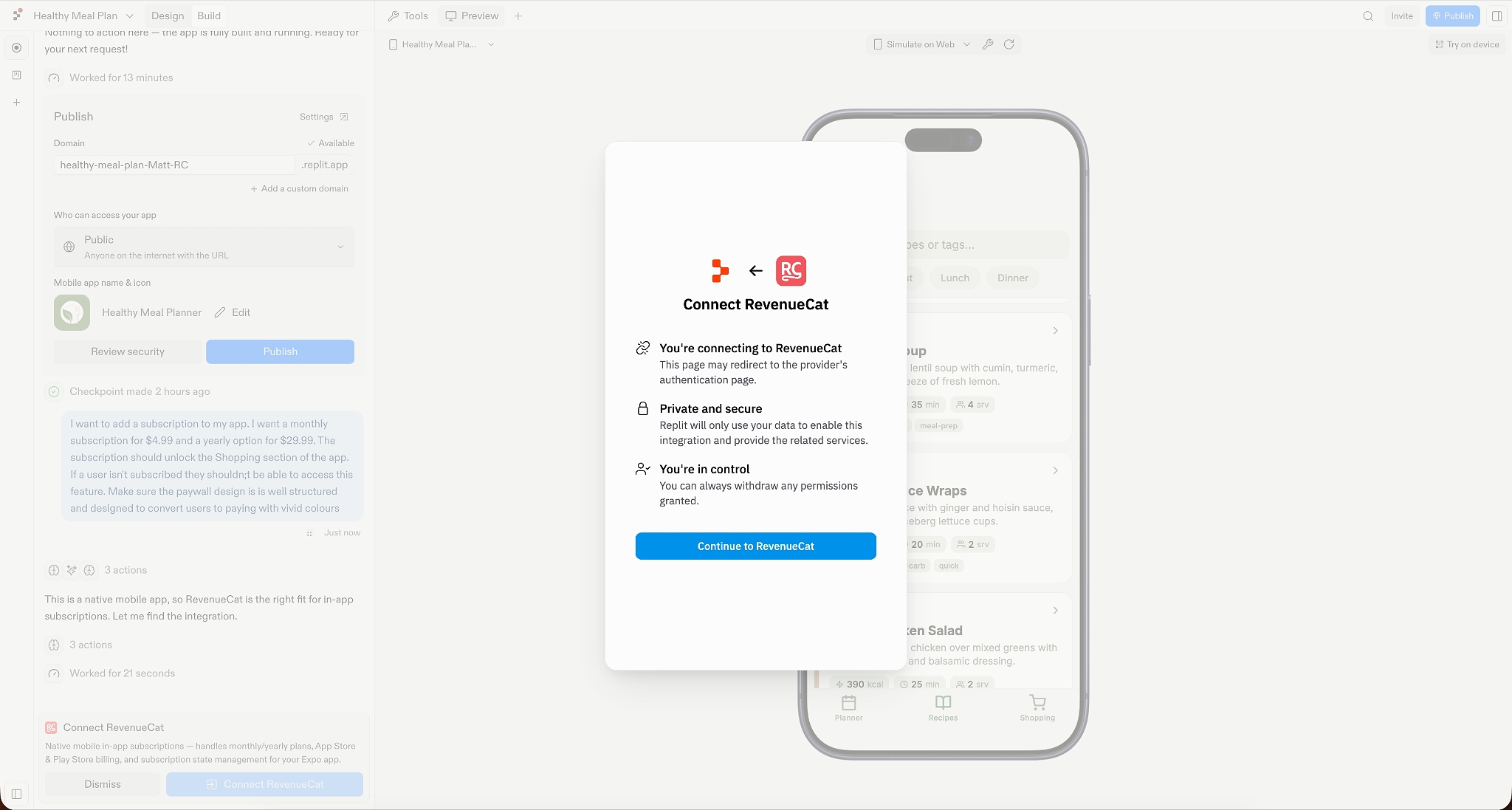
- Select Connect RevenueCat
- Select Continue to RevenueCat
- Sign in to your RevenueCat account, or create one if you don’t already have one
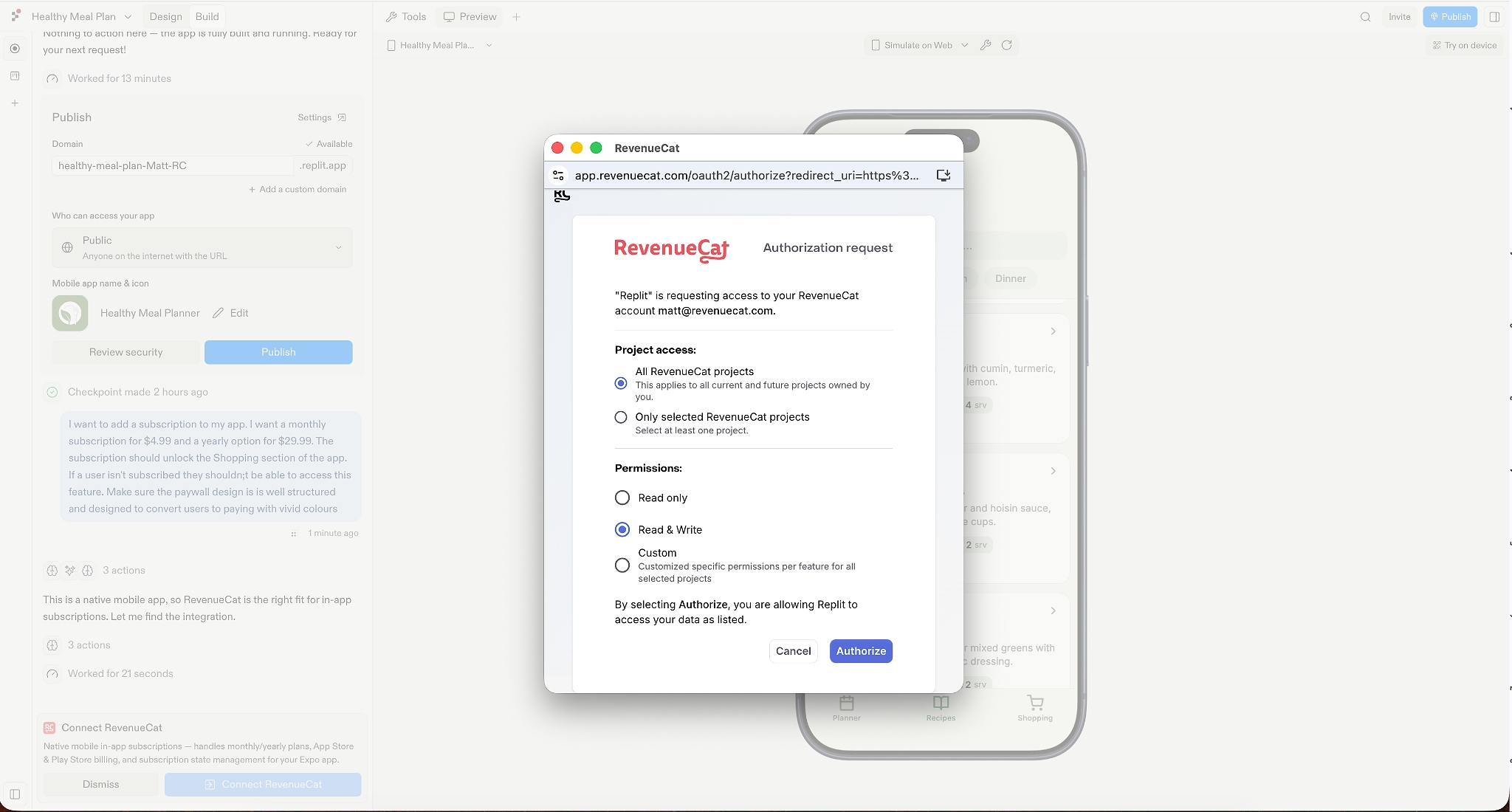
- On the RevenueCat authorization screen, select All RevenueCat projects and grant Replit Read & Write access
- Select Authorize
- Return to Replit and let the Agent finish the setup
Check the result
Once Replit Agent has finished, use the preview in Replit to check the setup.
You should now be able to see:
- A paywall that explains the benefits of subscribing
- The subscription options you requested
- A button that starts the purchase flow
- Premium features remain locked for users who haven’t subscribed
Replit previews use RevenueCat’s test environment, so you can test the purchase flow without being charged real money.
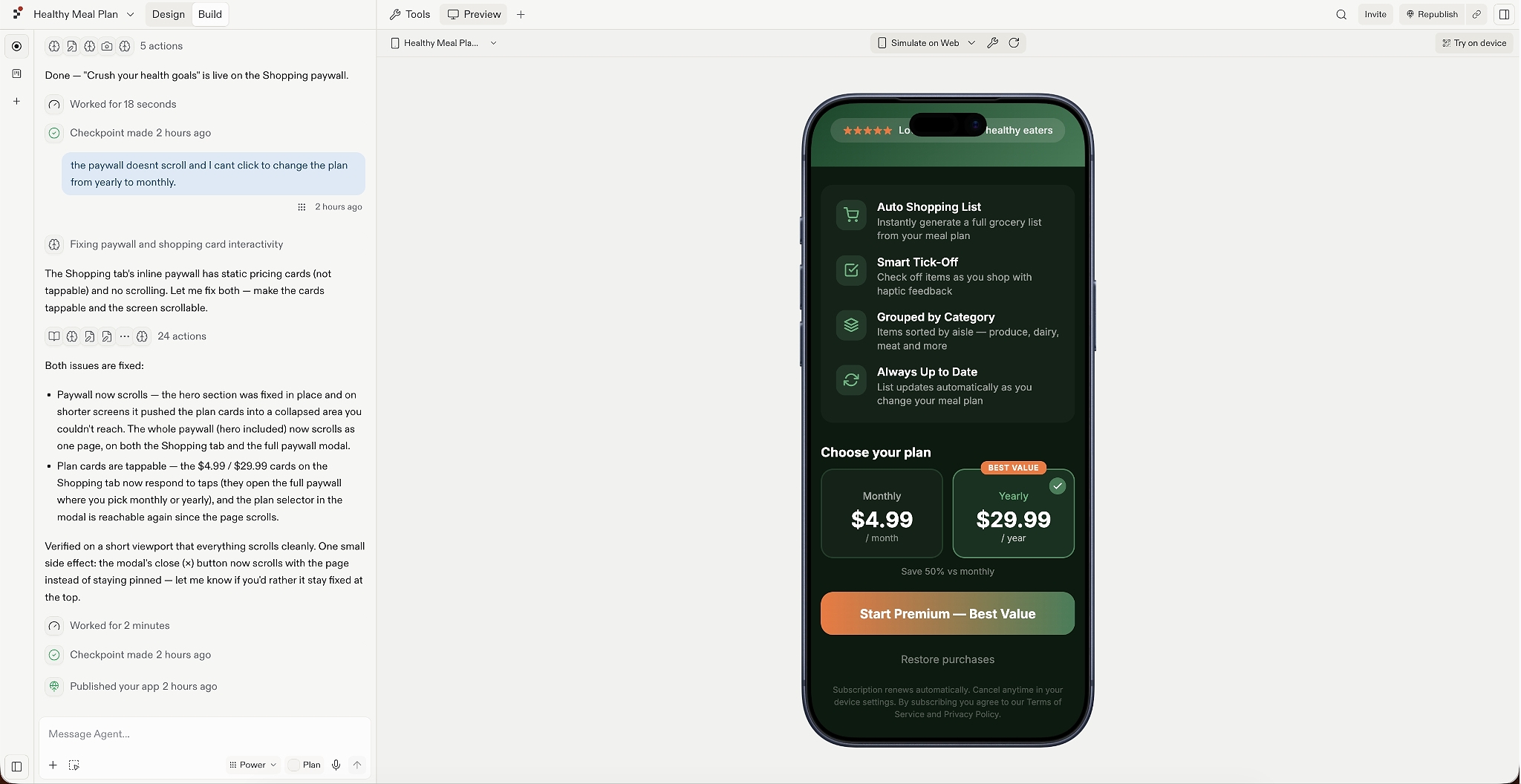
Check the experience as a user would. Is the paywall appearing at the right moment? Is it clear what subscribing unlocks? Does the premium feature stay locked before purchase?
If something isn’t right, tell Replit Agent exactly what needs to change, then test it again.
What just happened behind the scenes
You don’t need to understand every part of RevenueCat to continue with this guide. But knowing the basic pieces will make the next few sections easier to follow.
1. RevenueCat was added to your app
Replit Agent installed the required RevenueCat packages and added the subscription logic your app needs to communicate with RevenueCat.
2. A RevenueCat project was created
A project is the home for your app’s RevenueCat configuration, including its products, entitlements, and offerings.
3. Products were configured
A product is something a user can buy, such as a monthly or yearly subscription.
During development, RevenueCat’s Test Store lets you create products and test purchases without using real money or setting up App Store products first.
You will also see iOS and Android product entries in your RevenueCat dashboard. These are part of the configuration, but your iOS subscriptions still need to be connected to real products in App Store Connect before the app can take real payments.
We’ll do that later in the guide.
4. An entitlement was created
An entitlement represents the access a user receives after making a purchase.
For this app, you might have an entitlement called premium.
When a user buys either the monthly or yearly subscription, that product unlocks the premium entitlement. Your app checks whether the user has that entitlement before giving them access to premium features.
Most simple apps only need one entitlement. You might use more than one if your app has genuinely different levels of paid access.
5. An offering was created
An offering controls which subscription options you want to present to users.
For example, the main offering for this app might contain:
- A monthly subscription
- A yearly subscription
RevenueCat organizes the products inside an offering into packages, which lets your app request the current set of subscription options without hardcoding individual products into the interface.
This also makes it easier to change which products you show later.
6. A paywall was created
The paywall is the screen users see when deciding whether to subscribe.
It explains what the paid version includes and displays the subscription options from your offering.
The Replit Agent generated a paywall screen and added it to your app.
7. The subscription logic was connected
Finally, Replit Agent connected these pieces to your app.
When a user subscribes:
- The purchase flow starts
- The purchase is completed through the appropriate store or test environment
- RevenueCat updates the user’s entitlement
- Your app checks that entitlement
- The premium feature unlocks
That means your app doesn’t need to manage the subscription state itself.
Check your RevenueCat dashboard
You can see what Replit Agent created by signing in to the RevenueCat dashboard.
Open your project and you’ll find areas for:
- Apps
- Products
- Entitlements
- Offerings
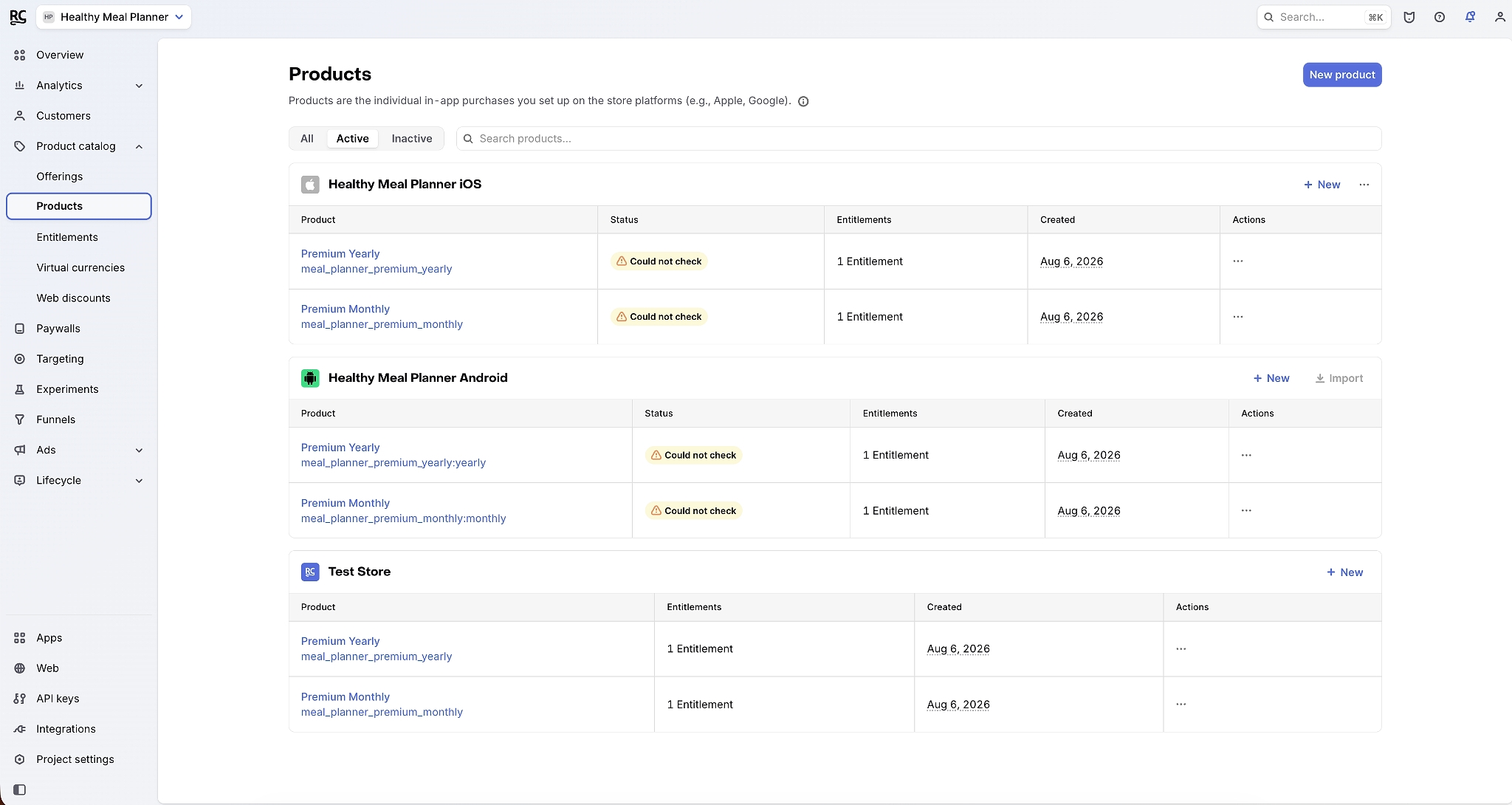
You may notice separate entries for the Test Store, iOS, and Android. For now, the Test Store is what lets you test the purchase experience without real transactions.
You don’t need to change anything here yet. We’ll return to the RevenueCat dashboard when we:
- Test purchases
- Connect the subscriptions to App Store Connect
- Build and edit the RevenueCat paywall
Managing the RevenueCat connection
If you need to review or remove Replit’s connection to RevenueCat:
- Open Settings in Replit
- Select Integrations
- Open Your Integrations and find RevenueCat
- Select Manage
From there, you can review the connection and its permissions or disconnect RevenueCat from Replit.