
Chapter 10: Submit your app for review
You’ve built the app, tested it, configured your subscriptions, and completed the required App Store information.
Now it’s time to send everything to Apple.
Apple reviews apps, app updates, subscriptions, and in-app purchases before they can be published on the App Store.
Do one final check
Before you submit, make sure:
- You’ve selected the correct build
- The app works from start to finish on a real iPhone
- Your paywall displays the correct products and prices
- Test purchases work
- Paid features unlock correctly
- Restore purchases works
- Your Privacy Policy and Terms of Use links work
- Your App Store screenshots and metadata are complete
- Your App Privacy answers are accurate
- Your subscription products and subscription group show Ready for Review
- Your App Review contact information and test account, if needed, are correct
This is also a good time to read through Apple’s App Review Guidelines once more. Many review problems come from incomplete functionality or information rather than something fundamentally wrong with the app. Apple says more than 40% of unresolved review issues relate to its App Completeness guideline.
Submit everything for review
In App Store Connect, open your app and find the version you prepared in the previous section.
Add the app version to your App Review submission.
Because this is your first submission with subscriptions, make sure the subscription products and subscription group you prepared earlier are included in the same submission. App Store Connect lets you include an app version alongside items such as auto-renewable subscriptions, subscription groups, and in-app purchases.
If you already selected Add for Review while configuring the subscriptions, they should appear in your draft submission.
Review everything in the submission, then select Submit for Review.
If something required is missing, App Store Connect will flag it. Work through each issue before trying again.
What happens next?
Once submitted, the status of your app will change as it moves through Apple’s review process.
Apple reviews submissions around the clock. Most are reviewed relatively quickly, but some require additional verification and take longer. Apple’s latest guidance says 90% of submissions are reviewed within 48 hours.
You’ll receive notifications as the status changes, and you can also follow the submission from the App Review section in App Store Connect.
If you chose:
- Automatic release: The app can go live after approval
- Manual release: You’ll decide when to release it
- Automatic, no earlier than: Apple will release it on or after the date you selected
If you have a particular launch date in mind, leave yourself some buffer rather than assuming review will finish by a specific time.
If Apple finds a problem
A rejection doesn’t necessarily mean you need to rebuild the entire app.
Apple will send you a message explaining the issue and usually identify the relevant App Review guideline. You can see and respond to these messages from the App Review section in App Store Connect.
Start by understanding exactly what Apple is asking you to change.
A useful process is:
- Read Apple’s review message carefully
- Identify the guideline and specific issue
- Reproduce the problem yourself, if possible
- Fix the issue
- Test the fix
- Resubmit
If the problem involves only metadata, Apple may let you fix the information and resubmit the same build instead of uploading a new one. If you need to change the app itself, make the fix in Replit, create a new build, test it in TestFlight, and submit that build instead.
For subscription-related rejections, RevenueCat’s guide to App Store rejections covers common problems such as products not loading, purchases failing, or paid content not unlocking.
You can also reply directly to Apple if you think the reviewer needs more context. App Store Connect lets you send a message and attach screenshots or other supporting information before you resubmit.
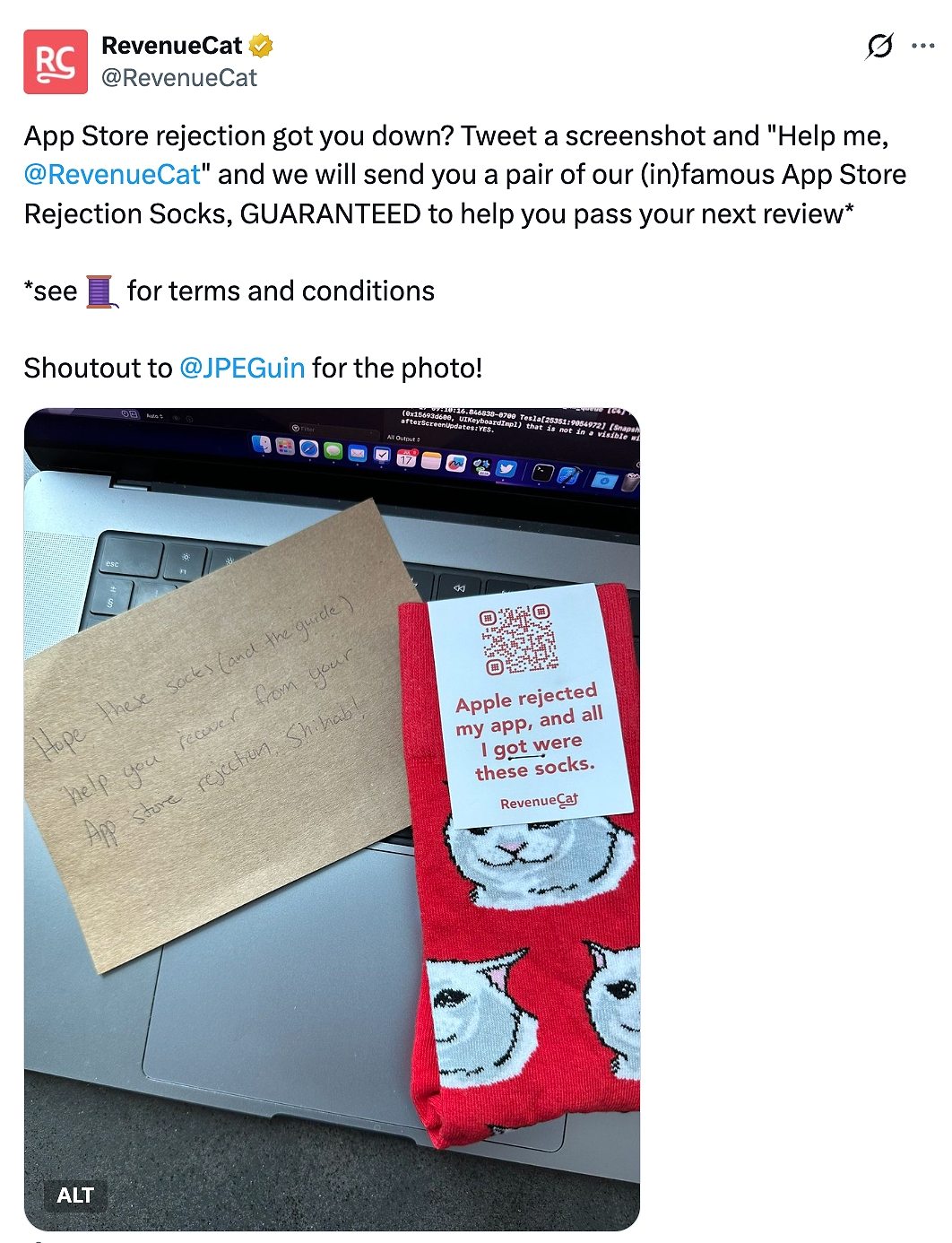
Got rejected? There may at least be socks in it for you.
Message RevenueCat with details of your rejection to receive your App Store Rejection Socks.
Fix the issue, test it properly, and submit again. Rejection is part of shipping apps sometimes - the useful part is understanding exactly what Apple found and making the next submission stronger.
Once Apple approves your app
If you selected automatic release, Apple will publish the app according to your release settings.
If you selected manual release, return to App Store Connect when you’re ready and release the approved version.
Then your app is officially on the App Store.