
Chapter 9: Backend Architecture for Billing
Everything you have built so far runs on the user's device. The client side code queries products, launches purchase flows, and receives purchase results through the Play Billing Library. But the client is not trustworthy. Any device the user controls can be manipulated: network traffic can be intercepted, APKs can be decompiled and modified, and local purchase data can be forged. If your app grants premium access based solely on what the client reports, someone will exploit it.
This chapter moves the conversation to your backend. You will learn why server side verification is non negotiable, how to set up the Google Play Developer API, and how to build a verification flow that is secure, reliable, and production ready.
Why Server Side Verification Is Non Negotiable
When a purchase completes on the client, the Play Billing Library gives you a Purchase object containing a purchase token, order ID, product ID, and a signature. You might think verifying the signature locally is enough. It is not.
Here is why. The signature verification key is embedded in your APK. Anyone can extract it. A modified APK can generate fake Purchase objects with valid looking signatures. Freedom, Lucky Patcher, and similar tools have been doing this for years. They intercept the communication between your app and Google Play Services, returning fabricated purchase responses that pass local signature checks.
Server side verification solves this by going directly to Google. Instead of trusting what the client says, your backend takes the purchase token and calls the Google Play Developer API. Google's servers respond with the authoritative purchase state: whether the purchase is valid, what product was purchased, whether it has been acknowledged, and its current subscription status. No client side tool can fake this response because it comes directly from Google's infrastructure over an authenticated API call.
There are three reasons this matters:
Fraud prevention. Without server verification, attackers can use modified clients to claim purchases that never happened. This means free access to your premium content and lost revenue. For apps with significant user bases, billing fraud can become a serious financial problem.
Accurate entitlement management. Subscription state changes constantly. Users cancel, payment methods fail, grace periods start and end, refunds happen. The client only sees a snapshot from the last time it queried. Your backend, combined with Real Time Developer Notifications, maintains a live view of every user's subscription state.
Auditability. When a user contacts support claiming they paid but lost access, you need server side records to investigate. Client side data alone cannot give you the full picture because the user may have switched devices, reinstalled the app, or cleared data.
The rule is simple: the client sends the purchase token to your backend. Your backend verifies it with Google. Only after verification does your backend grant the entitlement. The client never decides on its own whether a purchase is valid.
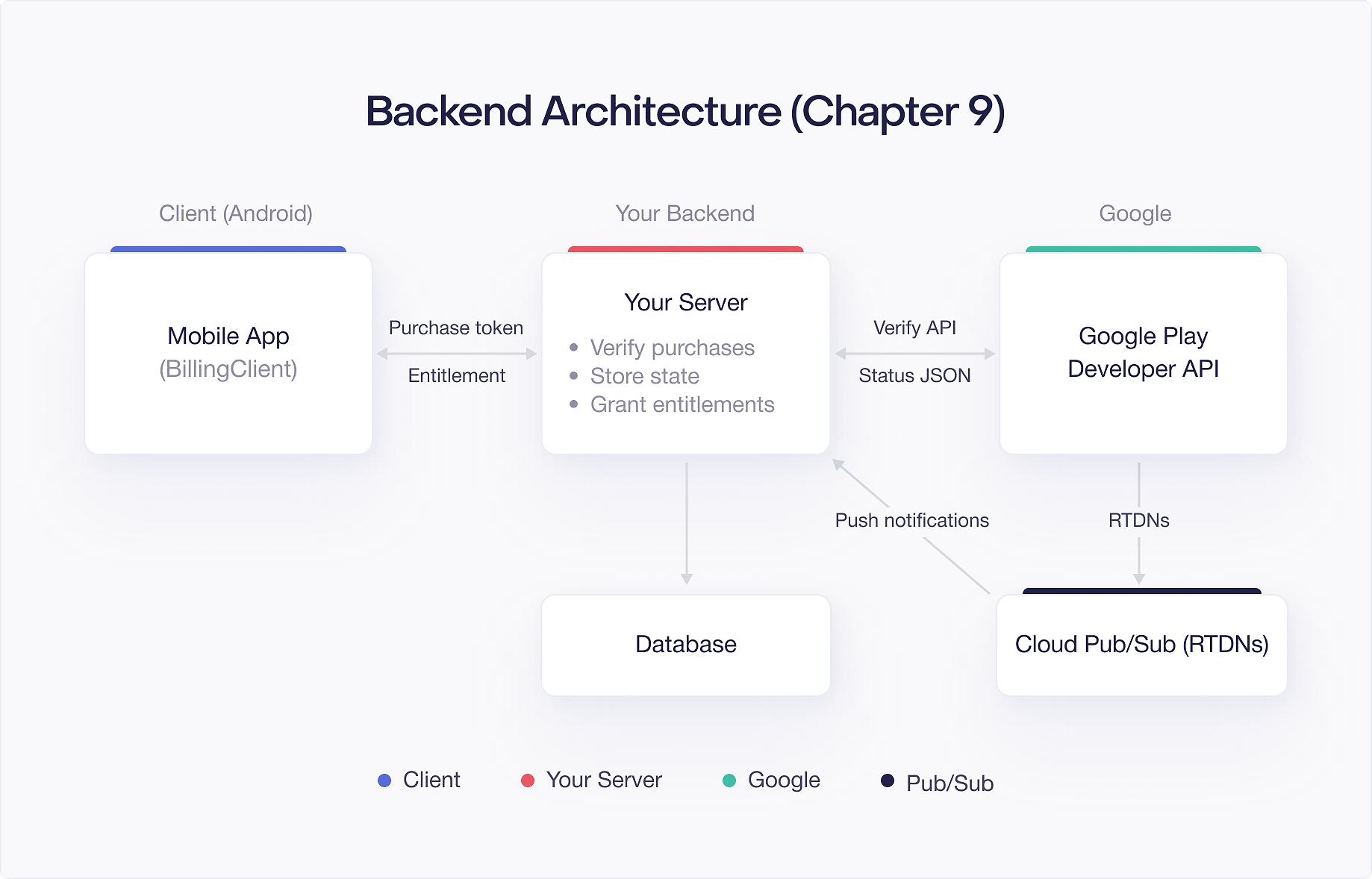
The Canonical Purchase Verification Flow
Every purchase your app processes should follow these seven steps. This is the flow from the moment your client reports a successful purchase to the moment the user gains access to their content.
Step 1: Receive the purchase token from the client.
After onPurchasesUpdated fires with a successful result, your client extracts the purchase token from the Purchase object and sends it to your backend along with the product ID and the user's account identifier.
Step 2: Call the Google Play Developer API.
Your backend receives the token and calls the appropriate API endpoint. For subscriptions, you call purchases.subscriptionsv2.get. For one time products, you call purchases.products.get. This chapter covers both endpoints in detail later.
Step 3: Validate the response fields.
The API returns a detailed response object. You verify that the product ID matches what the client claimed, that the package name is correct, and that the response contains the expected fields. If any of these do not match, reject the purchase.
Step 4: Check the purchase state.
For subscriptions, inspect the subscriptionState field. A value of SUBSCRIPTION_STATE_ACTIVE means the user has a valid, paying subscription. For one time products, check that purchaseState is 0 (purchased). Any other state means you should not grant access.
Step 5: Check for duplicate tokens.
Before granting an entitlement, query your database to see if this purchase token has already been processed. Duplicate submissions happen for many reasons: the client retried, the network delivered the request twice, or an attacker is replaying a legitimate token. If the token already exists in your database and is associated with a user, skip the entitlement grant.
Step 6: Grant the entitlement.
If the purchase passes all checks, store the purchase record in your database and grant the user access to the purchased content. This is the moment the user's account state changes from "free" to "premium" (or whatever your product provides).
Step 7: Acknowledge the purchase.
After granting the entitlement, acknowledge the purchase with Google. You must acknowledge every purchase within 3 days or Google automatically refunds it. You can acknowledge from the client or the backend. Acknowledging from the backend is safer because it guarantees the acknowledgement only happens after verification and entitlement granting are complete.
These seven steps form the backbone of every billing backend. Get this flow right and you have a secure foundation. Skip any step and you open the door to fraud, lost revenue, or broken user experiences.
Setting Up Google Play Developer API Access
Before your backend can verify purchases, you need to configure API access in the Google Play Console. This involves creating a Google Cloud project, enabling the API, and setting up authentication credentials.
Step 1: Link a Google Cloud project.
Open the Google Play Console, navigate to Setup > API access, and link a Google Cloud project. If you do not have one, the Console offers to create one for you. This Cloud project is where your API credentials and quotas live.
Step 2: Enable the Google Play Android Developer API.
In the Google Cloud Console, navigate to APIs & Services > Library, search for "Google Play Android Developer API", and enable it. This unlocks the REST endpoints your backend will call.
Step 3: Create a service account.
Still in the Google Cloud Console, go to IAM & Admin > Service Accounts and create a new service account. Give it a descriptive name like play-billing-backend. You do not need to grant any Cloud IAM roles at this point because the permissions come from the Play Console side.
Step 4: Generate a JSON key.
On the service account's detail page, go to the Keys tab, click Add Key > Create new key, and select JSON. Download the key file and store it securely. This file contains the credentials your backend uses to authenticate. Treat it like a password: never commit it to version control, never expose it in logs, and rotate it periodically.
Step 5: Grant permissions in the Play Console.
Back in the Google Play Console under Setup > API access, you will see your service account listed. Click Grant access and assign the Financial data permission (to view purchases and subscriptions) and Manage orders permission (to acknowledge and refund). Apply these permissions to the specific app or to all apps in your account.
After these steps, your backend can authenticate as the service account and call the Google Play Developer API on behalf of your app.
Service Account Authentication (OAuth 2.0)
The Google Play Developer API uses OAuth 2.0 with service account credentials. Unlike user based OAuth flows that require browser redirects and consent screens, service account authentication happens entirely server to server. Your backend uses the JSON key file to generate short lived access tokens, then includes those tokens in API requests.
The Google API client libraries handle this for you. Here is how to set up the authenticated client in server side Kotlin using the google-api-services-androidpublisher library:
The GoogleCredentials.fromStream() method reads the service account JSON key, and createScoped() requests the androidpublisher scope, which grants access to the Google Play Developer API. The credentials object handles token generation and refresh automatically. When a token expires, the library fetches a new one before the next API call.
In production, avoid reading the key file from disk on every request. Initialize the AndroidPublisher client once at application startup and reuse it. The client is thread safe, and the credentials object caches tokens internally.
For containerized deployments on Google Cloud, you can skip the JSON key file entirely and use Workload Identity Federation or the default service account attached to your compute instance. The GoogleCredentials.getApplicationDefault() method picks up credentials from the environment automatically:
This is the preferred approach for production because it eliminates the need to manage key files.
Key API Endpoints
The Google Play Developer API provides several endpoints for managing purchases. Each serves a different purpose, and knowing when to use which one is important.
purchases.subscriptionsv2.get
This is the primary endpoint for subscription verification and the one you will use most often. It replaces the older purchases.subscriptions.get endpoint and returns richer data in a more consistent format.
You call it with your package name and the purchase token:
The response includes:
subscriptionState: The current state of the subscription. Values includeSUBSCRIPTION_STATE_ACTIVE,SUBSCRIPTION_STATE_CANCELED,SUBSCRIPTION_STATE_IN_GRACE_PERIOD,SUBSCRIPTION_STATE_ON_HOLD,SUBSCRIPTION_STATE_PAUSED,SUBSCRIPTION_STATE_EXPIRED, andSUBSCRIPTION_STATE_PENDING.lineItems: A list of items in the subscription. Each line item contains theproductId,expiryTime,offerDetails, andautoRenewingPlanorprepaidPlaninformation.linkedPurchaseToken: If this subscription replaced a previous subscription (via upgrade or downgrade), this field contains the token of the previous purchase. More on this in the linked token section below.acknowledgementState: Whether the purchase has been acknowledged.ACKNOWLEDGEMENT_STATE_ACKNOWLEDGEDorACKNOWLEDGEMENT_STATE_PENDING.externalAccountIdentifiers: The obfuscated account ID and profile ID you passed during the purchase flow. Use these to match the purchase to a user in your system.
This endpoint is the source of truth for subscription state. When you need to know whether a user's subscription is active, call this endpoint. Do not rely on cached client side data.
purchases.products.get
This endpoint verifies one time product purchases (both consumable and non consumable):
Note that this endpoint requires the product ID as a path parameter, unlike subscriptionsv2.get which only needs the token. The response includes:
purchaseState: An integer where0means purchased,1means canceled, and2means pending.consumptionState:0for not consumed,1for consumed.acknowledgementState:0for not acknowledged,1for acknowledged.purchaseTimeMillis: When the purchase was made.orderId: The order ID for this transaction.
For one time products, the important check is that purchaseState is 0. A purchase in state 1 (canceled) or 2 (pending) should not result in an entitlement grant.
purchases.subscriptions.acknowledge
After verifying a subscription and granting the entitlement, you must acknowledge the purchase. This endpoint tells Google that you have fulfilled the purchase:
You must acknowledge within 3 days of purchase. Failing to acknowledge causes an automatic refund. In a well designed system, acknowledgement happens immediately after entitlement granting in Step 7 of the verification flow.
If acknowledgement fails due to a transient error, retry it. An unacknowledged purchase sitting in your system is a ticking time bomb that will result in a refund and a confused user.
purchases.products.acknowledge and purchases.products.consume
For one time products, you have two options depending on the product type.
Non consumable products use the acknowledge endpoint:
Consumable products use the consume endpoint instead. Consuming a product also acknowledges it, so you do not need to call both:
The distinction matters. If you acknowledge a consumable product instead of consuming it, the user cannot purchase it again. If you consume a non consumable product, the user loses permanent ownership. Match the API call to the product type.
Using purchaseToken as the Primary Key
When you store purchase records in your database, use the purchaseToken as the primary identifier, not the orderId. This is a common source of confusion because the order ID looks like a natural key, but purchase tokens are the correct choice for several reasons.
First, the purchase token is what the Google Play Developer API accepts as input. Every verification call, every acknowledgement, every consumption call takes a purchase token. If you key your records on order ID, you need a lookup step to find the token every time you interact with the API.
Second, for subscriptions, a single purchase token covers the entire lifecycle of a subscription, including all renewals. The order ID changes with every renewal (appending an incrementing sequence number like ..0, ..1, ..2). If you key on order ID, you end up with dozens of records for what is logically one subscription.
Third, when a subscription is upgraded, downgraded, or otherwise replaced, the new subscription's response includes a linkedPurchaseToken pointing to the previous purchase token. This creates a chain that lets you trace the full history of a user's subscription. If you key on order ID, you lose this linkage.
Here is a practical schema:
The orderId is still useful for customer support (users see it in their Google Play receipts) and financial reconciliation. Store it, but do not use it as your primary key.
One edge case to watch for: pending purchases. When a user chooses a delayed payment method (like cash payment at a convenience store in some markets), the purchase token is generated immediately but the purchaseState is 2 (pending). You should store the token but not grant the entitlement until the purchase transitions to state 0. You learn about the state change through Real Time Developer Notifications.
Handling linkedPurchaseToken Chains
When a user upgrades or downgrades their subscription, Google creates a new purchase token for the replacement subscription. The new token's API response includes a linkedPurchaseToken field that points to the token it replaced. This creates a chain of tokens that represents the user's subscription history.
Consider a user who starts on a monthly plan, upgrades to annual, and then downgrades back to monthly:
- Initial monthly subscription: token
A(no linked token) - Upgrade to annual: token
B(linked toA) - Downgrade to monthly: token
C(linked toB)
Your backend must handle this chain correctly. Specifically, when you process a new purchase with a linkedPurchaseToken, you must:
- Look up the linked token in your database.
- Revoke the entitlement associated with the old token (mark it as superseded, not active).
- Grant a new entitlement for the new token.
If you skip step 2, the user ends up with two active entitlements. This becomes a problem if you track usage limits, concurrent streams, or any feature that depends on a user having exactly one active subscription.
In rare cases, chains can be longer than two tokens. A user who upgrades and downgrades multiple times might have a chain of five or six tokens. Your code does not need to walk the entire chain every time. When you process a new token, you only need to deactivate the immediately linked token. If your system processes tokens in order (which Real Time Developer Notifications help ensure), each previous token in the chain was already deactivated when the next one arrived.
However, if you are backfilling data or recovering from a processing failure, you may need to walk the full chain. In that case, follow each linkedPurchaseToken until you reach a token with no linked token (the original purchase):
Be careful with this approach in production. Each step in the chain requires an API call, and long chains can eat into your quota. Cache the chain structure in your database after the first traversal so you do not need to repeat it.
There is another subtlety. When a user resubscribes after cancellation (as opposed to upgrading or downgrading), Google does not always set linkedPurchaseToken. A resubscription may produce an entirely new, unlinked token. This means you cannot rely solely on token chains to associate all of a user's subscriptions. Always use the externalAccountIdentifiers (the obfuscated account ID you pass during purchase) or your own user to token mapping to tie subscriptions to users.
Rate Limiting and Quota Management
The Google Play Developer API enforces quota limits. As of the current API version, the default quota is 200,000 queries per day for purchases.subscriptionsv2.get and purchases.products.get combined. This sounds like a lot, but apps with large subscriber bases can hit this limit, especially during incident recovery when you need to re verify many purchases.
Here are the strategies that work well for staying within quota:
Cache verification results. When your backend verifies a purchase, store the result. For the next hour (or whatever window makes sense for your app), serve the cached result instead of calling the API again. Subscription state does not change every second. A cache TTL of 5 to 15 minutes is a reasonable starting point.
Use Real Time Developer Notifications. Instead of polling the API to check if subscription state changed, configure RTDN through Google Cloud Pub/Sub. Google pushes notifications to your backend when subscriptions renew, cancel, enter grace periods, or experience payment issues. This eliminates the need for periodic polling and dramatically reduces API calls.
Batch verification during startup. When your app launches, it might query purchases for the current user. Instead of having every app instance hit your backend (which then hits Google), your backend should rely on its local database for entitlement checks. Only call the Google API when processing a new purchase or handling an RTDN.
Implement server side retry with backoff. When the API returns a 429 (Too Many Requests) or 503 (Service Unavailable), back off exponentially. The API response includes a Retry-After header that tells you how long to wait.
Monitor your quota usage. Set up alerts in the Google Cloud Console when your daily API usage approaches 80% of your quota. If you consistently approach the limit, you can request a quota increase through the Cloud Console. Google typically grants reasonable increases for production apps with legitimate traffic.
Avoid verifying on every app launch. A common mistake is calling the Google Play Developer API every time a user opens your app to check if their subscription is still valid. This burns through quota quickly and adds latency to your app launch. Instead, trust your local database for entitlement checks and update it only when processing RTDNs or new purchases. Your database is your working copy of entitlement state. The Google API is the authoritative source you sync from, not a real time query service.

