
Chapter 8: Error Handling and Retry Strategies
Every call you make to the Play Billing Library can fail. Network connections drop, Google Play Services restarts, users cancel purchases, and payment methods get declined. If your app does not handle these failures properly, users see broken purchase flows, lose access to content they paid for, or give up and uninstall.
This chapter gives you a complete error handling strategy for Play Billing Library 8.x. You will learn what every BillingResponseCode means, which errors are retriable and which are not, and how to implement retry logic that recovers gracefully without hammering Google's servers.
Understanding BillingResult and BillingResponseCode
Every PBL operation returns a BillingResult object. This is the primary way Google Play communicates whether an operation succeeded or why it failed. The BillingResult contains two pieces of information:
responseCode: An integer constant fromBillingClient.BillingResponseCodethat tells you the category of the result.debugMessage: A human readable string with additional context. This is useful for logging, but never show it to users and never parse it programmatically. Google can change these messages at any time.
Here is how you check a billing result:
The OK response code (value 0) means the operation completed successfully. Everything else indicates either a recoverable problem you can retry or a permanent failure you need to handle differently.
Here is the full set of response codes you will encounter in PBL 8.x:
You should handle every one of these in production code. Ignoring even one can lead to silent failures that are hard to debug.
Sub Response Codes in PBL 8.0+
Starting with PBL 8.0, Google added sub response codes that give you more specific information about why certain operations failed. These appear in the onPurchasesUpdated callback through the BillingResult and provide additional detail beyond the top level response code.
Two sub response codes are particularly useful:
PAYMENT_DECLINED_DUE_TO_INSUFFICIENT_FUNDS
This tells you the user's payment method was declined specifically because of insufficient funds. The top level response code for this is ERROR, but the sub response code lets you show a more helpful message. Instead of a generic "purchase failed" screen, you can suggest the user update their payment method or try a different one.
USER_INELIGIBLE
This indicates the user does not qualify for a specific offer. For example, if you have a free trial offer restricted to new subscribers and a returning subscriber tries to claim it, you get this sub response code. You can use this to show the user alternative offers they do qualify for.
You access sub response codes through the getSubResponseCode() method on BillingResult. Not every failure includes a sub response code, so always check whether one is present before acting on it. These sub response codes supplement your existing error handling logic rather than replacing it.
Retriable Errors and Their Strategies
Some billing errors are temporary. The operation failed now, but it might succeed if you try again. The key is knowing which errors to retry and how aggressively to retry them.
NETWORK_ERROR and SERVICE_TIMEOUT
These are the most common transient errors. NETWORK_ERROR means the device could not reach Google's servers. SERVICE_TIMEOUT means the request was sent but no response came back in time.
For both of these, a simple retry with a short delay works well. Start with a delay of one to two seconds and retry up to three times. If the user is on a flaky connection, a brief pause is often enough for the network to recover.
Do not retry immediately without any delay. Rapid fire retries on a struggling network connection just add noise and drain the user's battery.
SERVICE_DISCONNECTED
This means your BillingClient lost its connection to Google Play Services. In PBL 8.x, the library handles reconnection automatically in most cases. If auto reconnection does not resolve the issue, you fall back to calling startConnection() again manually.
After reconnecting, retry the original operation. In practice, SERVICE_DISCONNECTED often happens when the device wakes from sleep or when Google Play Services updates itself in the background.
SERVICE_UNAVAILABLE and ERROR
SERVICE_UNAVAILABLE means Google Play Services is temporarily overloaded or unreachable. ERROR is a general catch all for unexpected failures on Google's side. Both of these call for exponential backoff rather than simple retry. You start with a longer initial delay and increase it with each attempt, giving Google's services time to recover.
Use a base delay of two seconds, double it on each retry, and cap at three attempts. You will see the full implementation later in this chapter.
BILLING_UNAVAILABLE
This means billing is not available on the device at all. Common causes include:
- Google Play Store is not installed (some sideloaded devices or emulators)
- Google Play Store version is too old
- The user's country does not support Google Play purchases
- The user is not signed into a Google account
You cannot retry this automatically because the underlying problem requires user action. Show a message explaining that Google Play is not available and let the user fix the issue, whether that means signing in, updating the Play Store, or switching accounts. You can offer a "try again" button so the user can retry after resolving the problem.
ITEM_ALREADY_OWNED and ITEM_NOT_OWNED
These are not traditional retry candidates, but they indicate your local purchase state is out of sync with Google's records.
ITEM_ALREADY_OWNED happens when you try to purchase a non consumable product or subscription the user already owns. ITEM_NOT_OWNED happens when you try to consume or acknowledge a purchase that Google does not think the user has.
The fix is to refresh your local cache:
After refreshing, check whether the user actually owns the product. If they do, grant them access instead of trying to purchase again. If they do not, the purchase flow should work on the next attempt.
Non Retriable Errors
Some errors mean "stop trying." Retrying these wastes resources and creates a poor user experience.
FEATURE_NOT_SUPPORTED
This means the device or Play Store version does not support the feature you are trying to use. For example, calling a subscriptions API on a very old version of Google Play Services that does not support subscriptions.
The right approach is to check feature support before calling the method:
Check feature support once during initialization and adapt your UI accordingly. Do not show subscription options to users whose devices cannot handle them.
USER_CANCELED
The user dismissed the purchase dialog without completing the purchase. This is the most common "error" you will see, and it is not really an error at all. The user simply changed their mind.
Handle this gracefully. Return the user to wherever they were before the purchase flow started. Do not show an error dialog, do not show a "purchase failed" message, and definitely do not prompt them to try again immediately. A quiet return to the previous screen is the right behavior.
ITEM_UNAVAILABLE
The product you tried to query or purchase does not exist or is not active in the Play Console. This should not happen in production if your product configuration is correct.
If you encounter this, refresh your product details from Google Play:
If the product still comes back empty, it likely means the product was deactivated in the Play Console. Remove it from your UI.
DEVELOPER_ERROR
This is Google telling you that your API call is malformed. Common causes include:
- Passing an invalid product ID
- Using the wrong product type (e.g., querying a subscription as INAPP)
- Providing invalid parameters to
launchBillingFlow() - Calling methods before the
BillingClientis connected
This error should never reach production. If it does, fix your code. Log the debugMessage because it usually contains specific information about what you did wrong.
Implementing Simple Retry
For transient errors like NETWORK_ERROR and SERVICE_TIMEOUT, a simple retry with a fixed delay handles most cases. Here is a reusable retry wrapper:
You use it like this:
This works well for operations that throw exceptions on transient failures. However, most PBL methods return a BillingResult instead of throwing. You need a version that understands billing response codes:
This version checks the response code after each attempt. If the code is not in the retriable set, it returns immediately, whether it is OK or a non retriable error. Only retriable codes trigger another attempt.
Implementing Exponential Backoff
For errors like SERVICE_UNAVAILABLE and ERROR, exponential backoff is the better strategy. Instead of waiting the same amount of time between each retry, you double the delay each time. This gives overloaded services room to recover.
With a base delay of 2 seconds and a factor of 2, the delays look like this:
Three attempts with this pattern mean the entire sequence takes about 6 seconds in the worst case. That is a reasonable amount of time for the user to wait, and it gives Google's services meaningful breathing room between attempts.
You can add jitter (random variation) to the delay to prevent multiple devices from retrying at exactly the same time. This matters at scale when thousands of devices might hit the same transient error simultaneously:
Adding jitter spreads retry attempts across a wider time window, reducing the chance of another wave of failures hitting the service all at once.
Proper Error Handling in onPurchasesUpdated
The onPurchasesUpdated callback is where you receive purchase results after a user interacts with the Google Play purchase dialog. This is the single most important place to get error handling right, because it directly affects whether users get the content they paid for.
Here is a complete implementation that handles every response code:
A few things to note about this implementation:
- OK with null purchases: Even when the response code is
OK, thepurchaseslist can theoretically be null. Always null check it. - USER_CANCELED does nothing: No error messages, no prompts, no analytics events marking it as a failure. The user made a deliberate choice.
- ITEM_ALREADY_OWNED refreshes state: Instead of showing an error, you query for the user's current purchases and grant access. This handles the case where a purchase succeeded but your app crashed before processing it.
- Everything else gets logged: The
debugMessagegoes into your logs for investigation. The user sees a generic, friendly error message.
For the handlePurchase function called on success, make sure you verify the purchase on your backend and acknowledge it within 3 days. An unacknowledged purchase gets refunded automatically by Google.
The Complete Decision Tree
Bringing everything together, here is the full decision tree for handling any BillingResponseCode. This function takes a billing result and the operation that produced it, then decides what to do:
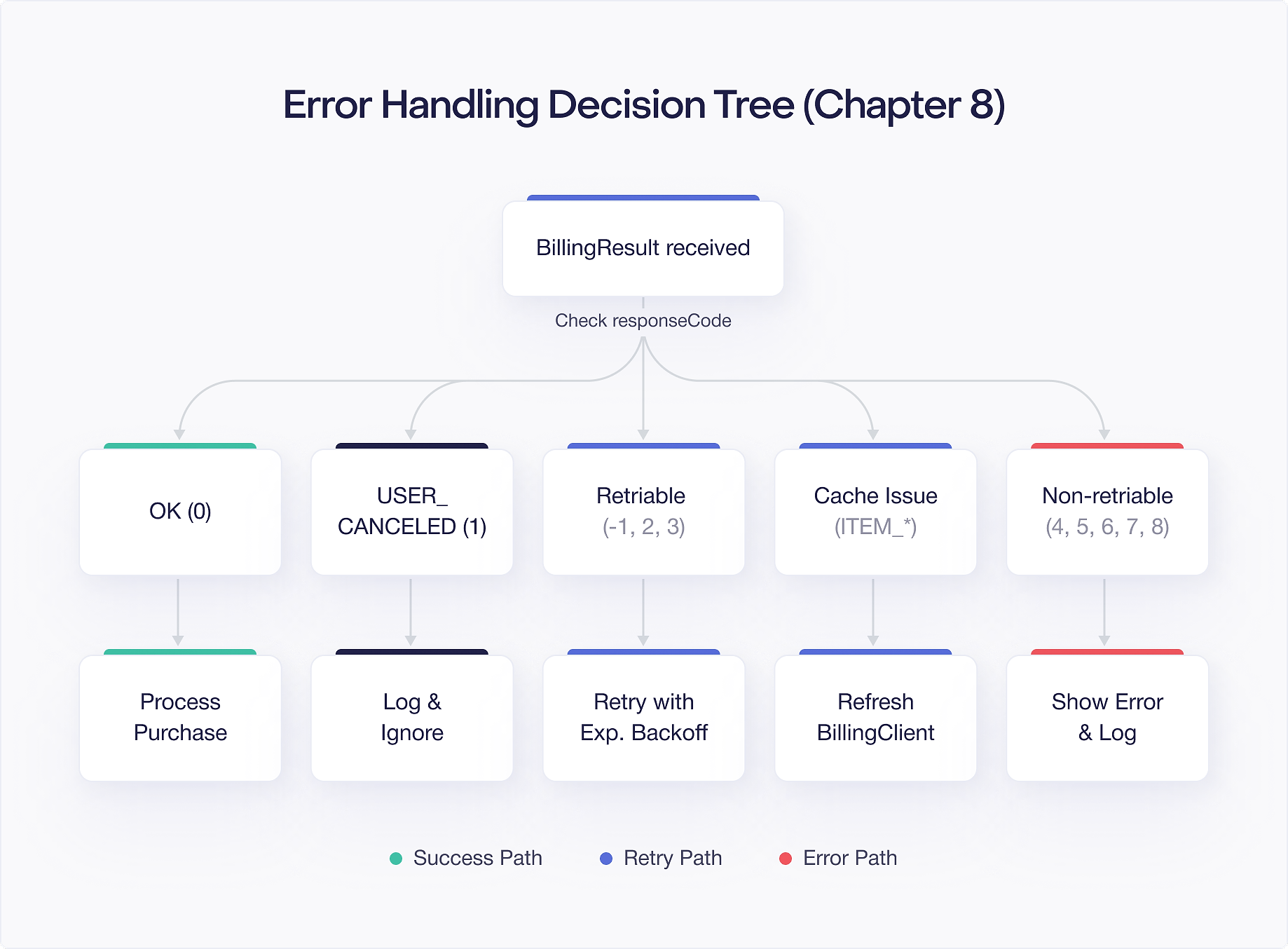
Then you wire up the decision tree to your actual retry and recovery logic:
This pattern separates the decision about what to do from the execution of that decision. You can test the decision logic with simple unit tests against response codes, without needing a real BillingClient. The execution layer handles the actual retries, reconnections, and cache refreshes.
Putting It All Together
In production, your billing wrapper ties all of these pieces together. Every operation goes through the decision tree, and the wrapper handles retries transparently:
The calling code does not need to worry about transient errors. The retry logic handles them automatically. When a non retriable error does surface, it propagates up to the UI layer where you can show the appropriate message.
What to Show Users
Error handling is not just about code. It is about the user experience when things go wrong. Here are practical guidelines:
- Network errors during retry: Show a subtle loading indicator. Do not flash error messages between retry attempts.
- Final failure after retries exhausted: Show a clear message like "Something went wrong. Please try again." with a retry button.
- BILLING_UNAVAILABLE: Show "Google Play is not available. Please check that you're signed in to the Play Store."
- ITEM_ALREADY_OWNED: Skip the error entirely. Refresh your purchase state and grant access silently.
- USER_CANCELED: Show nothing. Return to the previous screen.
- Payment declined (sub response code): Show "Your payment method was declined. Please update your payment method in Google Play and try again."
Never show raw error codes or debug messages to users. Never show technical details about what went wrong. Keep messages actionable. Tell the user what they can do, not what the system failed to do.

