
Chapter 7: Subscription Upgrades, Downgrades, and Plan Changes
Users change their minds. A subscriber on your basic plan wants premium features. A premium subscriber wants to save money by switching to a lower tier. A user on a monthly cycle wants to switch to annual billing. These are plan changes, and handling them correctly is one of the more nuanced parts of Google Play Billing.
This chapter covers how plan changes work under the hood, the six replacement modes Google provides, and the important details around purchase tokens, proration, and deferred switching. By the end, you will know exactly which replacement mode to use for every scenario your app might encounter.
Why Plan Changes Create a New Purchase Token
When a user changes their subscription plan, Google does not simply modify the existing subscription in place. Instead, it creates an entirely new purchase token. This is a fundamental design decision that affects how you build your backend.
Think of it this way: a purchase token represents a specific subscription agreement between the user and Google. When the terms of that agreement change (different product, different price, different billing period), Google treats it as a new agreement. The old purchase token becomes inactive, and a new one takes its place.
This means your backend must handle the transition. When you receive a new purchase token from a plan change, you need to:
- Verify the new purchase token with the Google Play Developer API.
- Look up the old subscription associated with this user.
- Revoke the old entitlement and grant the new one (or update the entitlement level).
- Store the new purchase token as the active subscription record.
If you only tracked entitlements by purchase token and ignored the connection between old and new tokens, you might accidentally grant a user two active subscriptions, or worse, lose track of their subscription entirely. Google provides the linkedPurchaseToken field specifically to help you manage this transition, which you will learn about later in this chapter.
The 6 Replacement Modes
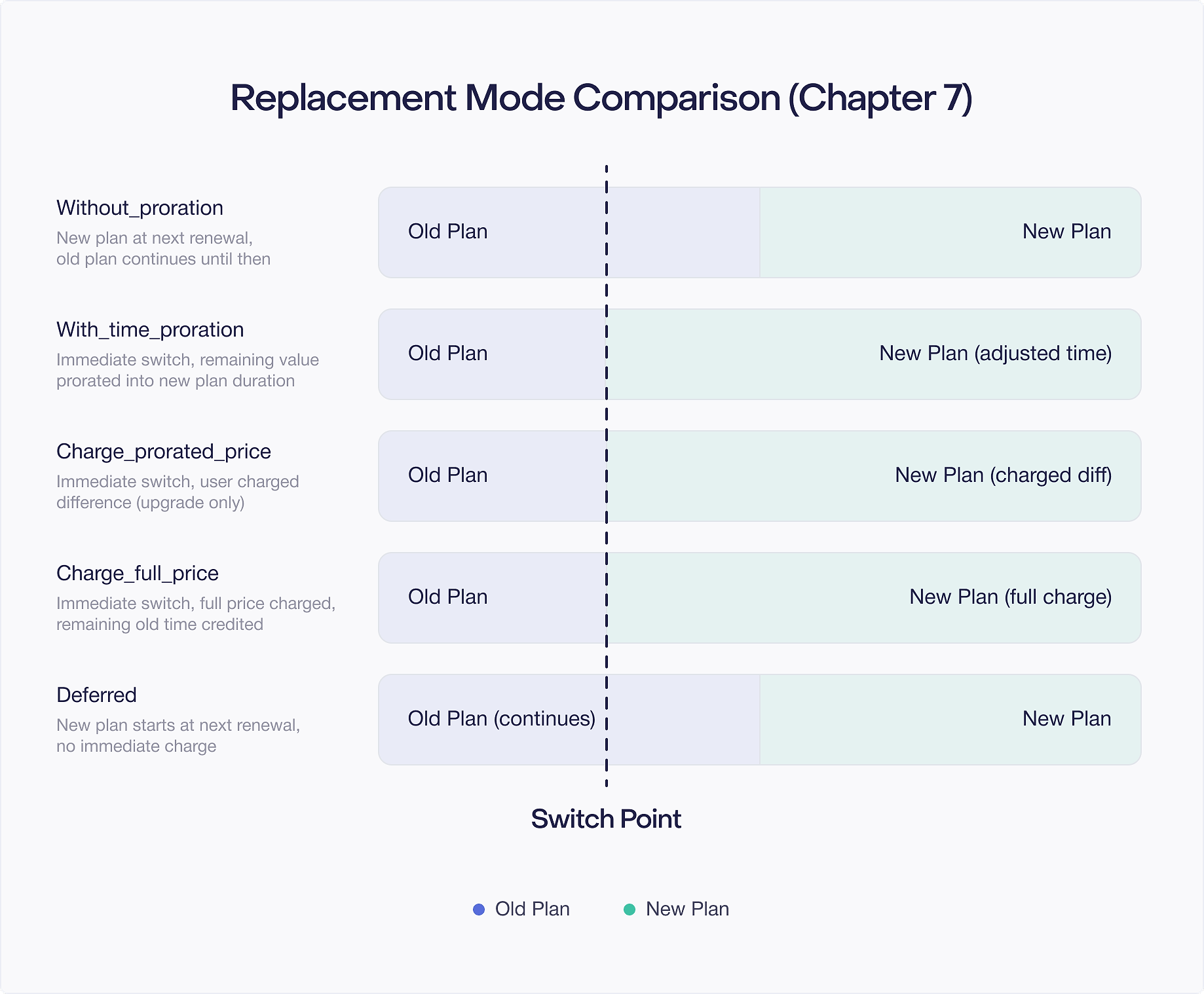
When you launch a plan change flow, you specify a replacement mode that tells Google how to handle the financial transition. Each mode controls two things: when the user gets access to the new plan, and how Google handles the money.
PBL 8.x defines these modes in the ReplacementMode interface. Here they are, each with a concrete scenario to show when you would use it.
WITH_TIME_PRORATION
This is the default replacement mode. Google calculates the monetary value of the remaining time on the current plan, converts it into time on the new plan, and switches the user immediately.
Scenario: A user is halfway through a $4.99/month basic plan and upgrades to a $9.99/month premium plan. They have roughly $2.50 in unused value. Google converts that into approximately 7 to 8 days of premium access. The user gets premium immediately, and their next billing date adjusts forward based on the converted time. No additional charge happens right now.
When to use it: This is a good default for any upgrade or downgrade where you want the transition to happen immediately without charging the user. It is the fairest option from the user's perspective because they never lose money they already paid.
Trade off: For upgrades to a more expensive plan, the next billing cycle comes sooner than the user might expect. For example, if the conversion only yields 8 days of premium time, the user gets charged again in 8 days rather than a full month later. This can surprise users if you do not communicate it clearly.
CHARGE_PRORATED_PRICE
Google charges the user immediately for the price difference between the old and new plan for the remainder of the current billing period. The user gets the new plan immediately, and the billing cycle stays the same.
Scenario: A user is halfway through a $4.99/month basic plan and upgrades to a $9.99/month premium plan. They have about 15 days left. Google charges them $2.50 right now (the $5.00 monthly difference prorated to 15 days), switches them to premium immediately, and the next full $9.99 charge happens on their original renewal date.
When to use it: This works well for upgrades where you want to keep the billing date predictable. The user's renewal date does not shift, which is easier to explain and less surprising. Users see a small charge now and then the full price at their usual renewal.
Important limitation: This mode only works for upgrades where the new plan costs more than the old plan. If you try to use it for a downgrade, the billing flow will fail. Google does not issue refunds through proration charges.
CHARGE_FULL_PRICE
Google charges the full price of the new plan immediately and switches the user right away. Any remaining value from the old plan is either converted into time on the new plan or applied as a credit toward the new plan's billing period.
Scenario: A user on a $4.99/month basic plan upgrades to a $49.99/year premium plan. Google charges $49.99 immediately, switches the user to premium, and the remaining value from the basic plan extends the annual subscription start date slightly. The user now has roughly a year plus a few extra days of premium.
When to use it: This is the required mode for switching to or from prepaid plans, because prepaid plans do not have recurring billing cycles to adjust. It also works well when switching between plans with different billing periods (monthly to annual), where proration math would be confusing.
Important detail: Unlike the other proration modes, the user sees a full charge in their payment method immediately. Make sure your UI communicates this clearly so users are not surprised.
WITHOUT_PRORATION
Google switches the user to the new plan immediately, but does not charge them until the next renewal date. The user gets the new plan's entitlements right away, and the price difference is settled at the next billing cycle.
Scenario: A user is on a $4.99/month basic plan that included a 7 day free trial, and they are currently in the trial period. They decide to upgrade to the $9.99/month premium plan. With WITHOUT_PRORATION, they keep the remainder of their free trial, get premium access immediately, and are charged $9.99 when the trial ends.
When to use it: This mode shines when you want to preserve free trials or introductory pricing periods. If you used WITH_TIME_PRORATION or CHARGE_PRORATED_PRICE during a free trial, the trial would effectively end. WITHOUT_PRORATION lets you upgrade the user while keeping whatever promotional period they are in.
Trade off: For upgrades outside of trial periods, the user gets the more expensive plan for free until their next renewal date. This means you are giving away premium access for the remainder of the current billing period. That may be acceptable as a goodwill gesture, but understand the revenue impact.
DEFERRED
The user stays on their current plan until the next renewal date. At renewal, Google switches them to the new plan and charges the new price. No immediate change happens from the user's perspective.
Scenario: A premium subscriber at $9.99/month decides to downgrade to the $4.99/month basic plan. With DEFERRED, they keep premium access for the remainder of their current billing period (they already paid for it), and the switch to basic happens automatically at renewal.
When to use it: This is the natural choice for downgrades. The user already paid for their current period, so they should keep their current access level until it expires. It is also useful when you want to let users schedule a plan change in advance without any immediate disruption.
Important behavior: Even though the switch does not happen until renewal, Google returns a new purchase token immediately when the billing flow completes. This new token has two line items: one for the current plan (active now) and one for the new plan (pending). You will learn more about this behavior in the section on deferred replacement later in this chapter.
KEEP_EXISTING (PBL 8.1+)
This mode was introduced in PBL 8.1 and works differently from the others. Instead of replacing the current plan, it keeps the existing subscription active and adds the new subscription alongside it. The user ends up with both plans active simultaneously.
Scenario: Your app offers a base subscription ($4.99/month) and an add on subscription ($2.99/month for extra storage). A user who already has the base subscription wants to add the storage add on. With KEEP_EXISTING, the original base subscription stays active and untouched, and the storage add on becomes a separate active subscription linked to the same purchase.
When to use it: This is designed for subscription add ons and modular subscription architectures. If your app offers a base plan plus optional add on packages, KEEP_EXISTING lets users build up their subscription bundle without replacing what they already have.
Important detail: The linkedPurchaseToken on the new purchase still points to the original purchase token. Your backend needs to understand that both subscriptions are active simultaneously, rather than treating the new one as a replacement for the old one. This requires different entitlement logic than a standard upgrade or downgrade.
Choosing the Right Replacement Mode
Here is a quick reference to help you decide:
These are recommendations, not rules. Your business logic might call for different choices. For example, you might prefer DEFERRED for all downgrades but CHARGE_PRORATED_PRICE for upgrades to keep billing dates stable. The key is understanding what each mode does so you can make an informed decision.
SubscriptionProductReplacementParams vs. SubscriptionUpdateParams
If you have worked with older versions of PBL, you likely used BillingFlowParams.SubscriptionUpdateParams to configure plan changes. Starting with PBL 8.1, Google introduced SubscriptionProductReplacementParams as the preferred way to set up replacement flows.
The older SubscriptionUpdateParams is now deprecated. While it still works in PBL 8.x, you should migrate to the new API for any new code. Here is why the new API is better:
- Clearer separation of concerns:
SubscriptionProductReplacementParamsis attached to the product parameters rather than the billing flow parameters. This makes it clearer which product is being replaced and how. - Support for newer features:
KEEP_EXISTINGmode and other future replacement features are only guaranteed to work with the new API. - Consistent with PBL 8.x patterns: The new API follows the same builder patterns used elsewhere in PBL 8.x.
Here is how the old approach looks:
And here is the new approach with SubscriptionProductReplacementParams:
The key structural difference is that replacement parameters are now attached to ProductDetailsParams instead of being a top level property on BillingFlowParams. This makes the data model more logical: you are saying "I want this product, and it should replace this existing subscription" rather than "I want to update a subscription, and here is a product."
If you are starting a new project with PBL 8.1 or later, use SubscriptionProductReplacementParams exclusively. If you are maintaining existing code that uses SubscriptionUpdateParams, plan to migrate when convenient, but there is no urgent rush since the deprecated API still functions correctly.
Understanding linkedPurchaseToken and Why It Matters
When a user performs a plan change, the new SubscriptionPurchaseV2 resource returned by the Google Play Developer API contains a field called linkedPurchaseToken. This field holds the purchase token of the subscription that was replaced.
This field is your backend's guide to maintaining a clean subscription history. Here is why it matters:
Preventing duplicate entitlements: Without checking linkedPurchaseToken, your backend might see a new purchase token and treat it as a brand new subscription. The user would then appear to have two active subscriptions when they should have one. By checking linkedPurchaseToken, you know to deactivate the old subscription record when activating the new one.
Building a subscription chain: Over the life of a user's subscription, they might upgrade, downgrade, and change plans multiple times. Each change produces a new purchase token linked to the previous one. By following the chain of linkedPurchaseToken values, you can reconstruct the complete history of a user's subscription.
Handling the token on your server: When your backend receives a new purchase token (either from the client app or through an RTDN), the verification flow should include these steps:
- Call the Google Play Developer API to get the
SubscriptionPurchaseV2resource for the new token. - Check if
linkedPurchaseTokenis present. - If it is present, look up the old purchase token in your database.
- Mark the old subscription record as replaced.
- Create a new subscription record with the new token.
- If using
KEEP_EXISTINGmode, mark both subscriptions as active instead of replacing.
A common mistake: Some developers only check linkedPurchaseToken one level deep. But consider this sequence: the user buys Plan A (token 1), upgrades to Plan B (token 2, linked to token 1), then upgrades to Plan C (token 3, linked to token 2). If your backend only processes notifications for token 3 and token 1 was still marked active (maybe you missed the notification for token 2), you need to walk the chain back and deactivate everything older than the current active token.
The safest approach is to look up linkedPurchaseToken, mark it as replaced, and also verify there are no other active subscriptions for the same user and product family.
Deferred Replacement Behavior: Immediate Token, Two Line Items
The DEFERRED replacement mode has unique behavior that deserves special attention. When you launch a billing flow with DEFERRED mode, Google returns a new purchase token immediately, even though the actual plan switch does not happen until the next renewal date.
This means the PurchasesUpdatedListener in your app receives the new purchase right away. Your backend gets a new token to verify right away. But the user is still on their old plan.
How does this work? The new purchase token's SubscriptionPurchaseV2 resource contains two line items:
- The current plan: This line item represents the user's existing subscription. It is active now and has an expiry time matching the current billing period's end.
- The new plan: This line item represents the plan the user is switching to. It is in a "pending" or "deferred" state and will become active when the current plan's line item expires.
Your backend should handle this by granting the current plan's entitlement and scheduling or noting the upcoming change. When the renewal date arrives, Google sends an RTDN indicating the switch has occurred. At that point, you update the user's entitlement to reflect the new plan.
Why this matters for your UI: If a user initiates a deferred downgrade, your app should show them that the change is scheduled. Something like "You will switch to Basic on March 15" gives the user confidence that their request was processed. You can read the expiry time of the current plan's line item to determine when the switch will happen.
Canceling a deferred replacement: If the user changes their mind before the renewal date, they can initiate another plan change. The new plan change replaces the pending deferred change. There is no separate "cancel deferred change" API.
Default Replacement Mode Configuration in Play Console
Starting with recent versions of the Play Console, you can set a default replacement mode for plan changes at the subscription level. This means you do not always have to specify the replacement mode in your client code, because Google can fall back to the configured default.
To configure this:
- Go to Monetize > Subscriptions in the Play Console.
- Select the subscription you want to configure.
- Look for the Upgrade/downgrade settings section (this may be under base plan settings depending on the Console version).
- Set the default replacement mode for upgrades and downgrades.
This is useful if you want consistent behavior across all plan changes without relying on every client version to specify the correct mode. However, specifying the replacement mode explicitly in your client code is still the recommended approach for two reasons:
- Clarity: Anyone reading your code can see exactly what replacement behavior is expected.
- Control: Different plan changes might warrant different modes. An upgrade might use
CHARGE_PRORATED_PRICEwhile a downgrade usesDEFERRED. The Play Console default is a single setting per subscription, so it cannot express this nuance.
If you do specify a replacement mode in your client code, it overrides the Play Console default. The console setting only applies when no mode is specified in the BillingFlowParams.
Think of the Play Console default as a safety net. If a client version ships without specifying a replacement mode (perhaps due to a bug), the console default ensures users still get a reasonable experience rather than an error.
Putting It All Together: A Complete Plan Change Flow
Here is how a typical upgrade flow works end to end, from the user tapping "Upgrade" in your app to the entitlement being updated on your backend.
Step 1: The user taps an upgrade button in your app. Your app already has the current subscription's purchase token (stored locally after the original purchase) and has queried ProductDetails for the new plan.
Step 2: Your app builds BillingFlowParams with the new product details and the replacement parameters:
Step 3: Launch the billing flow. Google Play shows the user a confirmation dialog that explains the price change and timing.
Step 4: The PurchasesUpdatedListener receives the result. If successful, you get a new Purchase object with a new purchase token.
Step 5: Send the new purchase token to your backend for verification.
Step 6: Your backend calls the Google Play Developer API, finds the linkedPurchaseToken, deactivates the old subscription record, creates the new one, and acknowledges the purchase.
Step 7: Your backend sends a response to the app confirming the entitlement update. The app updates its UI to reflect premium access.
This entire flow typically completes in a few seconds from the user's perspective.

