
Chapter 14: Changing Subscription Prices
Pricing is never permanent. Market conditions shift, costs change, competitors adjust their pricing, and your own product evolves. At some point, you will need to change the price of a subscription that already has active subscribers. Google Play provides a system for this, but it is one of the most nuanced parts of the billing platform. Different rules apply depending on whether the price goes up or down, whether the subscriber is new or existing, and which country the subscriber lives in.
This chapter walks through every type of price change Google Play supports, the timelines and notification requirements for each, the APIs you use to execute them, and the edge cases you need to handle on your backend.
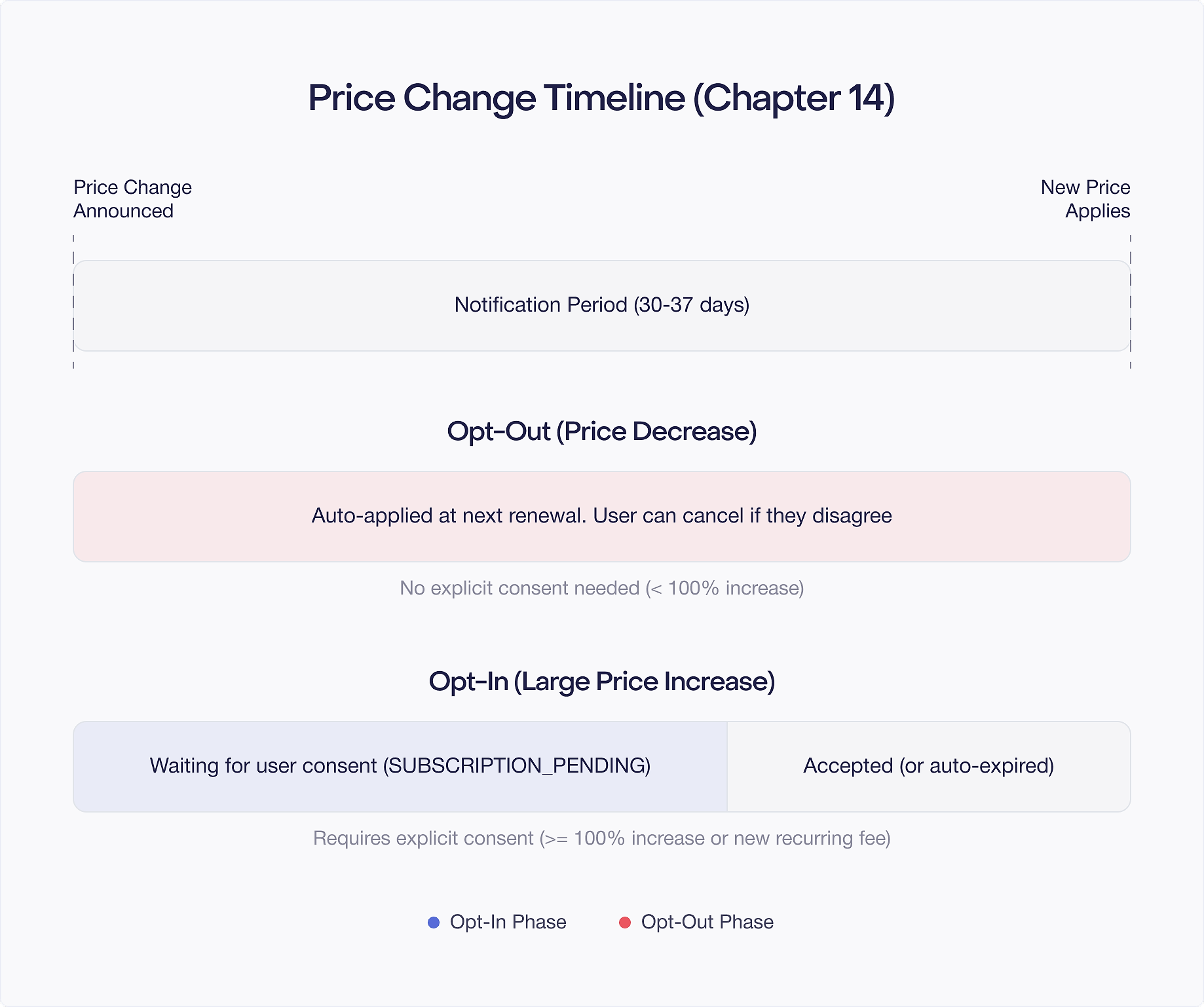
How Pricing Works: New Subscribers vs. Legacy Price Cohorts
When you change the price of a base plan, the new price takes effect for new purchases within a few hours. Any user who subscribes after the change sees and pays the updated price. No additional work is required on your part for new subscribers.
Existing subscribers are a different story. By default, they are completely unaffected by a price change. Google places them into a legacy price cohort, and they continue paying their original base plan price at every renewal. This is an intentional design decision. Users agreed to pay a specific price when they subscribed, and Google does not change that agreement without an explicit action from you.
This means that after a price change, you can have multiple groups of subscribers paying different amounts for the same base plan. A subscriber who joined in January at $4.99/month and a subscriber who joined in June at $6.99/month both have the same entitlement, but they are in different price cohorts. Google supports up to 250 concurrent legacy price cohorts per base plan.
There are two important exceptions to this behavior:
- Offer pricing phases cannot be migrated. If you change the price of a free trial or introductory offer, the change only affects new subscribers. You cannot push existing subscribers from one offer phase price to another.
- Installment subscriptions freeze prices during the commitment period. If a subscriber committed to 12 monthly payments at $4.99, you cannot change their price until the commitment ends. Any price migration you initiate takes effect only after the commitment period concludes.
To move existing subscribers to the current price, you must explicitly end the legacy price cohort. This triggers Google's price change notification system, which varies depending on whether the new price is higher or lower.
Programmatic Price Changes via monetization.subscriptions.patch
You can change a base plan's price through the Play Console UI, but for large catalogs or automated pricing workflows, the Google Play Developer API is more practical.
To update the price of a base plan programmatically, use the monetization.subscriptions.patch method. You send a Subscription object with the updated configuration, setting the new price in the RegionalBasePlanConfig under the appropriate base plan.
Here is a simplified example of the request structure:
After the patch completes, the new price applies to all new purchases within a few hours. Existing subscribers remain in their legacy price cohort until you explicitly migrate them.
The patch method updates the subscription configuration itself. It does not trigger any notifications to existing subscribers. Think of it as changing the sticker price on the shelf. Only the next customer who picks up the product sees the new price.
Price Change Timeline and Propagation
After you call monetization.subscriptions.patch or update the price in the Play Console, propagation follows a predictable pattern:
- Immediate: The API confirms the price change.
- Within a few hours: New purchases reflect the updated price. The exact propagation time varies, but it is typically under 4 hours.
- No impact on existing subscribers: Legacy cohort subscribers continue at their original price indefinitely until you migrate them.
If you are running a time sensitive promotion and need the price to be live by a specific hour, give yourself a buffer. Initiate the change well ahead of your target time. There is no way to force instant propagation.
Ending a Legacy Price Cohort
To move existing subscribers from their old price to the current base plan price, you end the legacy price cohort. This is the action that triggers Google's notification and consent system.
Via the Play Console
- Go to Monetize > Subscriptions and select the subscription.
- Open the base plan whose price you changed.
- Navigate to the Legacy price points section.
- Select the cohort you want to migrate and initiate the price change.
- Choose opt in or opt out (if eligible) for price increases.
Via the API: basePlans.migratePrices
For programmatic migration, use monetization.subscriptions.basePlans.migratePrices. This method accepts a list of RegionalPriceMigrationConfig objects that specify which regions to migrate and how.
The oldestAllowedPriceVersionTime field is a timestamp cutoff. All subscribers in legacy cohorts created before this timestamp will be migrated to the current price. This lets you target specific cohorts without affecting more recent ones.
The priceIncreaseType field determines whether the migration uses opt in or opt out rules. If you set it to PRICE_INCREASE_TYPE_OPT_OUT but the migration does not meet regional, frequency, or amount requirements, Google automatically downgrades it to opt in. The first opt out price increase for each app must be initiated through the Play Console, not the API.
A successful request returns an empty response body, confirming the migration was queued. Google then begins the notification process according to the rules described in the following sections.
Price Decrease: Automatic, Email Notification, Authorization Window
When the current base plan price is lower than a legacy cohort's price, migrating that cohort is a price decrease. This is the simplest type of price change because it requires no consent from the subscriber.
Here is what happens:
- You initiate the migration (Console or API).
- Google sends an email notification to affected subscribers informing them their price is going down.
- At their next renewal, subscribers are charged the lower price.
There is no opt in dialog, no freeze period, and no risk of cancellation. Users are simply notified and then charged less.
The authorization window matters here. Google authorizes payment up to 48 hours before a subscriber's renewal date in most regions. In India and Brazil, authorization happens up to 5 days before renewal. If a subscriber's payment was already authorized at the old (higher) price before the decrease took effect, they pay the old price for that cycle and the decrease applies at the following renewal.
For example, suppose you decrease the price on March 10. A subscriber whose renewal date is March 11 may have already been authorized at the old price on March 9. That subscriber pays the old price on March 11 and the new lower price on April 11.
License testers also receive email notifications for price decreases, so you can verify the notification flow during development.
Opt In Price Increase: 37 Day Notice, 7 Day Freeze, Auto Cancel
The default behavior for price increases is opt in. Subscribers must explicitly accept the higher price, or Google cancels their subscription. This is the most protective approach for users, and it is the only option in many regions.
The Timeline
The opt in price increase follows a precise timeline:
Day 0: You initiate the price migration. Google records the effective date as 37 days from now.
Days 0 through 7 (the freeze period): Nothing visible happens to subscribers. Google holds the price change for 7 days. This is your window to communicate the change to users through your own channels before Google starts sending notifications. You can show in app banners, send push notifications, or email users from your own systems. No Google notifications go out during this period.
Day 7 onward: Google begins sending email and push notifications to affected subscribers. The exact timing of notifications depends on each subscriber's individual renewal date. Google starts notifying a subscriber 30 days before their first renewal at the new price.
Day 37 (effective date): The price change becomes enforceable. Any renewal that occurs on or after this date is subject to the new price.
What Happens at Renewal
When a subscriber's renewal date arrives after the effective date:
- If the subscriber accepted the price increase, they are charged the new price. Life continues normally.
- If the subscriber did not accept (and did not cancel), Google automatically cancels their subscription. The user retains access until the end of the current billing period, then the subscription expires.
Concrete Example: Monthly Subscription
Suppose you have a $1/month subscription and you raise the price to $2/month on March 3.
- Effective date: April 9 (37 days later).
- Alice (renews on the 5th): Renews at $1 on March 5 and April 5 (both before the effective date). Receives notifications starting around April 5 (30 days before her May 5 renewal). If she accepts, she pays $2 on May 5.
- Bob (renews on the 29th): Renews at $1 on March 29 (before effective date). Receives notifications starting around March 30 (30 days before his April 29 renewal). If he accepts, he pays $2 on April 29.
Notice that Bob's first renewal at the new price comes sooner than Alice's, even though the migration was initiated on the same day. Each subscriber's timeline is relative to their own renewal date.
Concrete Example: Quarterly Subscription
For a quarterly (3 month) subscription at $1, raised to $2 on March 3:
- Alice (renews March 5): Pays $1 on March 5. Next renewal is June 5 (after the effective date). Receives notifications starting around May 6. Pays $2 on June 5 if she accepts.
- Bob (renews April 11): April 11 is after the April 9 effective date. Receives notifications starting around March 12. Pays $2 on April 11 if he accepts.
Longer billing periods mean fewer renewal opportunities, so subscribers may not encounter the new price for months after you initiate the change.
Showing Price Change Information in Your App
During the 7 day freeze period, use your own messaging to prepare users. After day 7, Google handles notifications, but you should also surface the price change in your app. Provide a deep link to the Play Store subscription management screen so users can easily review and accept the change.
Opt Out Price Increase: Conditional Availability
Opt-out price increases let you raise prices without requiring explicit acceptance. Subscribers are notified, but unless they actively cancel or change plans, they are charged the new price automatically. This is a less disruptive approach for your business, but it comes with significant restrictions.
Eligibility Requirements
Opt-out price increases are not universally available. They are subject to:
- Regional restrictions: Only certain countries support opt out increases. The available regions and their specific rules are maintained by Google and can change over time.
- Amount limits: There is a maximum allowed increase amount per region. The exact thresholds vary by country.
- Frequency limits: Each base plan can only have one opt out price increase per country in any 365 day rolling window.
- Developer requirements: When initiating an opt out increase, you must certify in the Play Console that your app's terms of service reserve the right to increase subscription prices with advance notice and provide clear, valid reasons for the increase.
- First opt out must use the Console: The first opt out price increase for each app must be initiated through the Play Console. Subsequent opt out increases can use the API.
If you attempt an opt out increase via the API and it does not meet regional, frequency, or amount requirements, Google automatically converts it to an opt in increase. Your migration will still proceed, but subscribers will need to accept the new price.
Notification Timeline
The notification period for opt out increases depends on the subscriber's country:
- 30 day notification countries: Subscribers receive email and push notifications starting 30 days before their first charge at the new price.
- 60 day notification countries: Subscribers receive notifications starting 60 days before the first charge.
Unlike opt in increases, there is no 7 day freeze period for opt out increases. Google begins sending notifications immediately after you initiate the migration.
What Happens at Renewal
When a subscriber's renewal date arrives after the notification period:
- If the subscriber took no action, they are charged the new price. The subscription continues normally.
- If the subscriber canceled or changed plans during the notification period, the price increase does not apply. The subscription follows normal cancellation or plan change behavior.
Concrete Example: 30 Day Opt Out Region
You increase a $1/month subscription to $1.30 on January 2, in a region with a 30 day notification period.
- Alice (renews on the 14th): Renews at $1 on January 14. Receives notifications starting January 15. Pays $1.30 on February 14 unless she cancels.
The effective date is calculated as January 2 plus 30 days, which is February 1. Alice's first renewal after February 1 is February 14, so that is when the new price applies.
Overlapping Price Changes: Only the Latest Applies
If you initiate multiple price migrations for the same base plan before the first one fully resolves, only the latest migration applies. Google does not stack price changes or require users to respond to each one individually.
Here is what happens when price changes overlap:
- The older price migration is marked as
CANCELEDin theSubscriptionPurchaseV2resource'spriceChangeDetails. - You receive a
SUBSCRIPTION_PRICE_CHANGE_UPDATEDRTDN for the cancellation of the old migration. - The new price migration takes over. Its status appears as
OUTSTANDING(for opt in increases) orCONFIRMED(for opt out increases and decreases). - You receive another
SUBSCRIPTION_PRICE_CHANGE_UPDATEDRTDN for the new migration. - The subscriber only needs to respond to the latest change.
Concrete Example: Two Opt In Increases
You raise the price from $1 to $2 on March 3 (effective April 9). Then on March 10, you raise it again from $2 to $3 (effective April 16).
- Alice (renews March 5): The first migration ($1 to $2) is canceled during the 7 day freeze period of the second migration. Alice never receives notifications about the $2 price. She receives notifications about the $3 price starting around April 5. Her May 5 renewal is at $3 if she accepts.
The 7 day freeze period of the second migration effectively absorbs the first migration. From the subscriber's perspective, only one price change ever existed.
Why This Matters for Your Backend
When you receive a SUBSCRIPTION_PRICE_CHANGE_UPDATED RTDN, always call purchases.subscriptionsv2.get to check the current state. Do not assume the RTDN corresponds to the most recent migration you initiated. It might be a cancellation notice for an older migration. Check the priceChangeState field to understand what actually happened.
Accidental Price Change Recovery
Mistakes happen. You might set the wrong price, migrate the wrong cohort, or change the price in the wrong direction. Google provides recovery paths for each scenario.
Recovering from an Accidental Opt In Price Increase
- Change the base plan price back to the original value using the Console or API.
- Navigate to the legacy price points page for the base plan.
- Initiate a price decrease migration to move subscribers back to the original price.
Timing matters. If you catch the mistake within the 7 day freeze period, existing subscribers were never notified. The original migration is canceled cleanly. If you catch it after the freeze period but before any subscriber has paid the new price, the migration is canceled for subscribers who have not yet been charged. Subscribers whose payment was already authorized at the new price (within the 48 hour or 5 day authorization window) may still be charged the higher amount for one cycle.
Recovering from an Accidental Opt Out Price Increase
The recovery process is the same as for opt in:
- Revert the base plan price to the original value.
- Initiate a price decrease from the legacy price points page.
Since opt out increases have no freeze period, subscribers may have been notified immediately. If any subscriber has already been charged the higher price, the decrease applies at their next renewal.
Recovering from an Accidental Price Decrease
This is trickier because you are trying to move the price back up:
- Revert the base plan price to the original (higher) value using the Console or API.
- Navigate to the legacy price points page.
- Initiate a price increase migration (opt in or opt out if eligible) to move subscribers back to the original price.
Whether the reversal is effective depends on timing relative to each subscriber's renewal date:
- Valid cancellation: If the period between your reversal and the subscriber's next renewal at the lower price exceeds the country specific notification window (30 or 60 days), the subscriber renews at the original higher price. The accidental decrease is effectively canceled.
- Invalid cancellation: If the period is shorter than or equal to the notification window, the subscriber pays the lower price for at least one cycle. After that, they go through the standard price increase process (opt in or opt out) to return to the original price.
The practical takeaway: catch pricing mistakes as quickly as possible. The longer you wait, the more subscribers will have been charged at the wrong price, and the more complex the recovery becomes.
Price Step-Up Consent (South Korea)
South Korean regulations require a special consent mechanism for price transitions that occur within a subscription's offer phases. Specifically, when a subscriber's free trial or introductory offer period ends and the subscription transitions to the higher base plan price, the subscriber must explicitly consent to the step up.
This is different from a developer initiated price change. A price step up happens because the subscriber's offer expired and the full price kicks in. The subscriber knew about this when they signed up, but Korean regulations require Google to collect explicit consent before the higher charge.
How It Works
When a subscriber in South Korea is approaching the end of a free trial or introductory pricing phase:
- Google notifies the subscriber about the upcoming price step up.
- The subscriber has a consent window (up to 30 days before the step up) to accept or decline.
- If the subscriber consents, the subscription transitions to the base plan price normally.
- If the subscriber does not consent before the step up date, Google automatically cancels the subscription.
Example: Free Trial to Base Price
A subscriber in South Korea signs up on March 3 with a 10 day free trial for a $4.99/month subscription.
- March 3: Subscription starts. Free trial begins.
- March 13: Free trial ends. If the subscriber consented during the trial, they are charged $4.99. If not, the consent period continues for up to 30 days (until April 12). If they still have not consented by the step up date, the subscription is canceled.
Example: Free Trial to Introductory Price to Base Price
If your offer has multiple phases (free trial, then intro price, then full price), consent is required at each transition:
- First consent: Free trial to introductory price.
- Second consent: Introductory price to base plan price.
Each transition requires its own consent from the subscriber.
Identifying Offer Phases in the API
Use the offerPhase field in SubscriptionPurchaseLineItem to determine which phase a subscriber is currently in:
This field helps you distinguish between a price step up (offer phase transition) and a developer initiated price change, which require different handling in your backend.
RTDN Notification Types for Price Changes
Google provides two Real Time Developer Notification types for price change events. Both arrive as SubscriptionNotification objects containing a purchaseToken and a notificationType integer.
SUBSCRIPTION_PRICE_CHANGE_UPDATED (Type 19)
This notification fires when:
- A price change migration is initiated for a subscriber.
- A subscriber accepts or declines an opt in price increase.
- An overlapping price change cancels a previous migration.
- The price change status updates for any reason.
When you receive this RTDN, call purchases.subscriptionsv2.get with the included purchaseToken. Inspect the priceChangeDetails on the relevant line item:
The priceChangeMode field tells you the type of change:
The expectedNewPriceChargeTime field tells you when the subscriber will first be charged at the new price. This field is only populated when the change has not yet been applied.
SUBSCRIPTION_PRICE_STEP_UP_CONSENT_UPDATED (Type 22)
This notification fires only for subscriptions in South Korea (or other regions where price step up consent is required). It is sent when:
- The consent period for a price step up begins (the subscriber is approaching the end of a free trial or introductory phase).
- The subscriber provides or declines consent.
When you receive this RTDN, call purchases.subscriptionsv2.get and check the subscription's line item for the current offer phase and consent state. If the subscriber has not consented and the step up date is approaching, you may want to surface a reminder in your app.
Backend Processing Pattern
A clean way to handle both RTDN types is to route them through a single handler:
Always fetch the latest subscription state from the API after receiving an RTDN. The notification tells you something changed, but the API response is the source of truth for the current state.
Testing Price Changes with Play Billing Lab
Changing subscription prices in production to test your handling is risky. You could accidentally affect real subscribers. Google provides Play Billing Lab specifically for testing price changes safely.
Setting Up a Price Change Test
- Install the Play Billing Lab app on your test device.
- Make sure your test account is configured as a license tester in the Play Console.
- Purchase a subscription with your license tester account.
- In Play Billing Lab, open the Subscription settings card and click Manage.
- Select the active subscription you want to test.
- Enter the new price.
- Check or uncheck the User opt out checkbox depending on which flow you want to test.
- Click Apply.
The price change applies only to your test subscription at the next renewal. Other subscribers (including other testers) are not affected.
Compressed Notification Timelines
License tester subscriptions already use compressed billing periods (a monthly subscription renews every 5 minutes, for example). Play Billing Lab compresses notification timelines to match:
This lets you observe the full notification and renewal cycle in minutes rather than weeks.
Testing Tips
Defer billing after triggering a price change. Because license tester renewal periods are so short, the subscription might renew before the price change notification is even registered. Defer the billing by at least one hour after applying the price change to give the system time to process.
Test all three scenarios. Create separate test flows for price decreases, opt in increases, and opt out increases. Each has different notification behavior and user interaction requirements.
Verify your RTDN handling. After applying a price change in Play Billing Lab, check that your server receives the SUBSCRIPTION_PRICE_CHANGE_UPDATED RTDN and processes it correctly. Verify that your purchases.subscriptionsv2.get call returns the expected priceChangeDetails.
Test the cancellation path. For opt in increases, let the test subscription renew without accepting the price change. Verify that your backend correctly handles the automatic cancellation.
Test overlapping changes. Apply one price change, then immediately apply another before the first resolves. Verify that your backend processes the cancellation of the first change and the activation of the second.

